

These tips apply to activities you create on the Events screen. Challenges use fixed requirements. For a lesson, start with the daily reading lesson.
Section 01
Name the activity, not the whole plan.
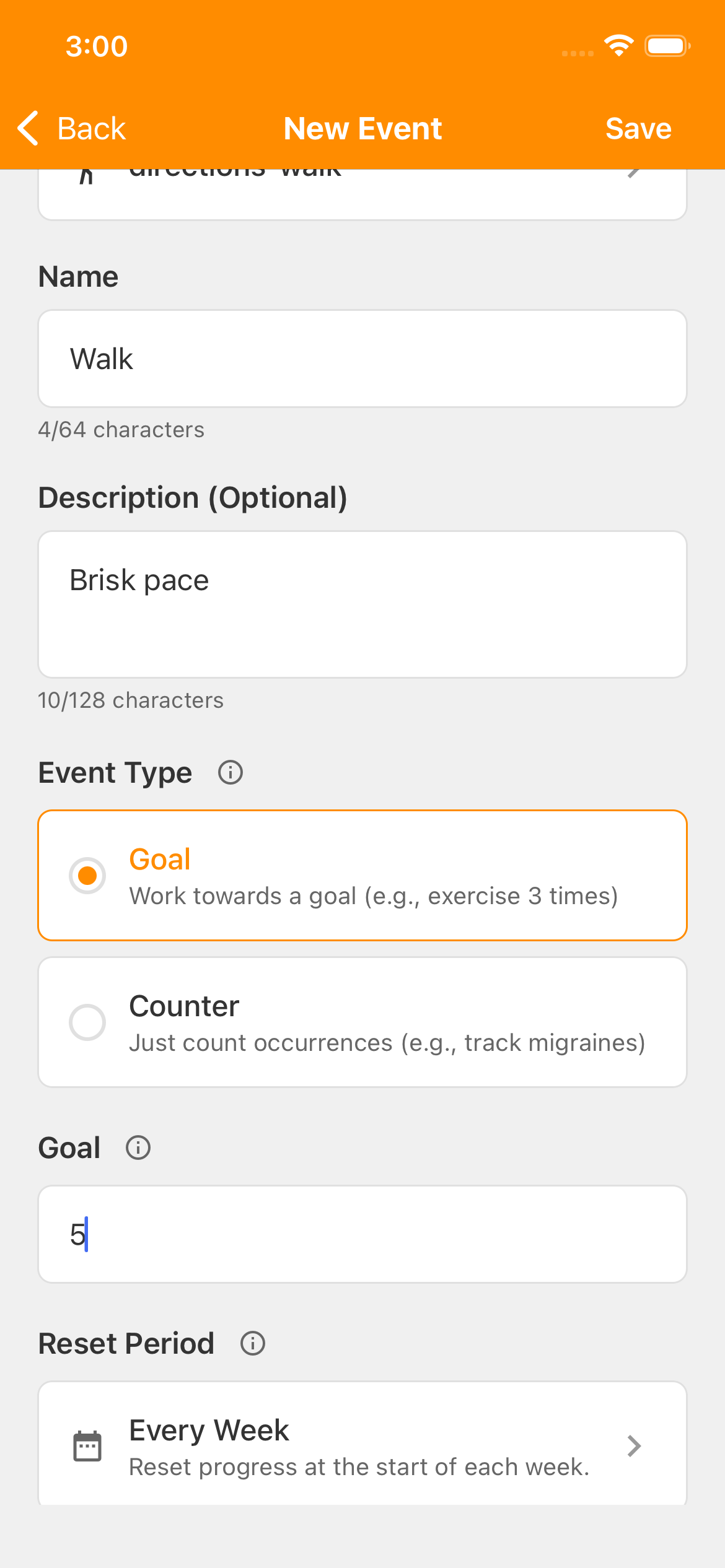
Give each Event An activity you want to track, such as reading, walking, or staying hydrated. a short, recognizable Name. Put the most useful words first. Instead of “My plan to go for five brisk walks every week,” try Walk. Here are a few names and optional descriptions you could use:
- Walk
- Brisk pace
- Guitar Practice
- 20 minutes minimum per session.
- Stretching
- 15 minutes minimum per session.
You could also name the activity Walk and use 8,000 steps minimum per walk for Description (Optional). One count would still mean one walk that meets your description — not one count per step. Choose the description that fits what you want to do.
Use Description (Optional) for reminders about what counts. The example below keeps Name as Walk and puts Brisk pace in the description. If you want a target, put the number of completed walks or sessions in Goal and the schedule in Reset Period, rather than packing everything into the name.
Section 02
What will you record?
For walking, guitar practice or stretching, decide what a completed session means. Use the same rule each time so your totals stay useful.
- Walk
- One count = one walk that meets your description, not each minute of walking.
- Guitar Practice
- One count = one guitar practice session lasting at least 20 minutes. Record one count after the session.
- Stretching
- One count = one stretching session lasting at least 15 minutes. Complete three sessions, record three counts.
Keep that meaning consistent so earlier and later totals stay comparable. Accumoo records the counts you enter; it doesn't measure steps or time your sessions for you. With these examples, your total shows completed walks or sessions, not minutes or hours. Accumoo doesn't convert your session counts into a duration.
These session-based examples are for your own Events. A Challenge has a counting rule set by Accumoo: the Skill Practice Challenge counts minutes rather than sessions. See the guitar practice Challenge lesson for that different setup and both progress indicators.
Section 03
Choose a Goal or a Counter.
On the New Event screen, Event Type offers two choices:
- Choose Goal for a target
- A Goal Your target for an activity, such as one reading session each day. gives you something to reach. If one count means one walk, a Goal of 5 means five walks in your chosen period. For Stretching, a Goal of 3 means three sessions that each meet your 15-minute minimum — not three minutes.
- Choose Counter without a target
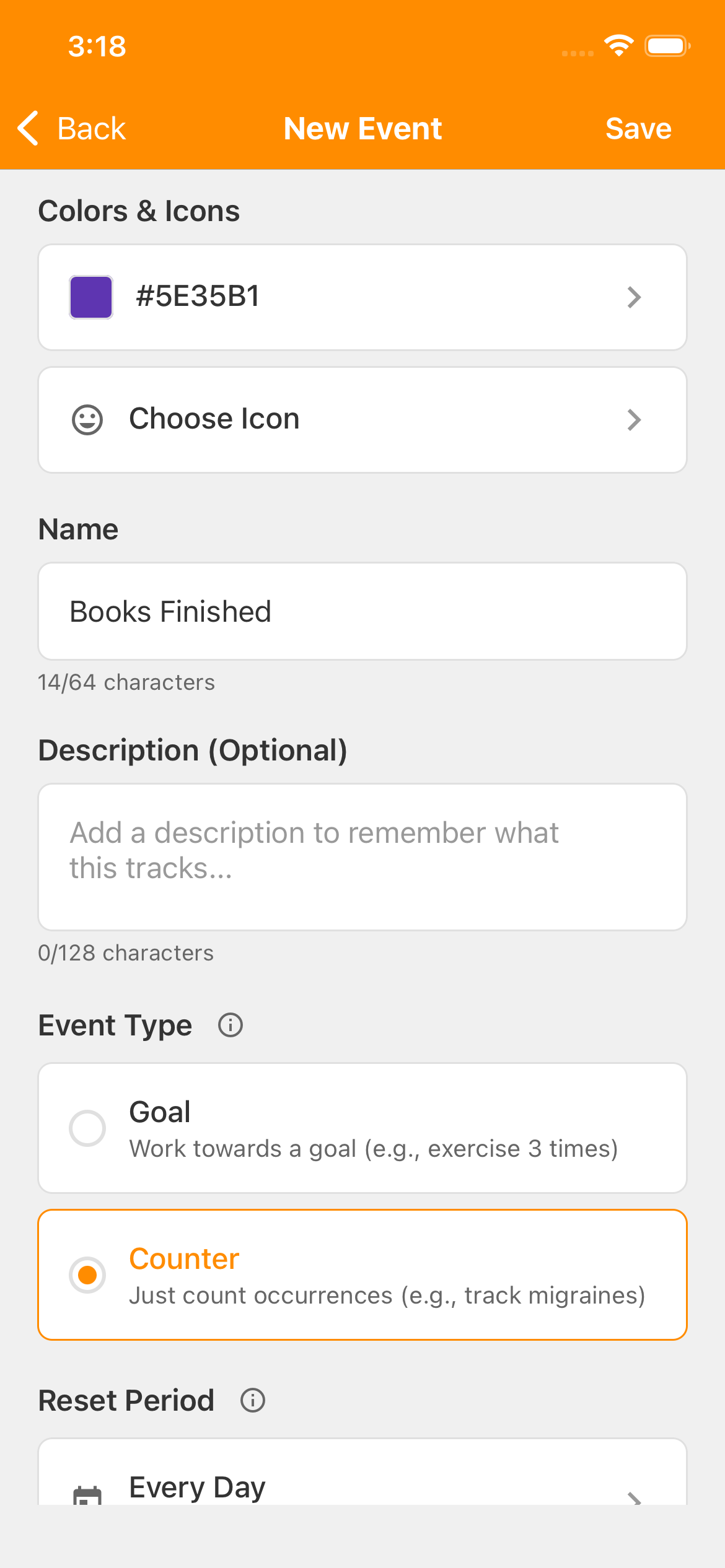
- A Counter An activity that keeps a count without a target. It can reset on a schedule or keep a running total. lets you count as much or as little as you like. There is no target to reach; the numeric Goal field is hidden. For example, count completed guitar practice sessions without setting a target number of sessions.
Choose a target that feels manageable for you. A Goal is a milestone, not a cap: you can keep adding counts after reaching it.
Want a running total without a target? the Books Finished lesson shows the Counter setup step by step.
Section 04
Choose when your total starts fresh.
Choose a Reset Period How often the current count starts over, such as daily or weekly. Earlier activity stays in History, subject to your account's history access. to match the question you want your count to answer. The target and the reset period are separate choices.
- Every Day: how many today?
- Choose Every Day for a fresh count each day. Active Days lets you choose the weekdays. A Goal of 1 applies separately to each active day.
- Every Week: how many this week?
- Choose Every Week to add all that week's counts toward the same total. A Goal of 5 means five occurrences during the week, which can include more than one on a day. It doesn't require five different days.
- Never: how many so far?
- Choose Never for Reset Period to keep adding to the same total without an automatic reset. These activities appear under Lifetime on the Events screen.
Section 05
Same activity. Different plans.
Start with what you want to do, then choose the settings. These are alternatives to compare, not four activities you need to create. Keep one count's meaning the same in each example.
- I want one walk on each weekday.
- Choose Goal for Event Type, 1 for Goal, and Every Day for Reset Period. Under Active Days, select Monday through Friday. Each selected day has its own target. Two walks on Monday do not meet Tuesday's target.
- I want five walks whenever they fit this week.
- Choose Goal for Event Type, 5 for Goal, and Every Week for Reset Period. The week's walks share one target; several walks on one day count toward it. Active Days is not offered for this reset period.
- I want to see how many practice sessions I do each week.
- Name it Guitar Practice, with 20 minutes minimum per session as its description. Choose Counter for Event Type and Every Week for Reset Period. There is no numeric Goal field. One completed session adds one count; the count starts fresh next week. It is a session total, not a timer.
- I want a running total of all my practice sessions.
- Keep the same Guitar Practice name, description and counting rule. Choose Counter for Event Type and Never for Reset Period. The activity appears under Lifetime and keeps accumulating sessions without an automatic reset.
The two walking plans ask different things: being active on particular days, or reaching a weekly total. Neither is a better plan for everyone. The two practice plans both count sessions without a target; one answers “this week,” the other “so far.” Accumoo does not convert those counts into minutes or hours.
Review Reset Period before saving because it cannot be changed afterward. To use a different reset period later, create a separate Event rather than deleting your existing record. For the walking comparison with setup pictures, follow the weekly walking lesson.
Section 06
Your quick check.
- Can I recognize this activity from its name alone?
- Do I know exactly what one count means?
- Do I want a Goal, or a Counter with no target?
- Does the Reset Period match when I want to start fresh?
- After saving, can I read the name easily on the devices and text sizes I use?
When you're creating an activity, tap Save at the top right of the New Event screen. If a tip doesn't fit what you want to track, adapt the example — it's your activity.
Names, goals and schedules
Nice work!
You've finished this topic. Choose another whenever you're ready.
Back to all topics