
Open Accumoo. If this is your first activity, start with the daily reading lesson.
Step 01
Choose the Walk template.
We'll use an Event An activity you want to track, such as reading, walking, or staying hydrated. called Walk. One count will mean one walk you choose to record.
- Tap Events in the bottom bar to open its screen.
- Tap the + in the top-right corner to open New Event.
- On the New Event screen, choose Browse Templates.
- On the Event Templates screen, choose the Health category.
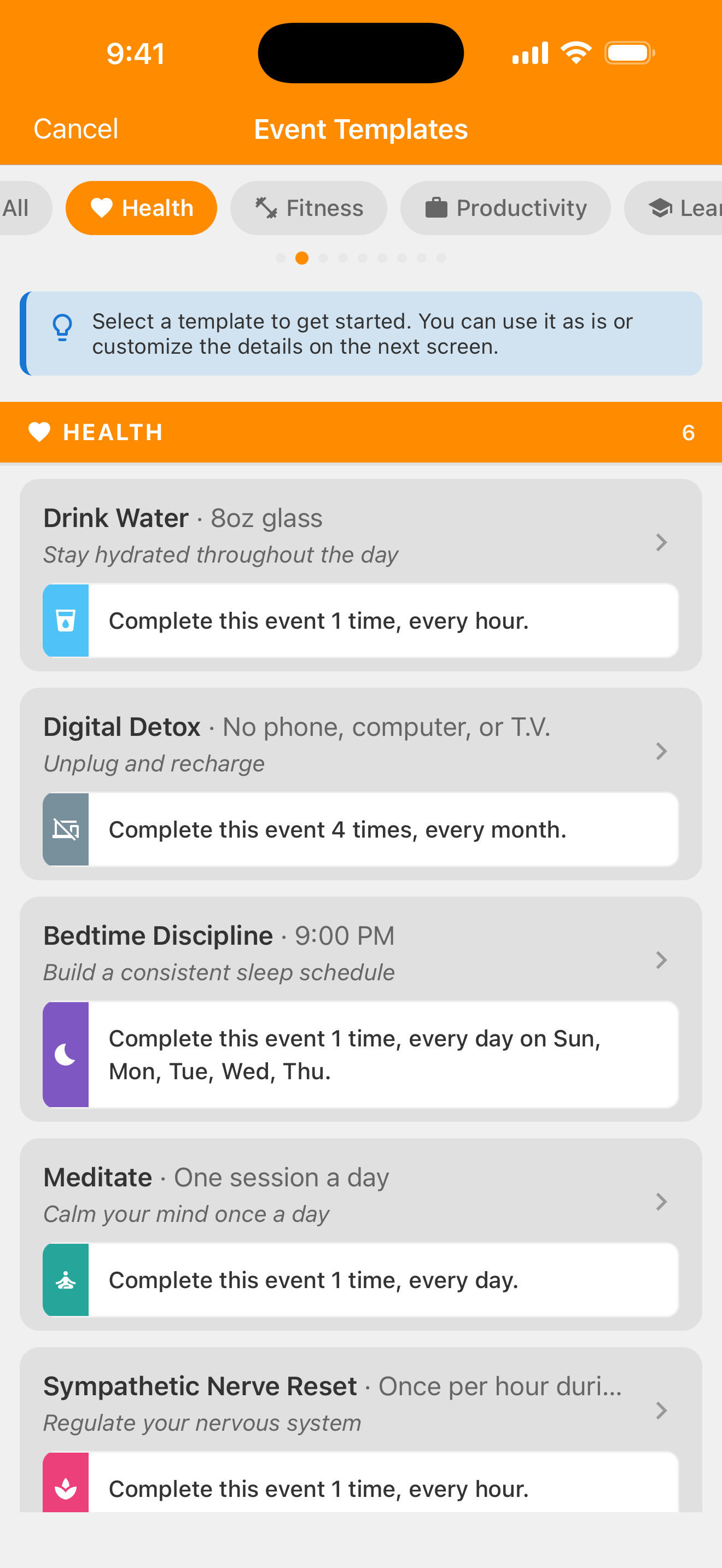
Health is selected in the circled category tab. Scroll down to find Walk. Open full-size screenshot: Templates — choose Health (new tab) - Scroll to Walk and select it. The Template A ready-made starting point for an activity. Review its settings and make it your own before saving. sets Goal to 5 and Reset Period to Every Week.
“Brisk pace” is a suggested description. Change it to suit your walks, or clear it.
Choosing colors and icons requires Premium; you can keep the defaults to follow this lesson.
Step 02
Compare daily and weekly goals.
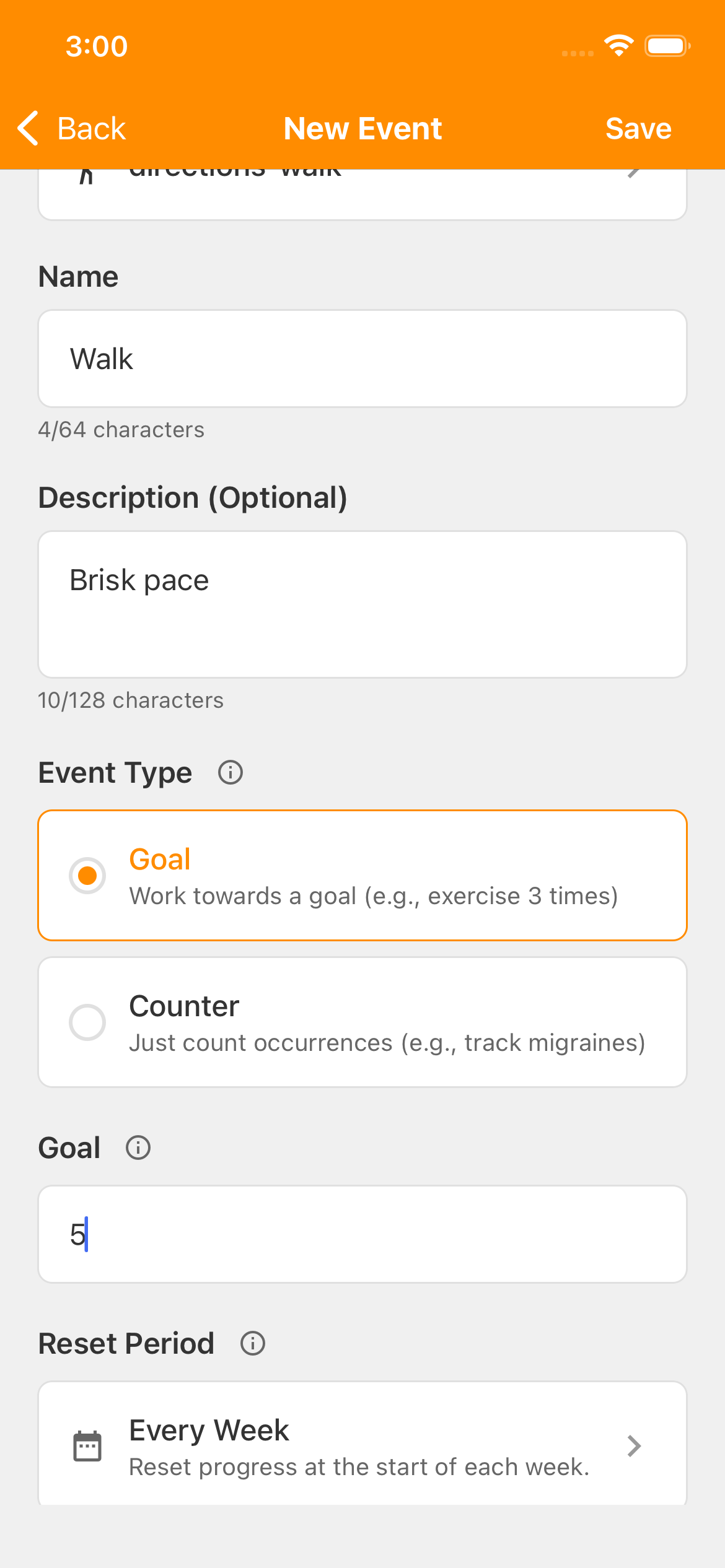
Your Goal Your target for an activity, such as one reading session each day. says how many. The Reset Period How often the current count starts over, such as daily or weekly. Earlier activity stays in History, subject to your account's history access. says when the count starts fresh. These two choices work together:
- One walk on selected days
- Goal: 1 · Reset Period: Every Day
Each selected day has its own goal of one. Under Active Days, keep the days you want to track and turn off the others. For example, choose Monday, Wednesday, and Friday for one walk on each of those days. - Five walks during the week
- Goal: 5 · Reset Period: Every Week
All the walks you record in that week contribute to the same goal of five. There are no selected weekdays to set; choose when to fit them in.
Your goal is five walks during the week, on the days that suit you. If you take a morning walk and an evening walk on the same day, record each one. Both count toward your weekly goal.
You can record more than five walks. Five is your weekly goal, not a limit.
For this lesson, keep Event Type at Goal, Goal at 5, and Reset Period at Every Week. Leave Initial Count at 0.
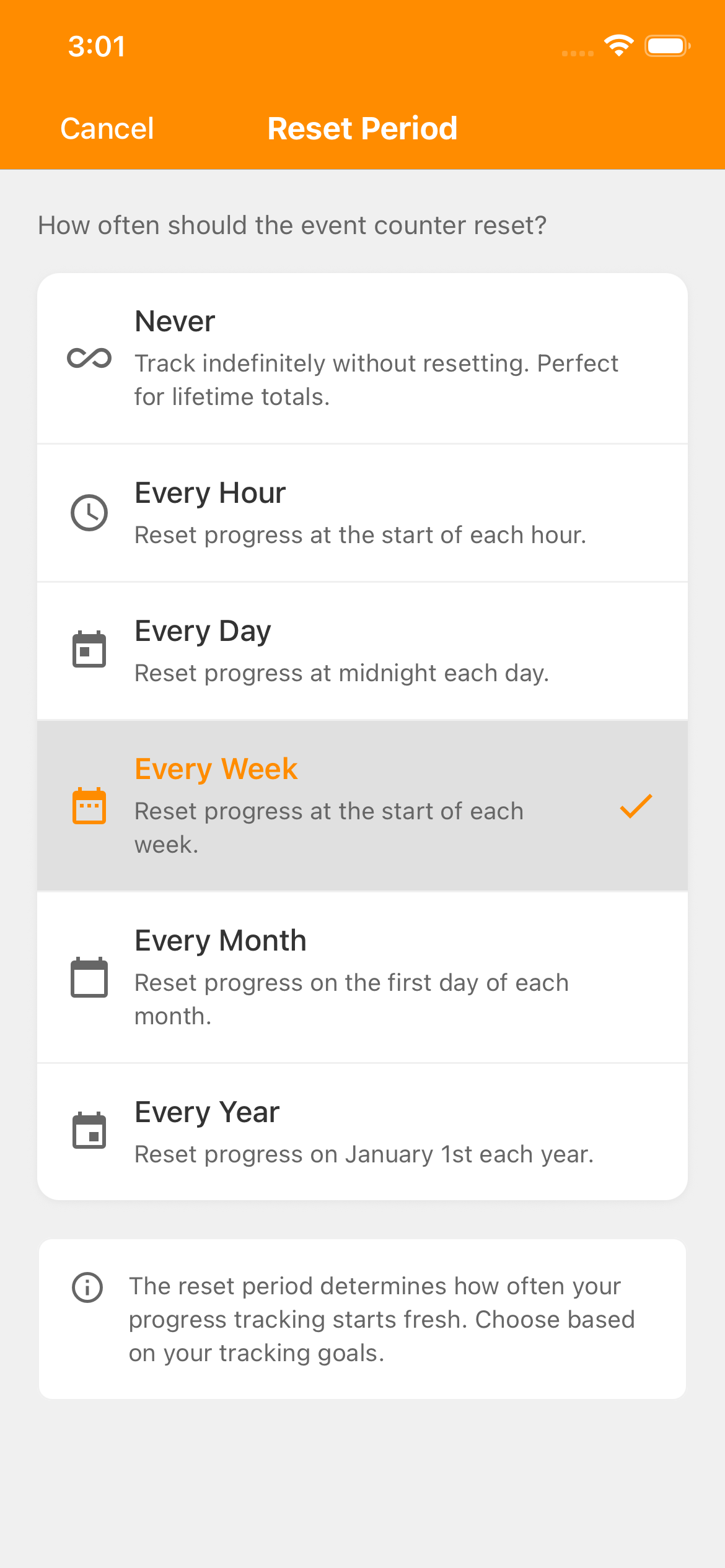
To check the period, tap Reset Period and choose Every Week. The Active Days field appears only when Every Day is selected.
Save your activity.
Back on the New Event screen, tap Save in the top-right corner to create Walk.
Walk appears under Weekly on the Events screen, starting at 0/5.
Step 03
Record a walk.
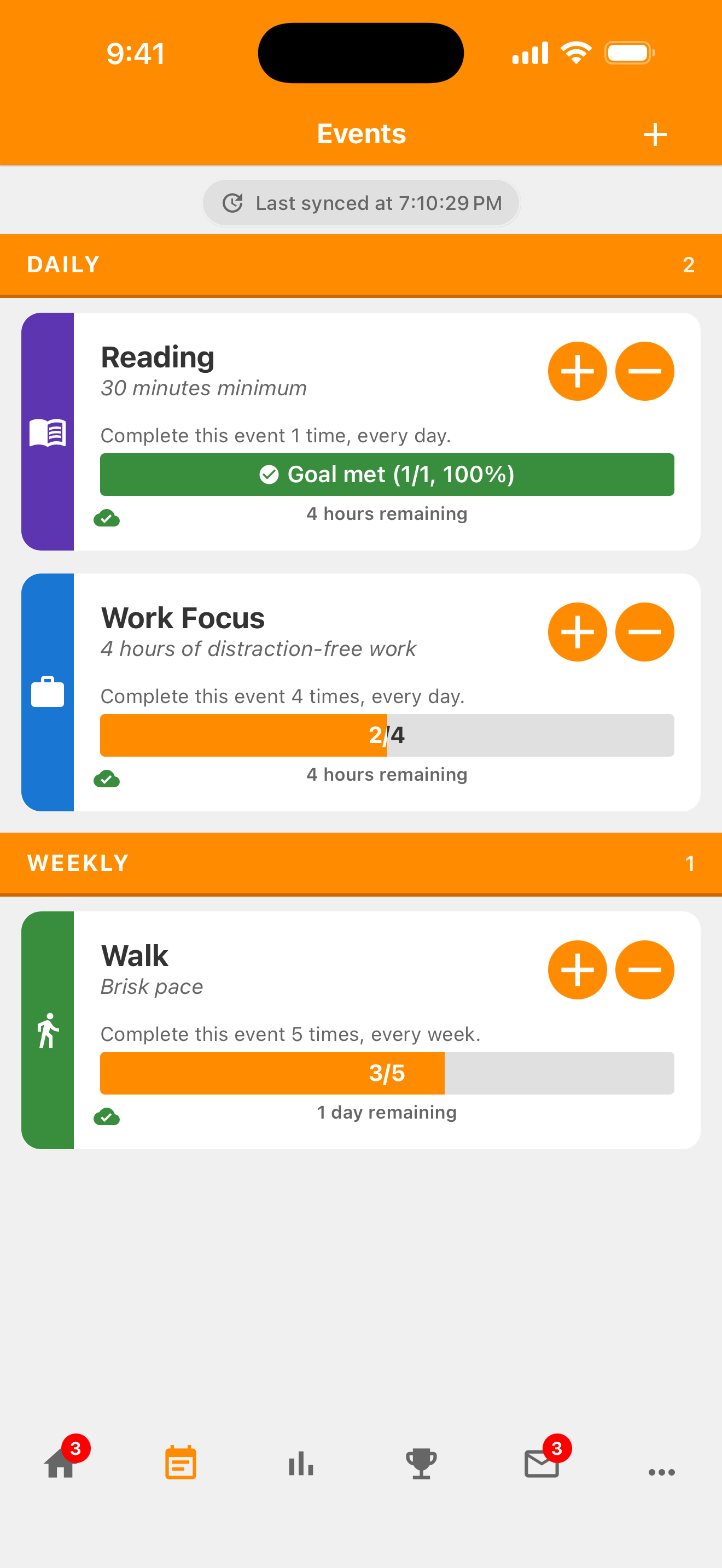
The first walk takes you from 0/5 to 1/5. After three walks, you'll see 3/5: three recorded toward your goal of five.
For this activity, the total is completed walks, rather than steps, distance or pace.
Use − to correct an accidental tap. At 5/5, you've met this week's goal. You don't need to match the picture; record your own walks as you go.
Step 04
What happens next week?
The remaining-time label on the card helps you see how long is left in the current week. Weeks start on Sunday or Monday, according to your choice on the app's Preferences → Calendar screen. They aren't seven days counted from the moment you create Walk.
When the next weekly period begins, the current count starts fresh at 0/5. You don't need to subtract your walks or create the activity again.
A fresh count doesn't erase your earlier activity from History Your record of count changes and past days, weeks, or other time intervals. Open an activity's menu to find it. . Tap the Walk name or card body, then choose History to open its screen and see your count changes. Free accounts can view the last 30 days of history.
Weekly walking
Nice work!
You've finished this topic. Choose another whenever you're ready.
Back to all topics