
Your third Accumoo lesson

See how many books
you've finished.

Keep a running total of finished books without a target or an automatic reset. Start from zero or include books you've already read.

  • About 5 minutes, excluding activity time
  • iPhone & iPad
  • Pictures from Accumoo 1.9
Before you begin

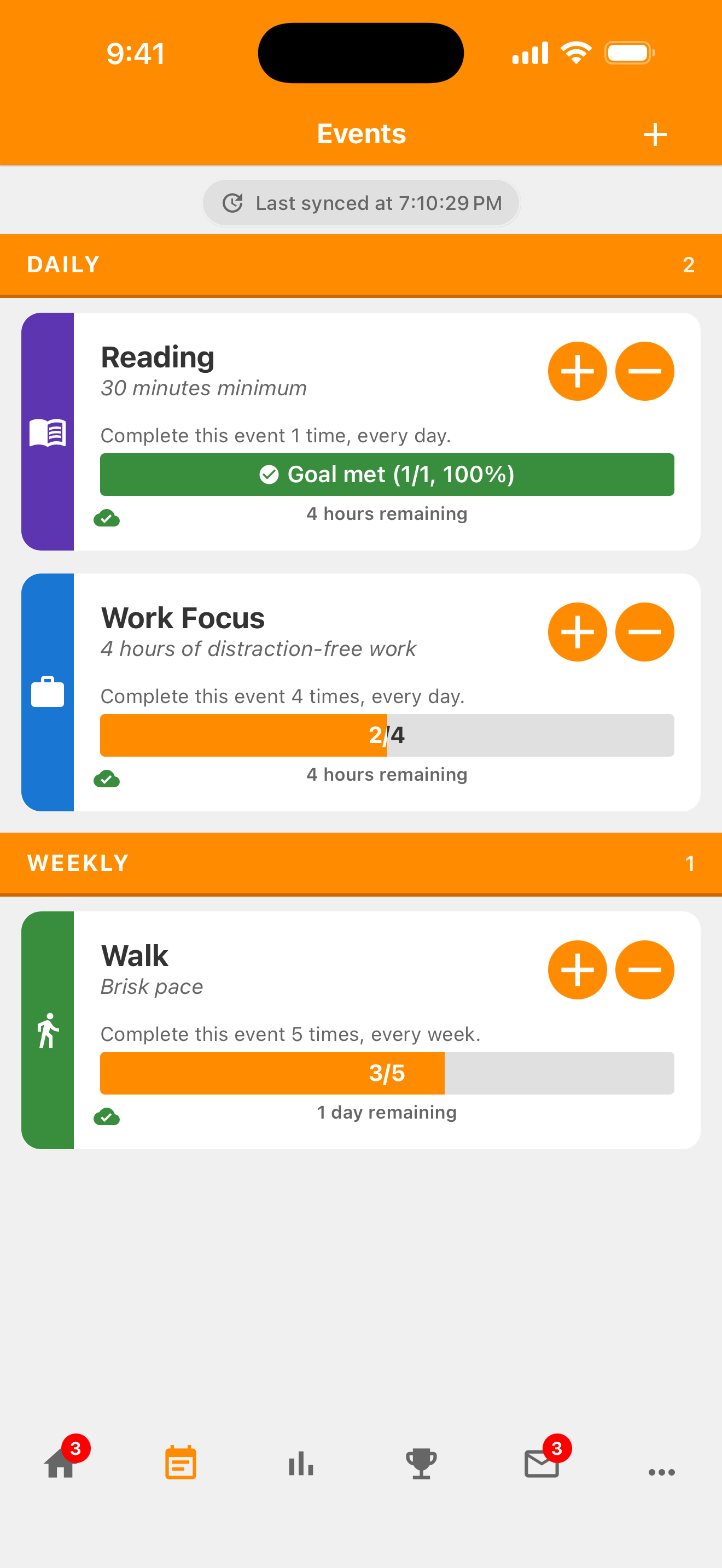
Open Accumoo. The daily reading lesson explains the Events screen and how to record activity if you need an introduction.

Step 01

Create Books Finished.

We'll make an Event called Books Finished. One count means one whole book read. This is different from the daily reading lesson, where one count means one reading session.

  1. Tap Events in the bottom bar. Check the Events screen title; Challenges is a separate area.
  2. Tap the + in the top-right corner.
Events screen header with the new-activity plus button outlined in the top-right corner.
On Events, the circled header + opens New Event. This picture shows the screen header.
Open full-size screenshot: Events — create a new activity (new tab)

Events — create a new activity

Zoom in for a closer look, then scroll the image. The numbered outline marks the control described in the lesson.

Events screen header with the new-activity plus button outlined in the top-right corner.
  1. On the New Event screen, skip Browse Templates and create your own activity below it.
  2. Scroll to Name and enter Books Finished.
  3. Leave Description blank, or add a reminder of what you're tracking.
  4. Under Event Type, select Counter.

A Counter keeps a count without a target number, so the Goal field disappears.

Choosing colors and icons requires Premium; you can keep the defaults to follow this lesson.
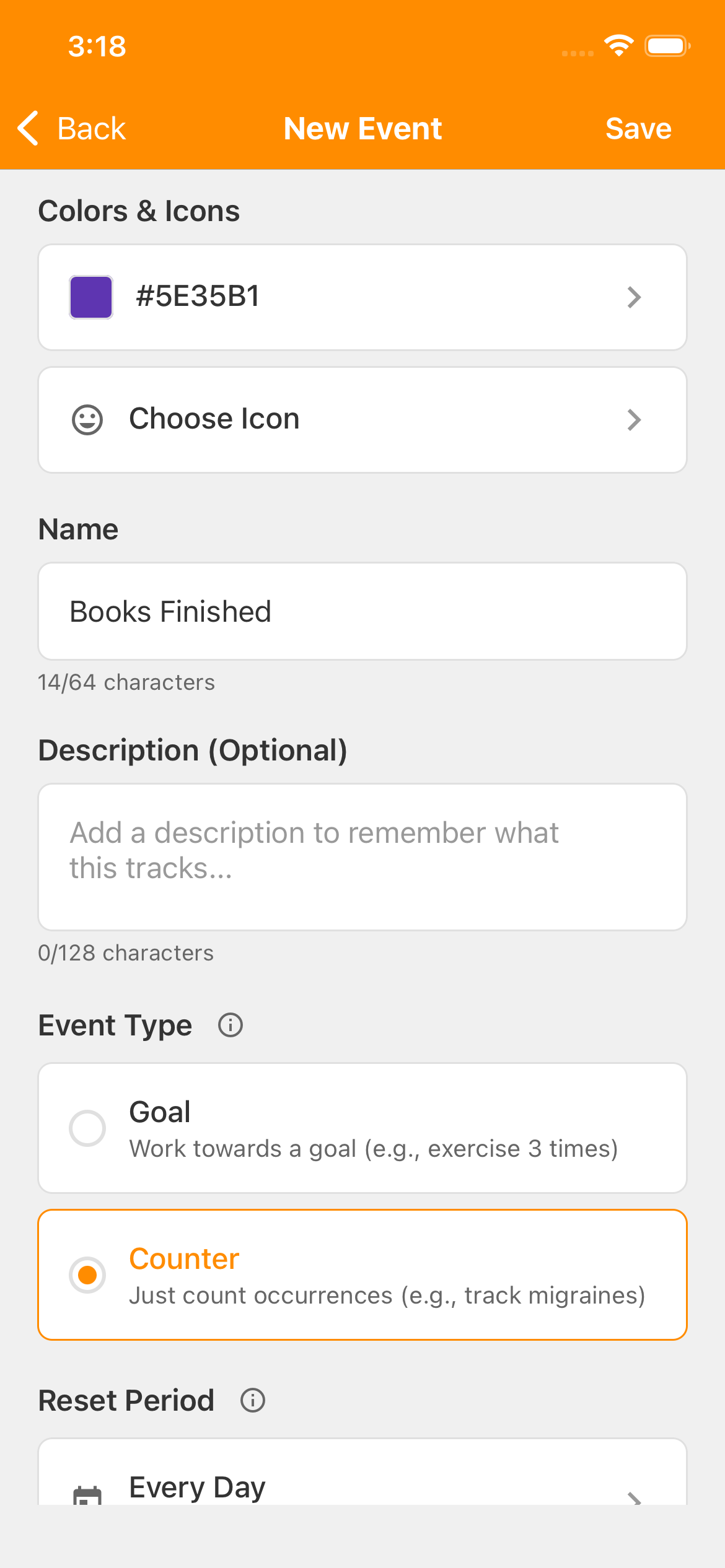
New Event form with Name Books Finished and Counter selected under Event Type. There is no Goal input. Reset Period is still Every Day before the next step.
Name your activity and choose Counter. The next step changes Reset Period from Every Day to Never.
Open full-size screenshot: New Event — name your Counter (new tab)

New Event — name your Counter

Zoom in for a closer look, then scroll the image.

New Event form with Name Books Finished and Counter selected under Event Type. There is no Goal input. Reset Period is still Every Day before the next step.

Step 02

Keep one total across days and weeks.

Your Reset Period setting decides whether the count starts fresh on a schedule. A Lifetime total keeps running without a daily, weekly, or other automatic reset.

The Counter option means no target—count as many or as few books as you like. A Counter can also reset daily or weekly, but we want this one to never reset.

  1. Tap Reset Period.
  2. Choose Never to keep your running total.
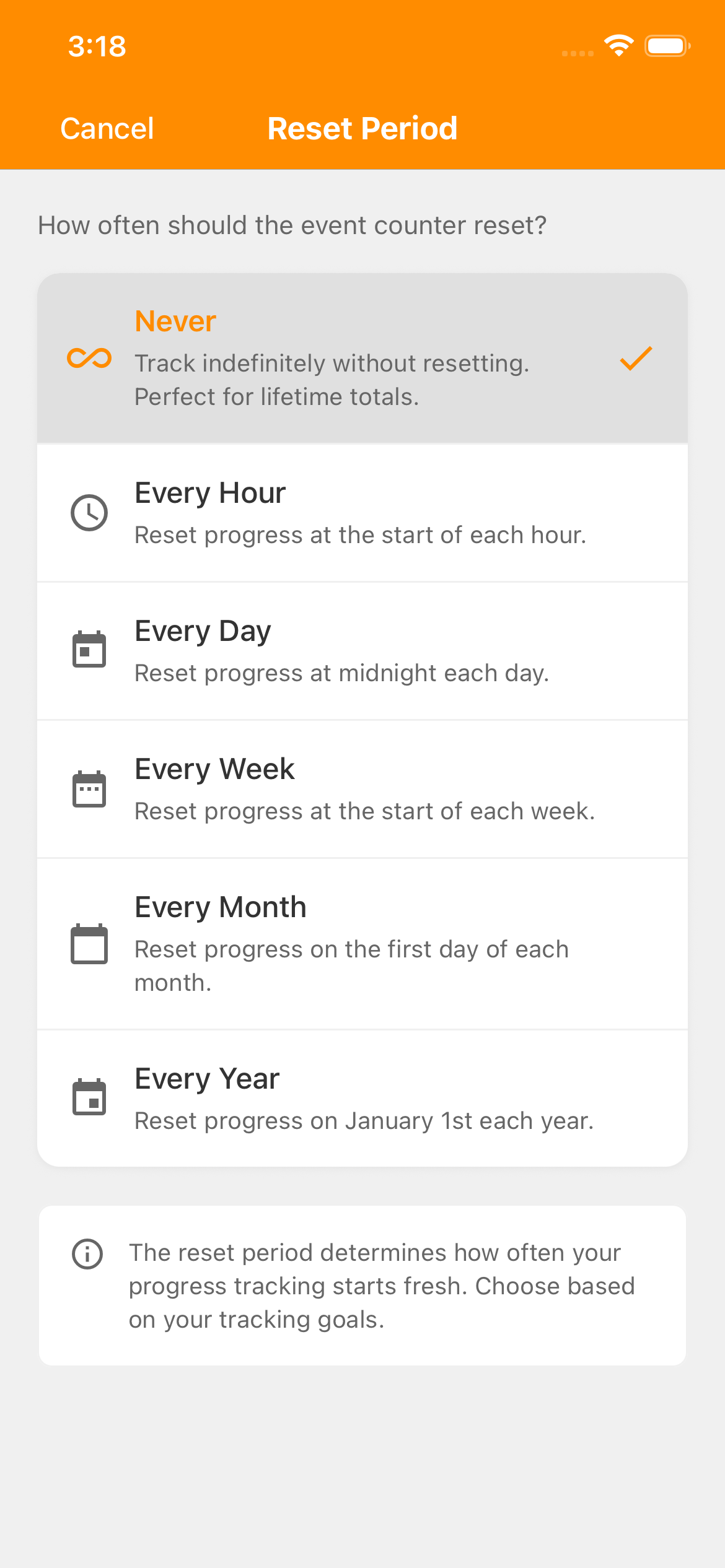
Reset Period picker with Never checked: track indefinitely without resetting.
Choose Never to keep the total running across days and weeks.
Open full-size screenshot: Reset Period — choose Never (new tab)

Reset Period — choose Never

Zoom in for a closer look, then scroll the image.

Reset Period picker with Never checked: track indefinitely without resetting.
  1. Back on New Event, choose your starting number in Initial Count. Our pictures start at 0; you can include books you've already read.
  2. Check Start Date and choose today if you're starting now. Your date and its format may differ from the picture.
  3. Check Event Type is Counter and Reset Period is Never. The reset period can't be changed after the activity is created.
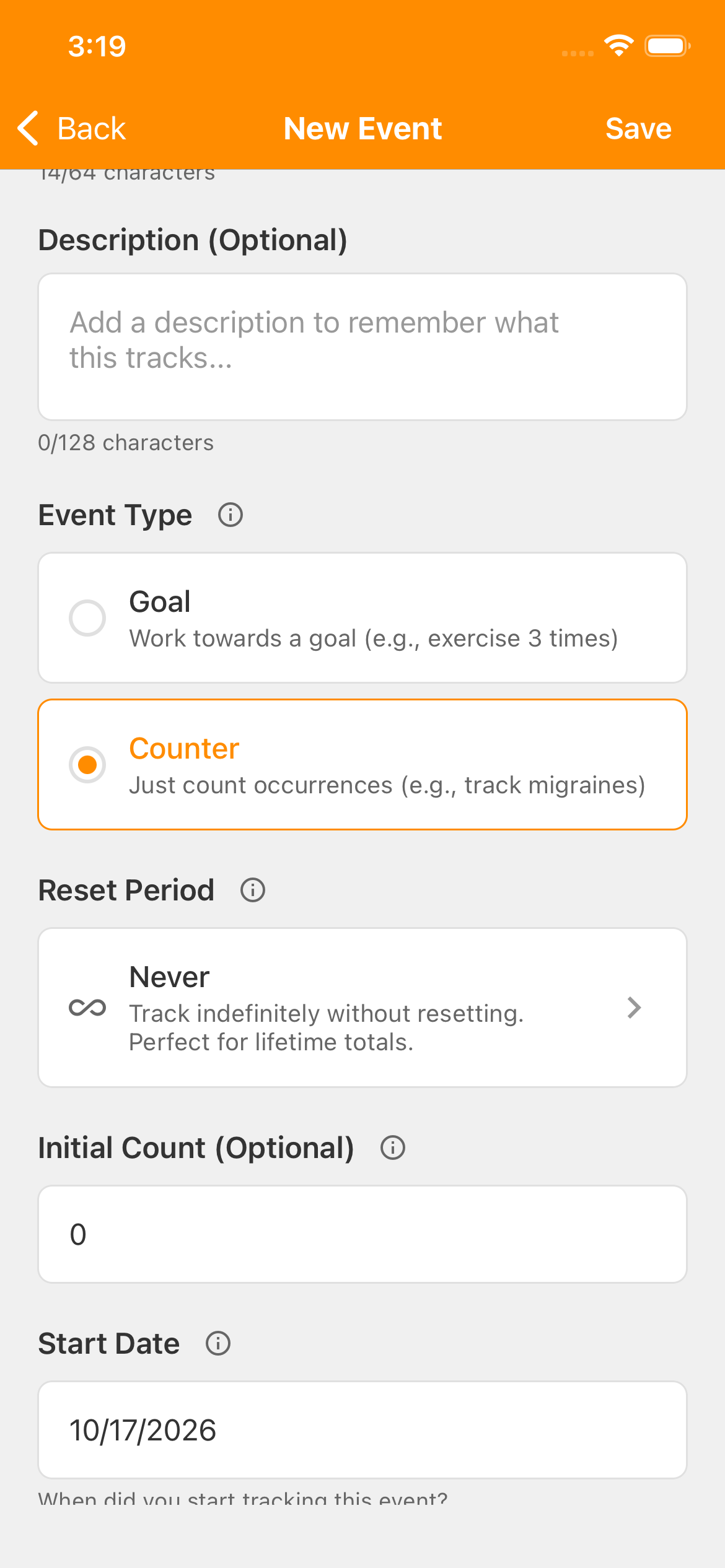
New Event form with Counter selected, Reset Period Never, Initial Count 0, and Start Date October 17, 2026. Save is in the top-right corner.
Picture example: Event Type “Counter,” Reset Period “Never,” and Initial Count 0. Your starting total can differ.
Open full-size screenshot: New Event — check your Lifetime settings (new tab)

New Event — check your Lifetime settings

Zoom in for a closer look, then scroll the image.

New Event form with Counter selected, Reset Period Never, Initial Count 0, and Start Date October 17, 2026. Save is in the top-right corner.

Save your activity.

On the New Event screen, tap Save in the top-right corner. If you've scrolled, the screen title and Save button remain at the top.

New Event screen header with Save outlined in the top-right corner.
Tap the circled Save button on New Event. This picture shows just the screen header.
Open full-size screenshot: New Event — save Books Finished (new tab)

New Event — save Books Finished

Zoom in for a closer look, then scroll the image. The numbered outline marks the control described in the lesson.

New Event screen header with Save outlined in the top-right corner.

Books Finished now appears under Lifetime on the Events screen, starting at your chosen Initial Count.

Step 03

Record a finished book.
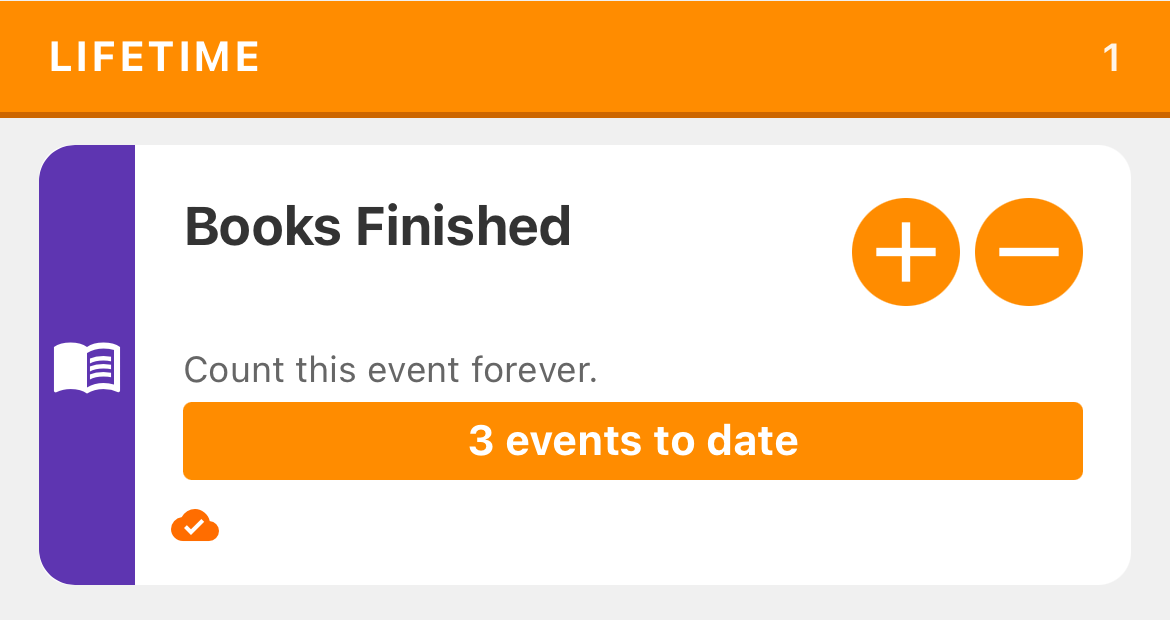
Books Finished card in the Lifetime group, showing 3 events to date. Its plus button is outlined beside the minus button.
Use the + on Books Finished to record one finished book. This example has three recorded.
Open full-size screenshot: Lifetime — three books recorded (new tab)

Lifetime — three books recorded

Zoom in for a closer look, then scroll the image. The numbered outline marks the control described in the lesson.

Books Finished card in the Lifetime group, showing 3 events to date. Its plus button is outlined beside the minus button.

That records one book. The + in the screen header creates another activity instead.

Our example starts at zero. After three finished books, the card shows 3 events to date. Your total will differ if you included earlier books. Here, “events” means the books you've recorded. There's no target to reach, and the filled orange bar isn't a percentage of a goal.

Tapped once too many? Tap − on the same card to subtract one. The count won't go below zero. The picture uses demo counts; you don't need to add practice books to match it. Record your own finished books as you go.

With Reset Period set to Never, a new day or week doesn't start the count over. Your next finished book adds to the same total.

Step 04

Review changes to your reading total.

  1. On Events, tap the Books Finished name or card body.
  2. Choose History to open its screen.
  3. Turn on Show History Detail near the top to include individual count changes.

Your History records changes to this activity.

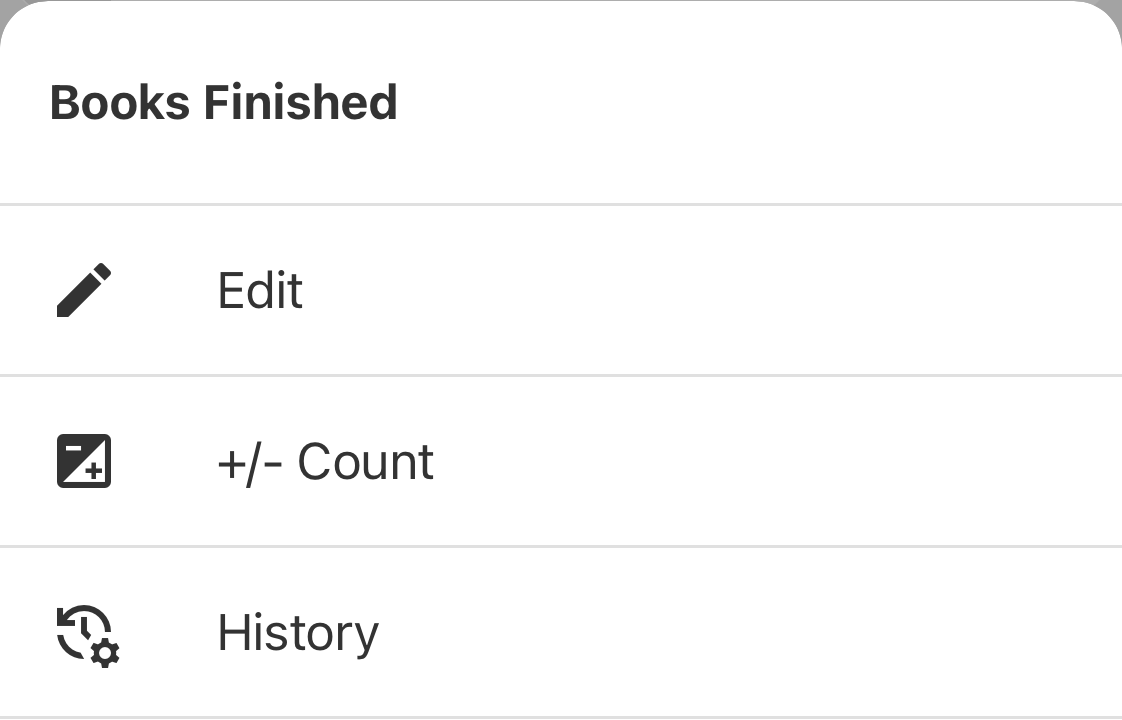
Books Finished menu with Edit, plus/minus Count, and the History option outlined.
After tapping the activity name or card body, choose History from its menu.
Open full-size screenshot: Books Finished — open History (new tab)

Books Finished — open History

Zoom in for a closer look, then scroll the image. The numbered outline marks the control described in the lesson.

Books Finished menu with Edit, plus/minus Count, and the History option outlined.

With detail off, you may see only Created: Books Finished.
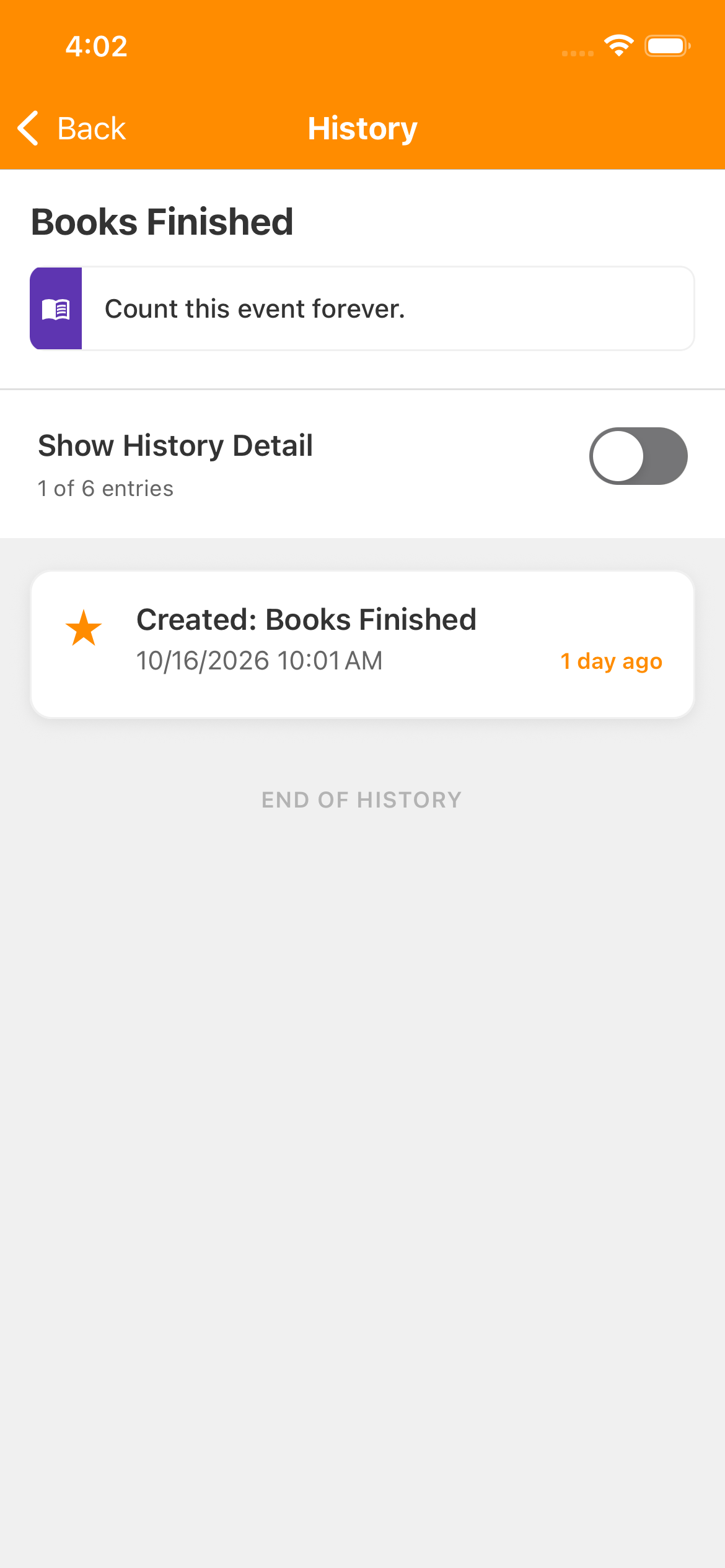
Books Finished History with Show History Detail off, one of six entries visible, and only Created: Books Finished listed. The detail switch is outlined.
Turn on Show History Detail to include the count changes.
Open full-size screenshot: History — show individual changes (new tab)

History — show individual changes

Zoom in for a closer look, then scroll the image. The numbered outline marks the control described in the lesson.

Books Finished History with Show History Detail off, one of six entries visible, and only Created: Books Finished listed. The detail switch is outlined.

Read the entries from newest to oldest. Count: 3 is the total after that change; it doesn't mean three books were added at once. In this example, the − entry at Count: 2 corrected an extra tap, and the next + brought the total back to 3.
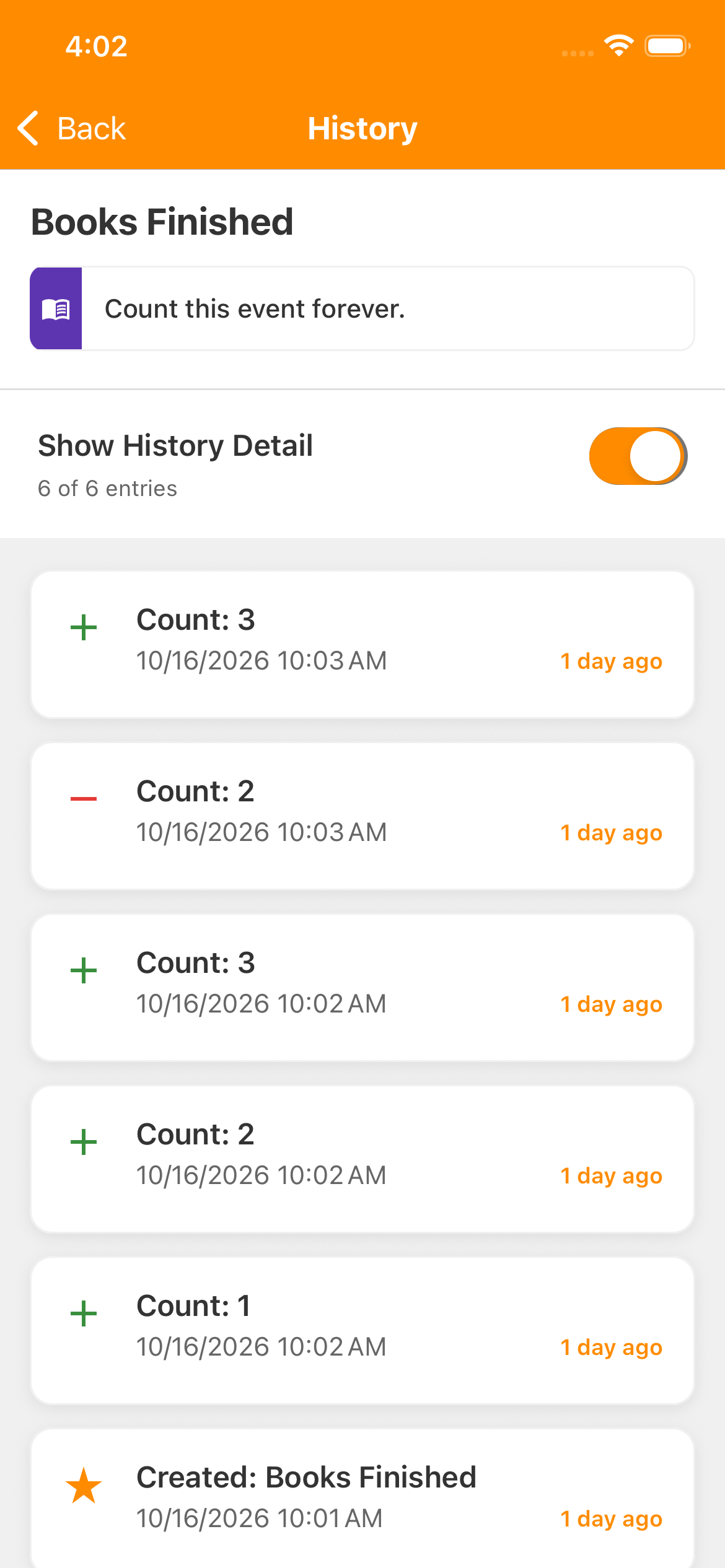
Books Finished History with Show History Detail on and six of six entries. From newest: plus Count 3, minus Count 2, plus Count 3, plus Count 2, plus Count 1, and Created: Books Finished.
Newest first: the top entry ends at three. The minus entry below it ends at two after a correction.
Open full-size screenshot: History — read the totals after each change (new tab)

History — read the totals after each change

Zoom in for a closer look, then scroll the image.

Books Finished History with Show History Detail on and six of six entries. From newest: plus Count 3, minus Count 2, plus Count 3, plus Count 2, plus Count 1, and Created: Books Finished.

Available History depends on your account. Keeping a Lifetime total and how much past History you can view are separate things.

Books finished

Nice work!

You've finished this topic. Choose another whenever you're ready.

Back to all topics

Terms used in the app

Accumoo terms, explained.

Select an underlined term with a question mark for a quick explanation. All the definitions are also listed below.

Event
An activity you want to track, such as reading, walking, or staying hydrated.
Template
A ready-made starting point for an activity. Review its settings and make it your own before saving.
Goal
Your target for an activity, such as one reading session each day.
Reset Period
How often the current count starts over, such as daily or weekly. Earlier activity stays in History, subject to your account's history access.
History
Your record of count changes and past days, weeks, or other time intervals. Open an activity's menu to find it.
Counter
An activity that keeps a count without a target. It can reset on a schedule or keep a running total.
Lifetime
Choose Never under Reset Period to keep one running total without an automatic reset.
Sync
Exchange saved changes with your account when online so other signed-in devices can receive them. A change can be saved on one device before it has synced.