

Open Accumoo and sign in.
Step 01
Choose the Reading template.
An Event An activity you want to track, such as reading, walking, or staying hydrated. is just an activity you want to track. A Template A ready-made starting point for an activity. Review its settings and make it your own before saving. fills in a few useful settings for you.
- From the Home screen, tap Events in the bottom bar. It's the second icon from the left and looks like a small calendar or list.
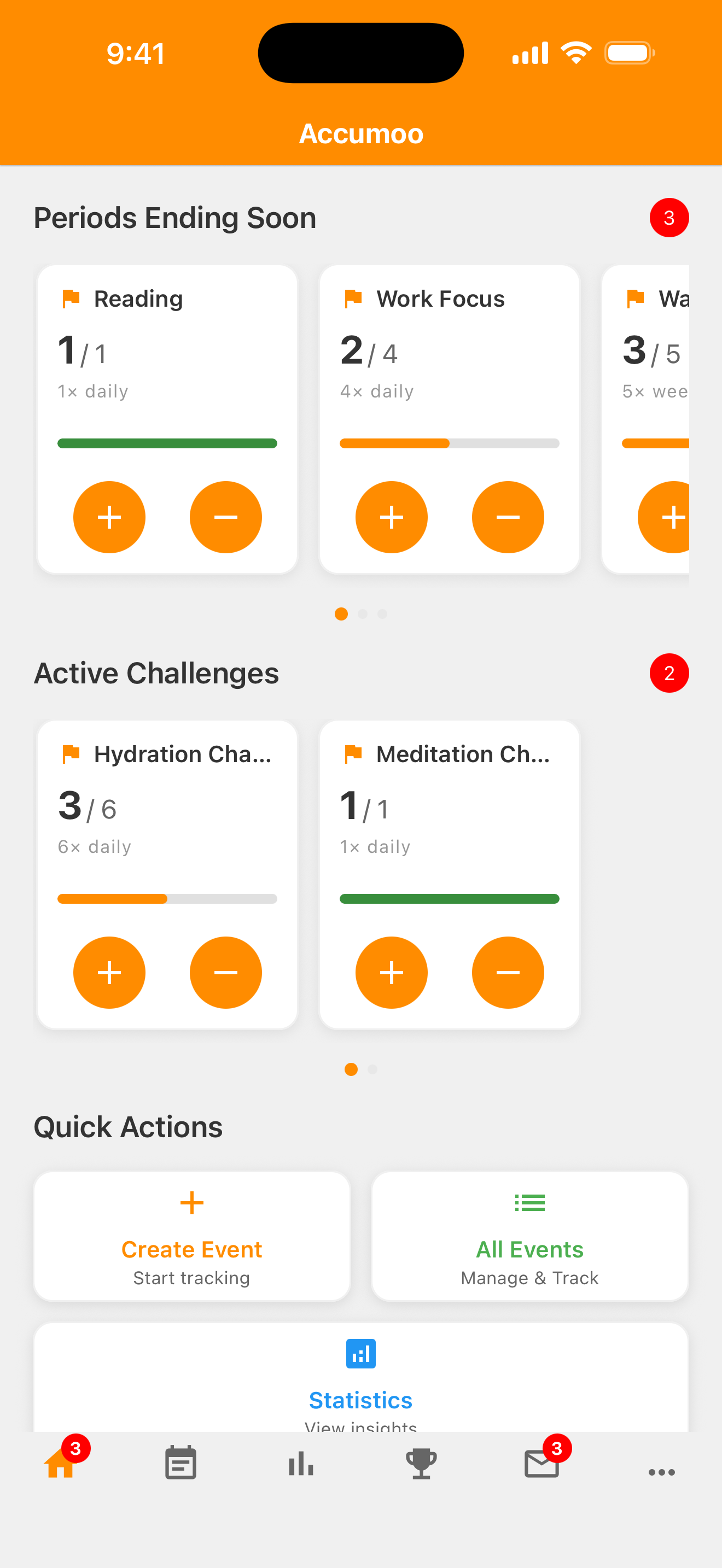
At the bottom of Home, tap the circled calendar/list icon. The picture shows the lower part of the screen. Open full-size screenshot: Home — find Events (new tab) - On the Events screen, tap the + in the top-right corner to create an activity.
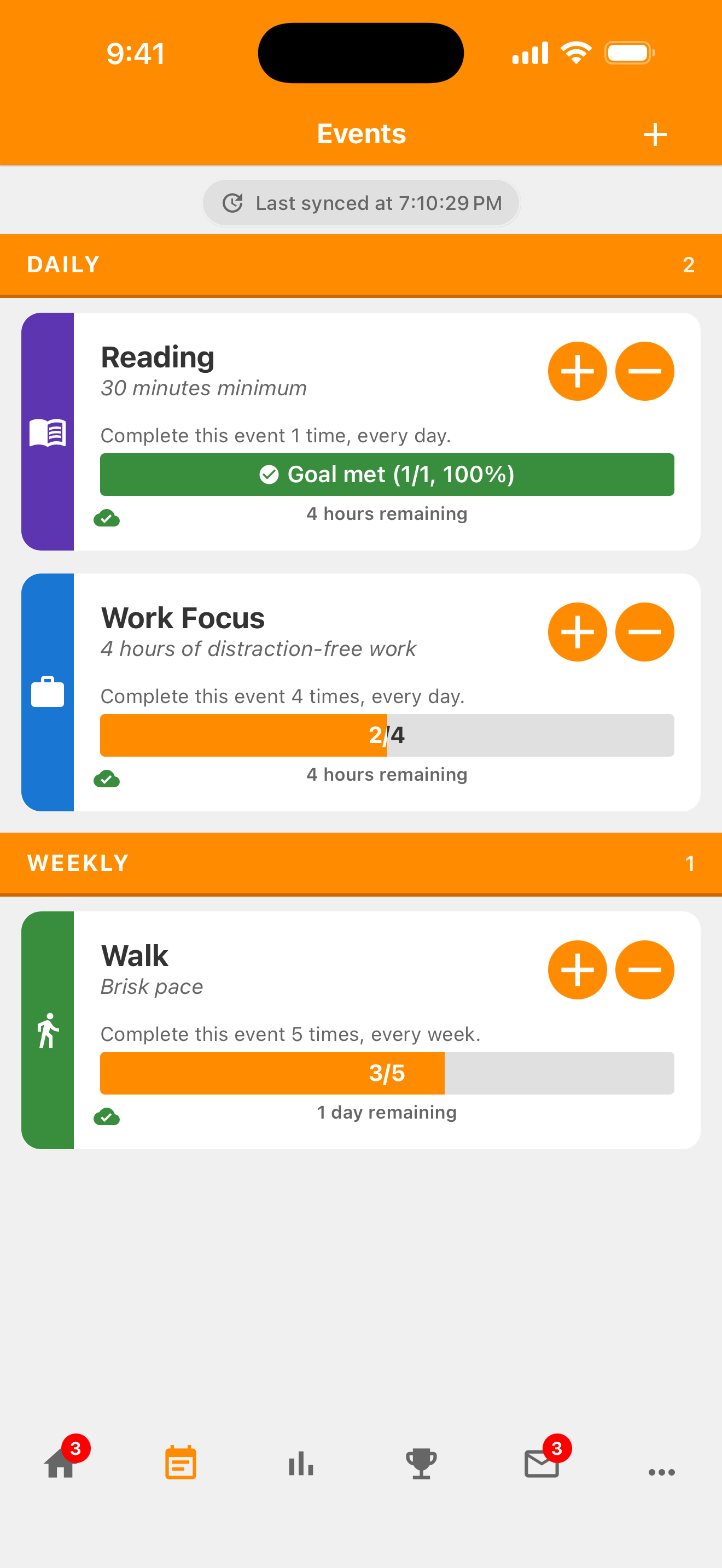
Tap the circled plus in the screen header. The plus on a Reading card has a different job: recording a count. Open full-size screenshot: Events — add an activity (new tab) - On the New Event screen, choose Browse Templates.
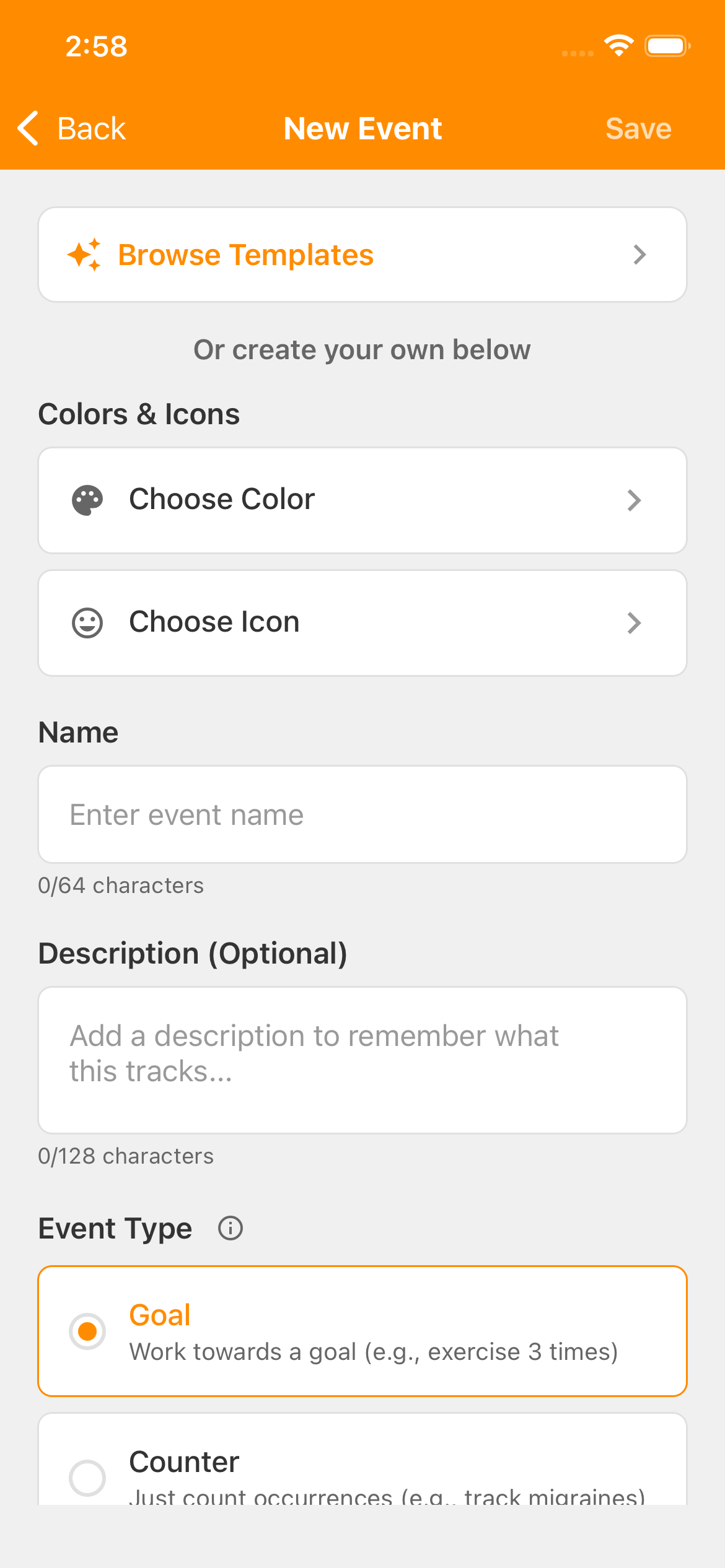
Tap Browse Templates, outlined at the top of New Event. Open full-size screenshot: New Event — browse templates (new tab) - On the Event Templates screen, choose the Productivity category.
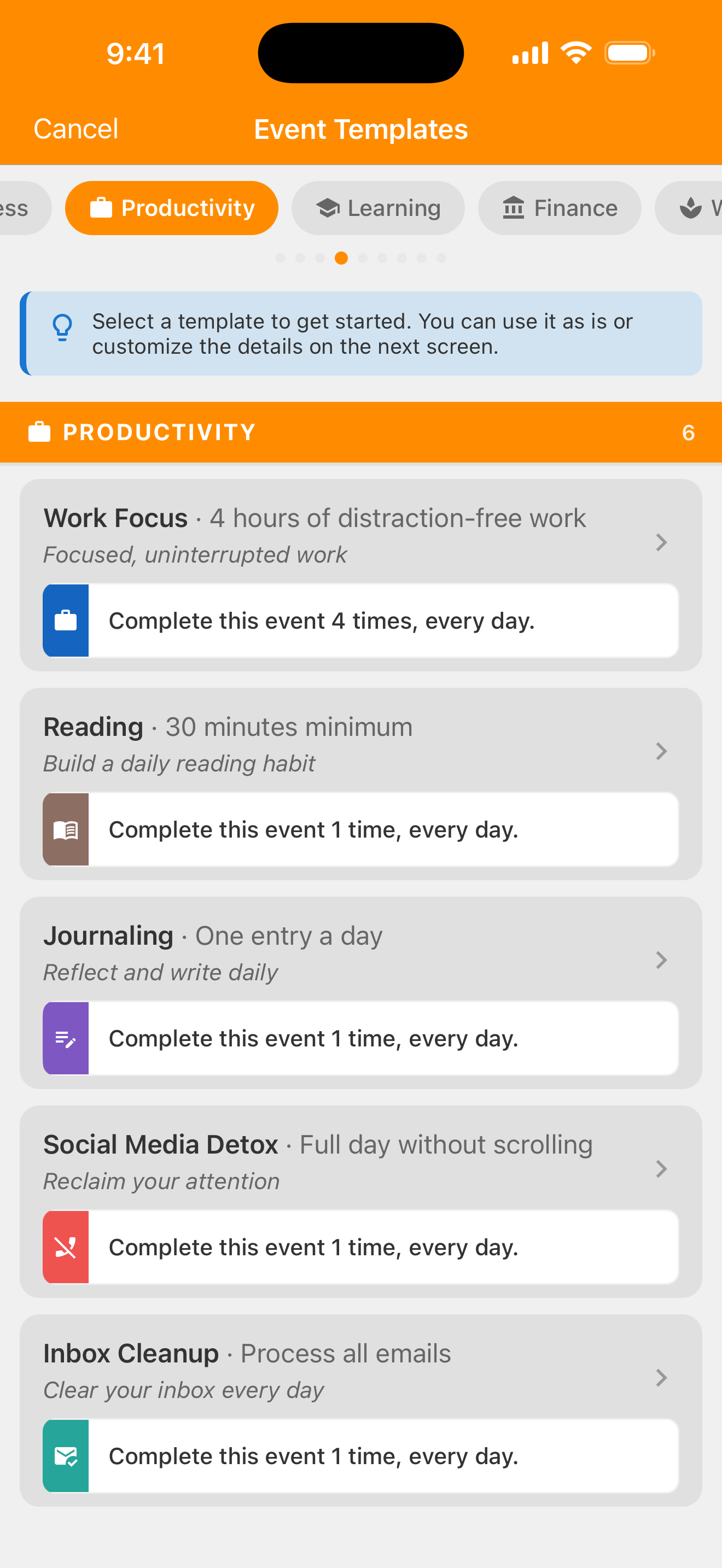
Productivity is selected in the circled category tab. Choose Reading from the list below. Open full-size screenshot: Templates — choose Productivity (new tab) - Select Reading. You can also find it by scrolling through All.
Step 02
Check the daily goal.
Choosing Reading returns you to the New Event screen with the fields filled in. Review or change them before you tap Save.
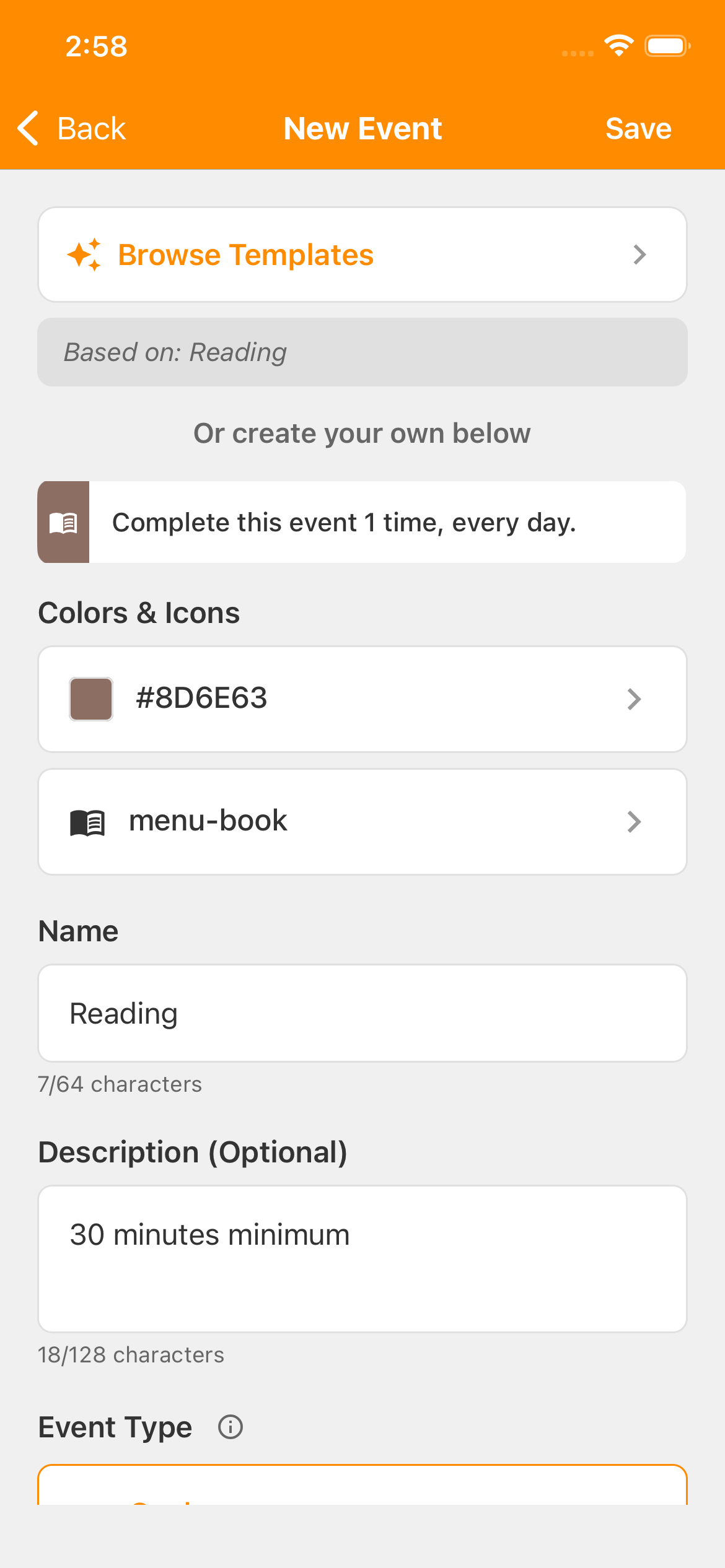
The Reading template starts with these settings:
- Name
- Reading
- Description
- 30 minutes minimum
- Event Type
- Goal
- Goal Your target for an activity, such as one reading session each day.
- 1 reading session
- Reset Period How often the current count starts over, such as daily or weekly. Earlier activity stays in History, subject to your account's history access.
- Every Day — a fresh count each day
- Active Days
- All seven days
- Change Name or Description if you'd like.
- Keep Goal at 1 and Reset Period at Every Day for this example.
- Tap Save at the top right of the New Event screen.
“30 minutes minimum” is your reminder about a session. Record one session after reading for at least 30 minutes. Your total shows completed sessions, rather than elapsed reading time.
Your new Reading activity starts at 0/1: zero sessions recorded toward today's goal of one.
Step 03
Record a reading session.
You'll see 1/1 and “Goal met.” That's one session recorded toward today's goal of one.
The plus at the top of the screen creates an activity. The plus on Reading's card records one reading session.
Tapped by accident?
Tap the card's − to remove the extra session from today's total. Tap + to add it back if needed.
Step 04
Find your recorded sessions.
- Tap the Reading name or card body to open its menu.
- Choose History Your record of count changes and past days, weeks, or other time intervals. Open an activity's menu to find it. to see your recorded count changes.
Tomorrow's daily total starts at zero. Today's activity stays in History. Free accounts can view the last 30 days of history.
What if I don't see my change on another device?
A count can be saved on this device before it has reached your account. Sync Exchange saved changes with your account when online so other signed-in devices can receive them. A change can be saved on one device before it has synced. means exchanging those changes when you're online.
Connect to the internet, pull down on the Events screen to request a sync, then sync the other device. A pending change or an error means the exchange hasn't finished yet.
Daily reading
Nice work!
You've finished this topic. Choose another whenever you're ready.
Back to all topics