

Your fourth Accumoo lesson

Practice guitar.
Take on a Challenge.

Use the Skill Practice Challenge for guitar. Choose a difficulty and work toward its daily practice target.

  • About 8 minutes, excluding activity time
  • iPhone & iPad
  • Pictures from Accumoo 1.9
Before you begin

Open Accumoo. This lesson starts a Novice Challenge, available with a Free account if no other Challenge is active. Our example already has one successful day from yesterday; record your own practice.

Step 01

Events or Challenges?

Both help you track activities. Choose the approach that fits what you want to do.

Events: set your own rhythm
Create an activity with your own settings, such as a daily practice Goal or a Counter that keeps a running total. Keep tracking until you choose to stop.
Challenges: choose a finish line
Pick a prepared activity and difficulty with a target, duration, and number of successful days or other periods. The Challenge ends and receives a result. Its difficulty and completion requirements are fixed when you start.

Use the Challenges screen for this lesson. The similar-looking Events screen is a separate area. Practice you record on an Event doesn't also fill this Challenge.

Step 02

Find Skill Practice.

We'll use Skill Practice Challenge for guitar practice. The app keeps that Challenge name; guitar is our chosen skill. Drawing, photography, or another skill could work too.

  1. Tap the trophy icon in the bottom bar to open the Challenges screen.
  2. Check the screen title, then tap the + in the top-right corner. If your list is empty, Browse Challenges opens the same catalog.
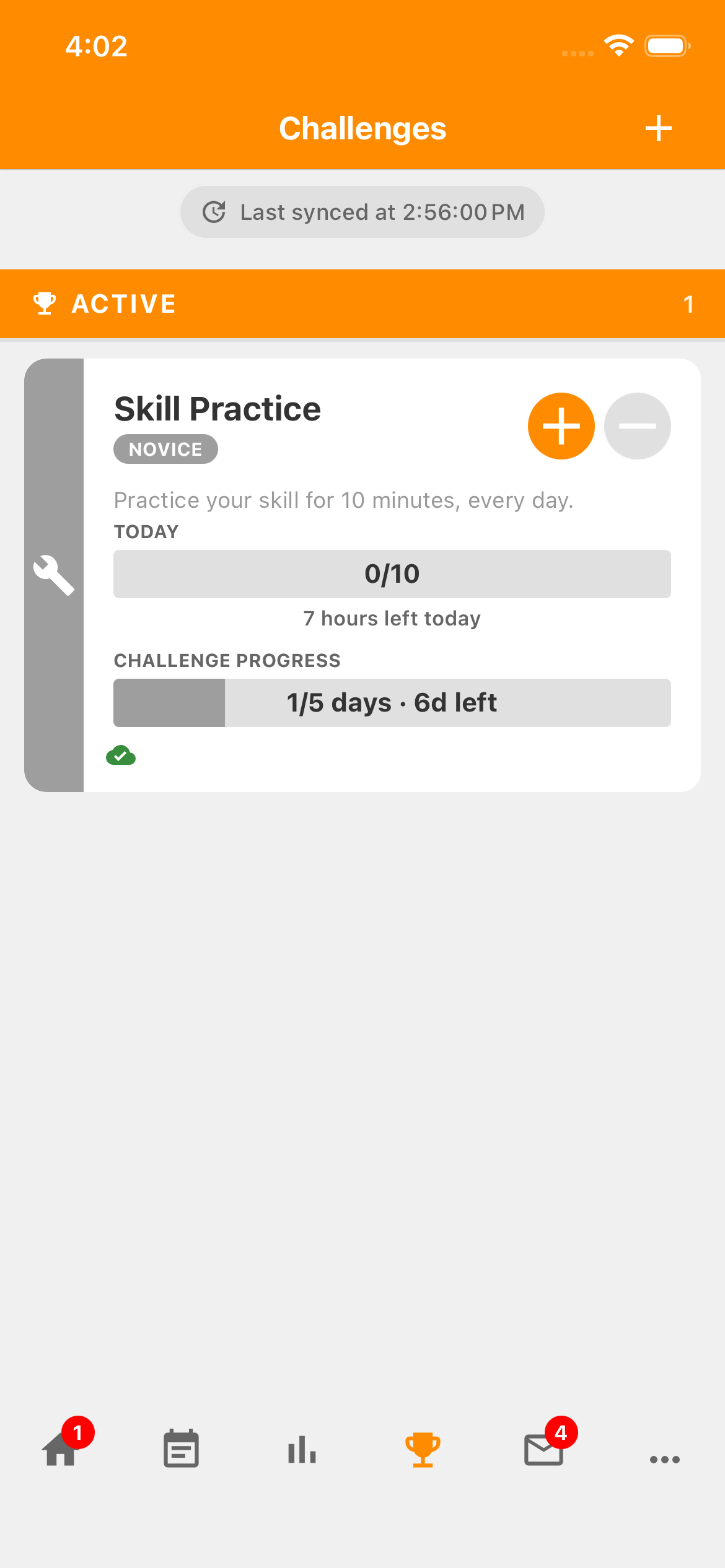
Challenges screen with the trophy tab selected, the header plus, and an active Skill Practice card.
Use the trophy tab for Challenges. Tap the header + to open the catalog, even when a Challenge is already active.
Open full-size screenshot: Challenges — find the right screen (new tab)

Challenges — find the right screen

Zoom in for a closer look, then scroll the image. The numbered outline marks the control described in the lesson.

Challenges screen with the trophy tab selected, the header plus, and an active Skill Practice card.
  1. In Search challenges, type Skill Practice.
  2. Tap Skill Practice Challenge in the results to open the Start Challenge screen.
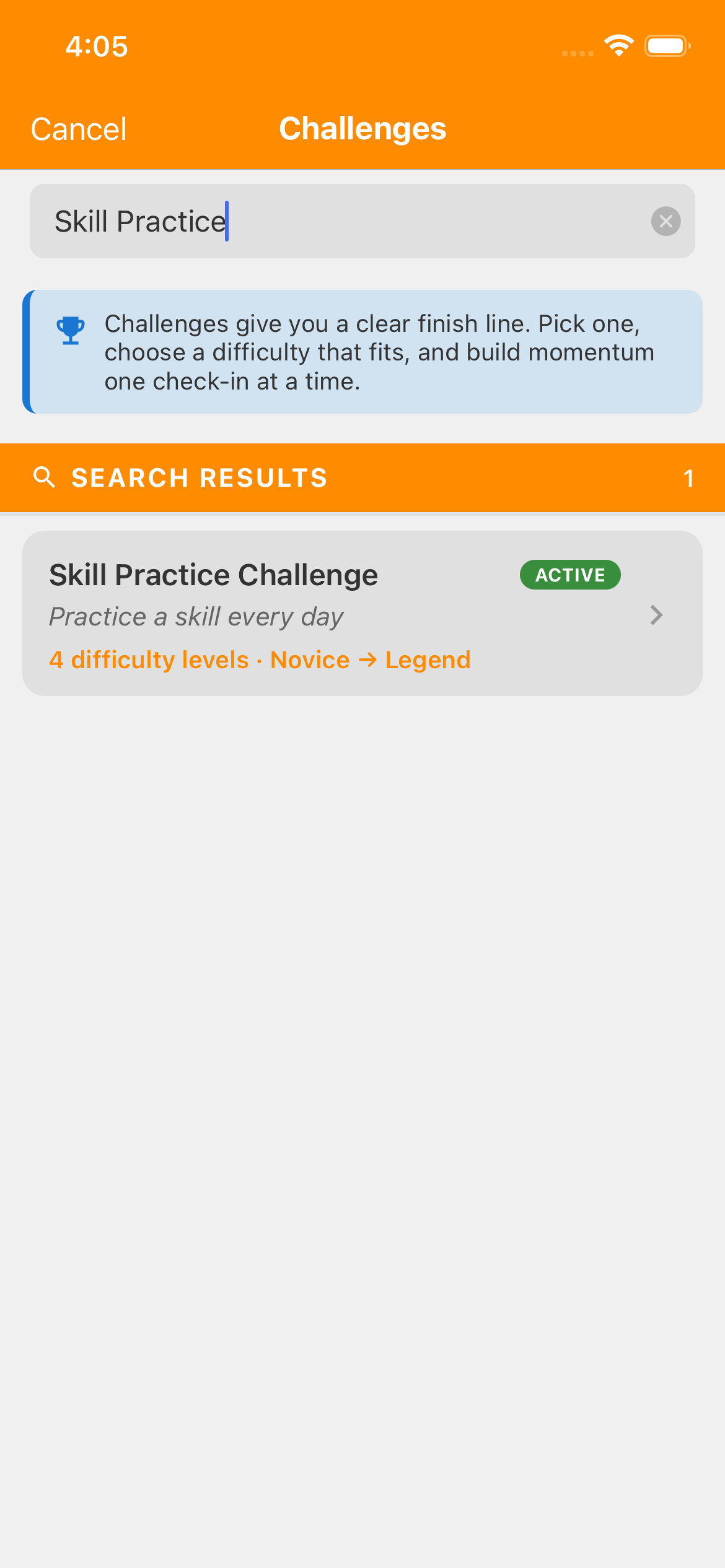
Search for Skill Practice and tap its result. You don't need to search for guitar.
Open full-size screenshot: Challenges — search for Skill Practice (new tab)

Challenges — search for Skill Practice

Zoom in for a closer look, then scroll the image.

Challenge catalog searched for Skill Practice, with one Skill Practice Challenge result offering four difficulty levels.

Step 03

Compare the difficulty levels.

Under Select Difficulty, scroll to see all four choices. Higher difficulties ask for more daily practice, more successful days, and a longer commitment. You don't have to finish Novice before choosing a higher difficulty.
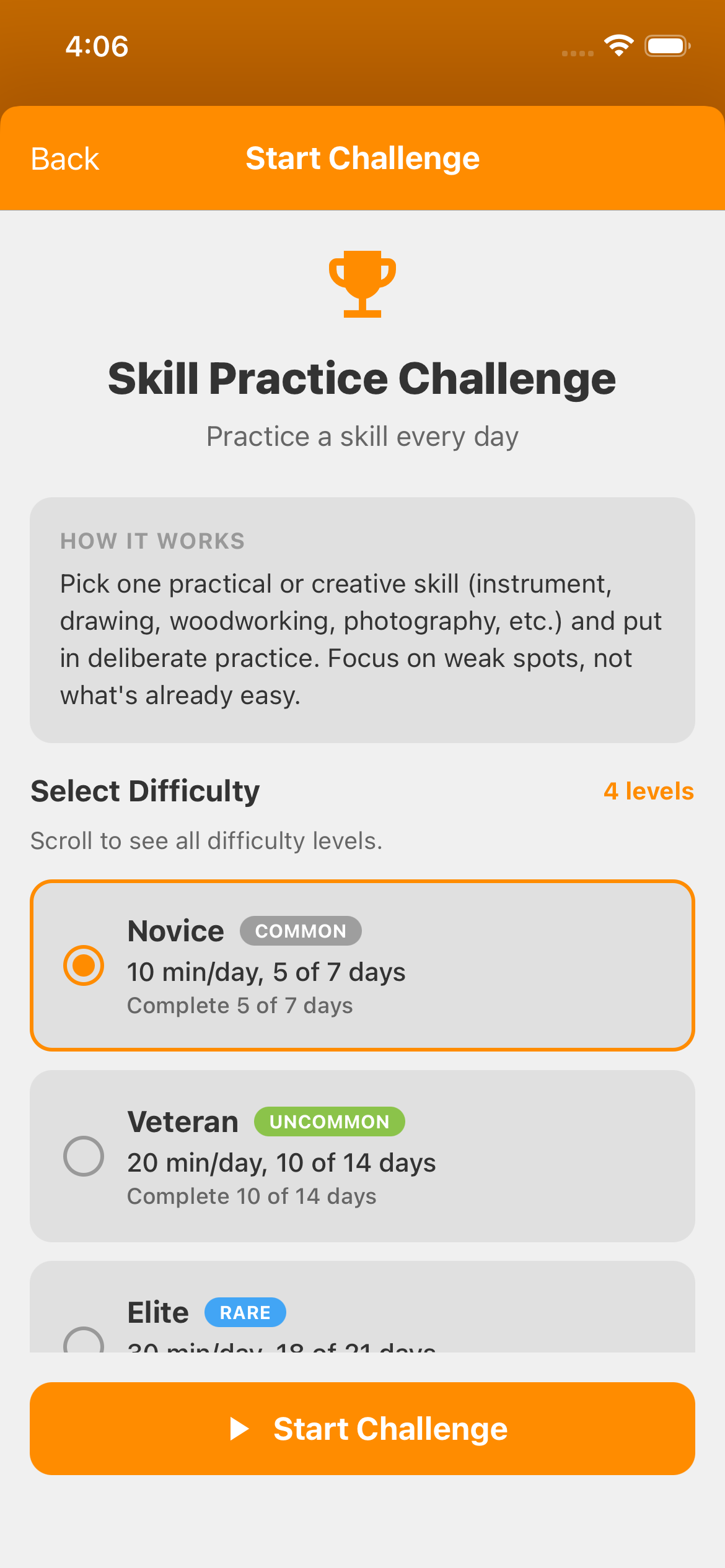
Skill Practice on Start Challenge, showing its instructions and Novice selected: ten minutes a day on five of seven days. Higher difficulties are unlocked in this Premium example.
Novice is selected. Scroll down to see the remaining difficulties and Challenge Details.
Open full-size screenshot: Start Challenge — Novice selected (new tab)

Start Challenge — Novice selected

Zoom in for a closer look, then scroll the image.

Skill Practice on Start Challenge, showing its instructions and Novice selected: ten minutes a day on five of seven days. Higher difficulties are unlocked in this Premium example.
Skill Practice Challenge difficulty requirements
Difficulty Daily practice Days needed
Novice 10 minutes 5 of 7 days
Veteran 20 minutes 10 of 14 days
Elite 30 minutes 18 of 21 days
Legend 45 minutes 27 of 30 days

At larger text sizes, scroll the table sideways to read every column. With a keyboard, focus the table and use the arrow keys.

For this lesson, choose Novice. Scroll down to Challenge Details and check Daily target: 10 minutes, Time limit: 7 days, and Finish line: Complete 5 of 7 days.
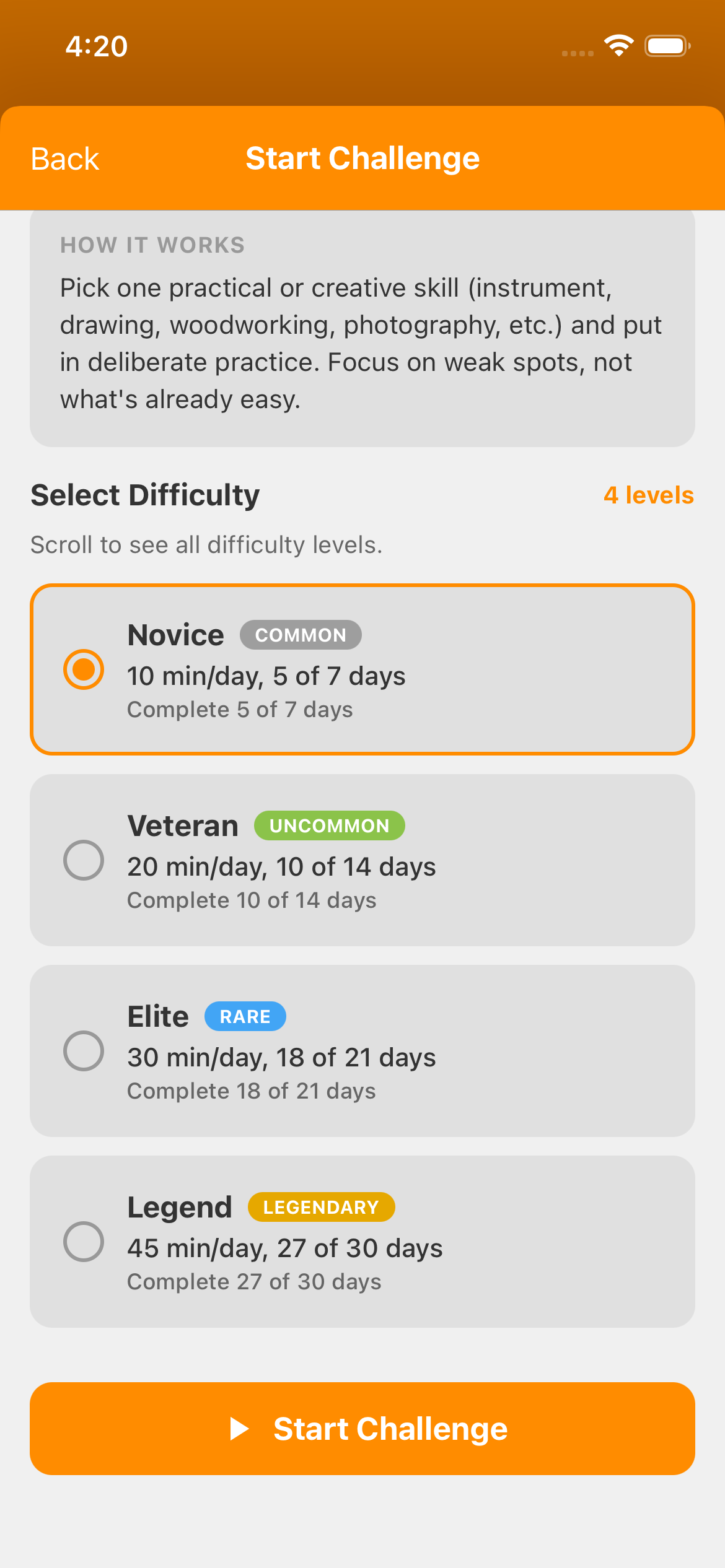
Scrolled Start Challenge screen showing Novice selected and Veteran, Elite and Legend unlocked. Their daily targets are ten, twenty, thirty and forty-five minutes, respectively.
Premium unlocks all four difficulties. Novice remains selected here; compare the daily targets and required days before choosing.
Open full-size screenshot: Start Challenge — compare four unlocked difficulties (new tab)

Start Challenge — compare four unlocked difficulties

Zoom in for a closer look, then scroll the image.

Scrolled Start Challenge screen showing Novice selected and Veteran, Elite and Legend unlocked. Their daily targets are ten, twenty, thirty and forty-five minutes, respectively.

Tap Start Challenge at the bottom of the Start Challenge screen. Today's calendar day is the first day, even if you start in the afternoon. Check the time remaining on your card; this isn't seven full 24-hour days starting from your tap.

Back on the Challenges screen, Skill Practice appears under Active with a Novice badge. It starts at 0/10 today and 0/5 days overall.
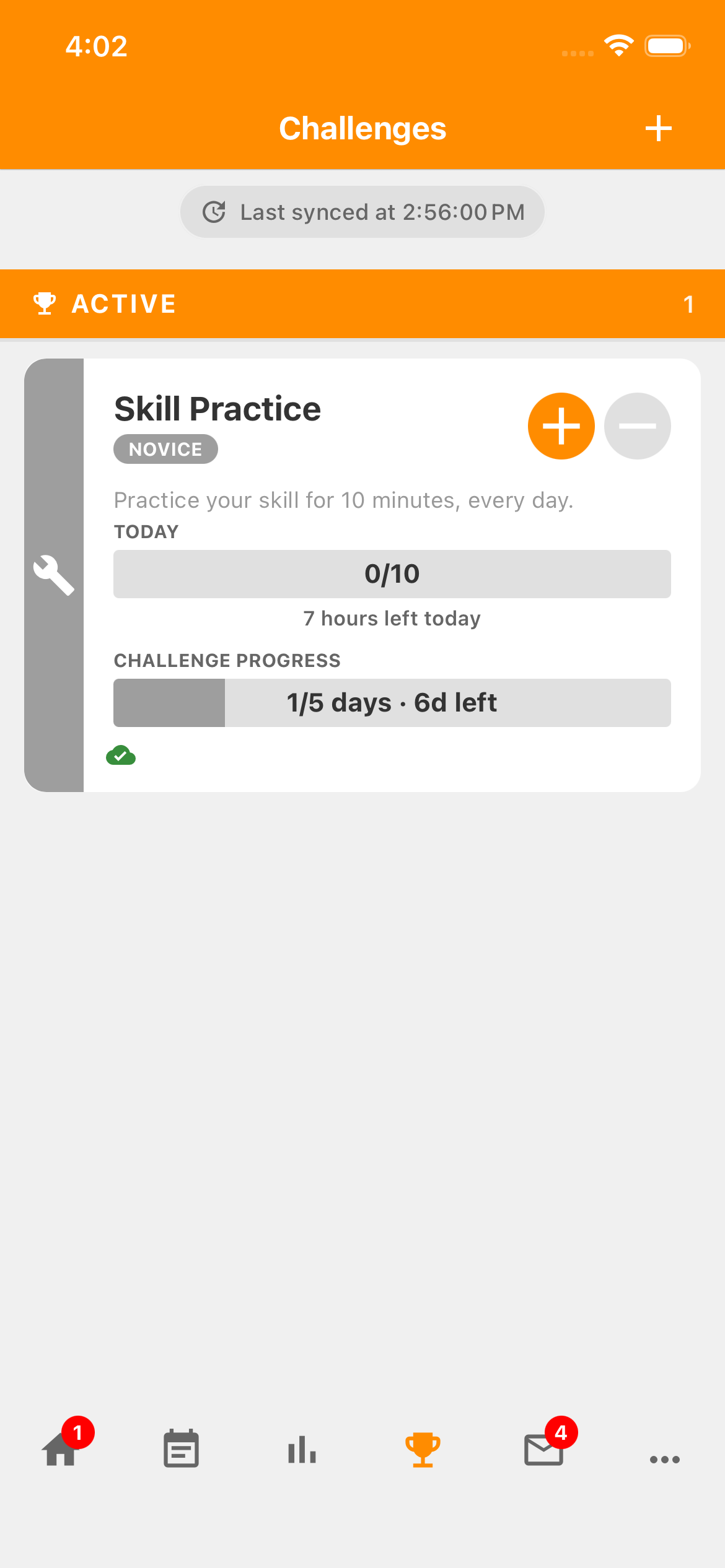
Active Novice Skill Practice card showing Today zero of ten and Challenge progress one of five days from yesterday.
Our continuing example has 0/10 minutes today and 1/5 successful days from yesterday. A new Challenge starts at 0/5 days.
Open full-size screenshot: Challenges — start today’s practice (new tab)

Challenges — start today’s practice

Zoom in for a closer look, then scroll the image.

Active Novice Skill Practice card showing Today zero of ten and Challenge progress one of five days from yesterday.

Step 04

Record practice minutes.

In this Challenge, one count means one minute of practice, not one session. Accumoo records the minutes you enter; it doesn't run a guitar practice timer.
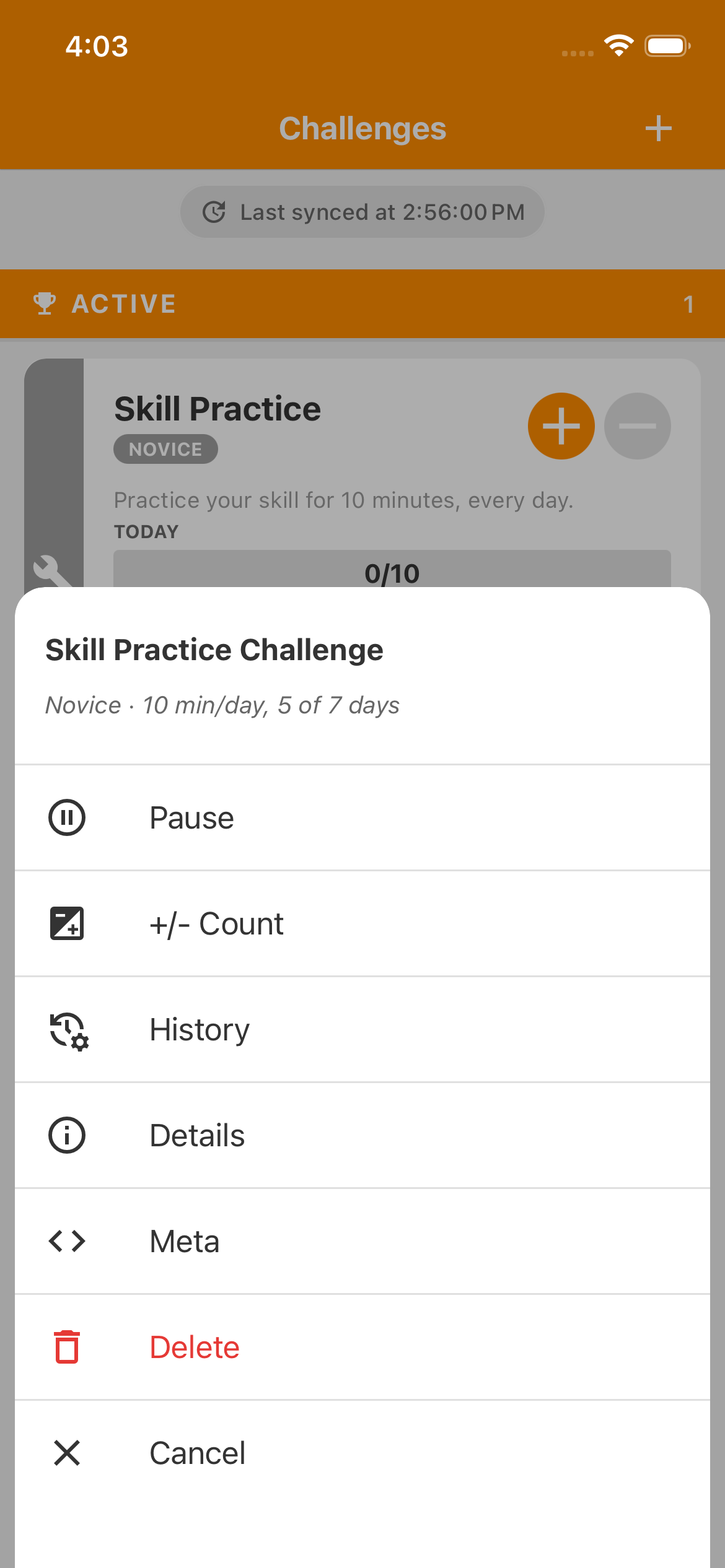
Skill Practice Challenge menu containing plus/minus Count, History and Details.
Tap the card name or body for this menu. Use +/- Count to record minutes and Details to review the Challenge.
Open full-size screenshot: Skill Practice — record minutes or open Details (new tab)

Skill Practice — record minutes or open Details

Zoom in for a closer look, then scroll the image. The numbered outline marks the control described in the lesson.

Skill Practice Challenge menu containing plus/minus Count, History and Details.
  1. On +/- Count, choose Increment (add).
  2. Enter the minutes you want to add. Our first session is 6 minutes; check Current count is 0 and Count after save is 6.
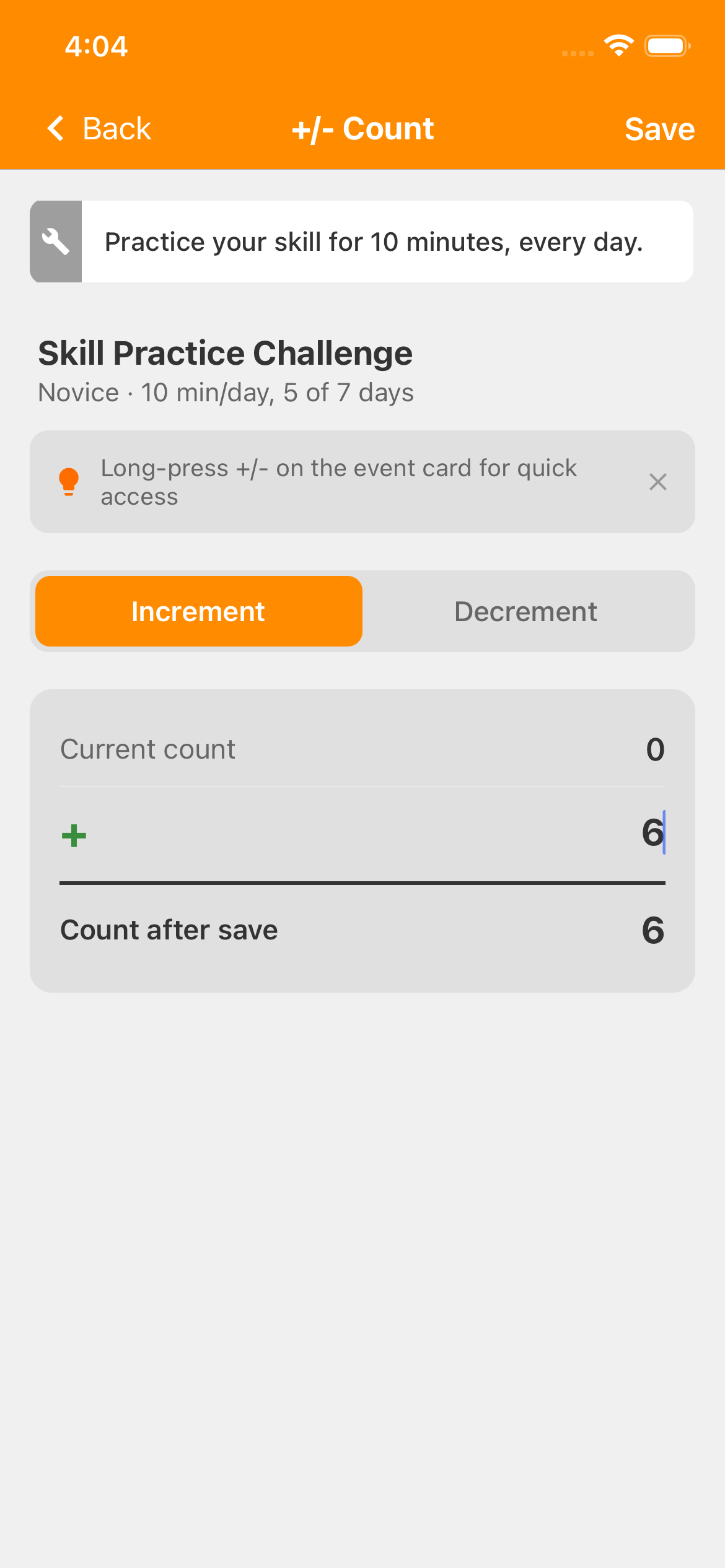
Plus/minus Count screen with Increment selected, Current count zero, six entered and Count after save six. Save is at the top right.
Add the minutes you practiced. Check Count after save, then tap Save in the top-right corner.
Open full-size screenshot: +/- Count — add six minutes (new tab)

+/- Count — add six minutes

Zoom in for a closer look, then scroll the image. The numbered outline marks the control described in the lesson.

Plus/minus Count screen with Increment selected, Current count zero, six entered and Count after save six. Save is at the top right.
  1. Tap Save in the top-right corner. Back on Challenges, today's indicator shows 6/10.

Practice four more minutes later? Open +/- Count again, choose Increment, and enter 4. Check Count after save shows 10, then tap Save. Enter the minutes you're adding, rather than today's new total.

For a quick change, the + on the Skill Practice card adds one minute; its − subtracts one to correct an extra tap. The header + starts a new Challenge.

Step 05

Minutes today. Successful days overall.

Your card shows two different kinds of progress. Read their labels as well as the numbers.

1. Today: your practice minutes

6/10 means six of today's ten minutes are recorded. Today's target isn't met yet, so today hasn't added a successful day. Our example already has one from yesterday: Challenge progress stays at 1/5 days. The time under Today is how long remains in this calendar day.
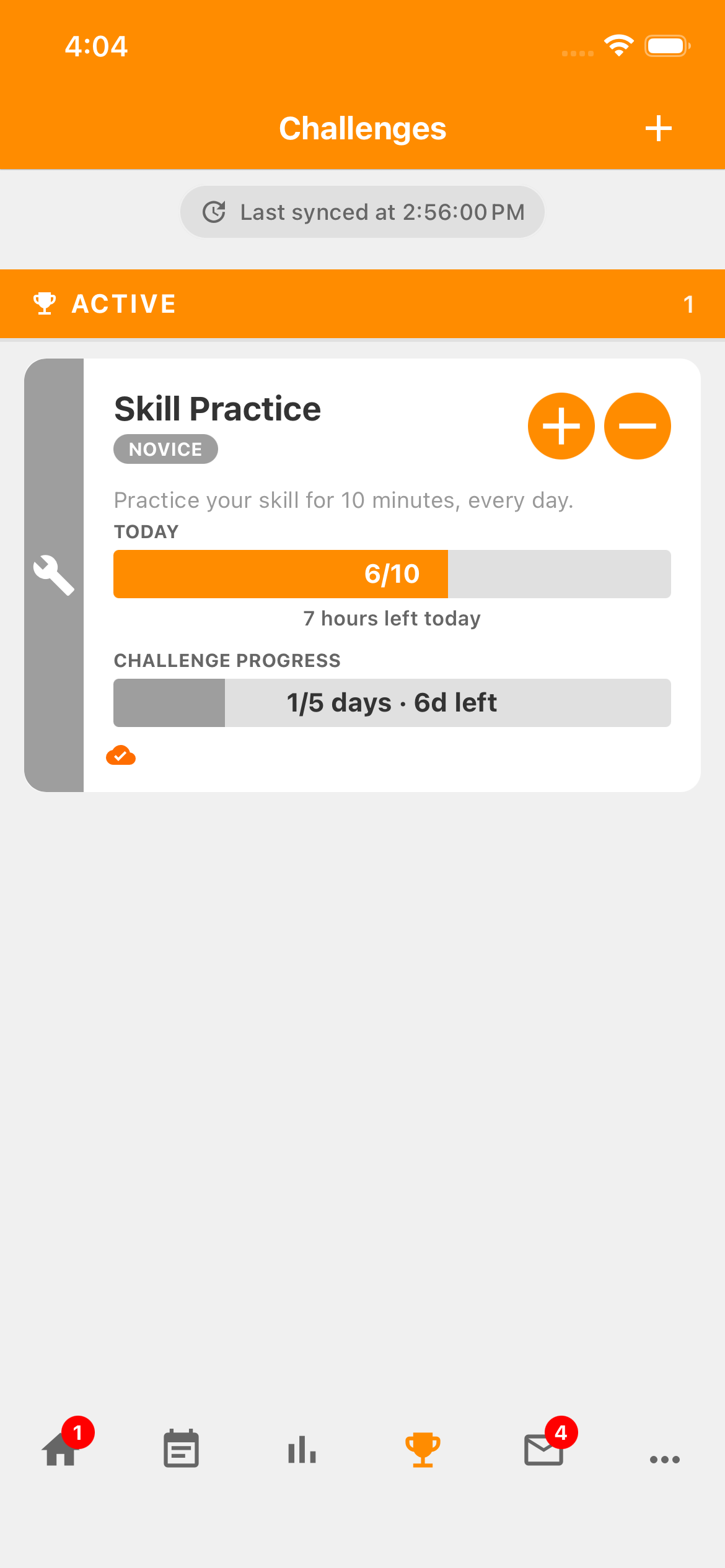
Skill Practice card with Today six of ten, and Challenge progress one of five days from yesterday.
6/10 hasn't met today's target. The lower indicator stays at yesterday's 1/5 days.
Open full-size screenshot: Challenges — six minutes today, target not met yet (new tab)

Challenges — six minutes today, target not met yet

Zoom in for a closer look, then scroll the image. The numbered outline marks the control described in the lesson.

Skill Practice card with Today six of ten, and Challenge progress one of five days from yesterday.

2. Challenge progress: days meeting the target

At ten minutes, Today changes to Goal met (10/10, 100%), and Challenge progress rises to 2/5 days: yesterday plus today. Each day meeting the target adds one successful day toward the five needed. The time beside that count belongs to the whole Challenge.
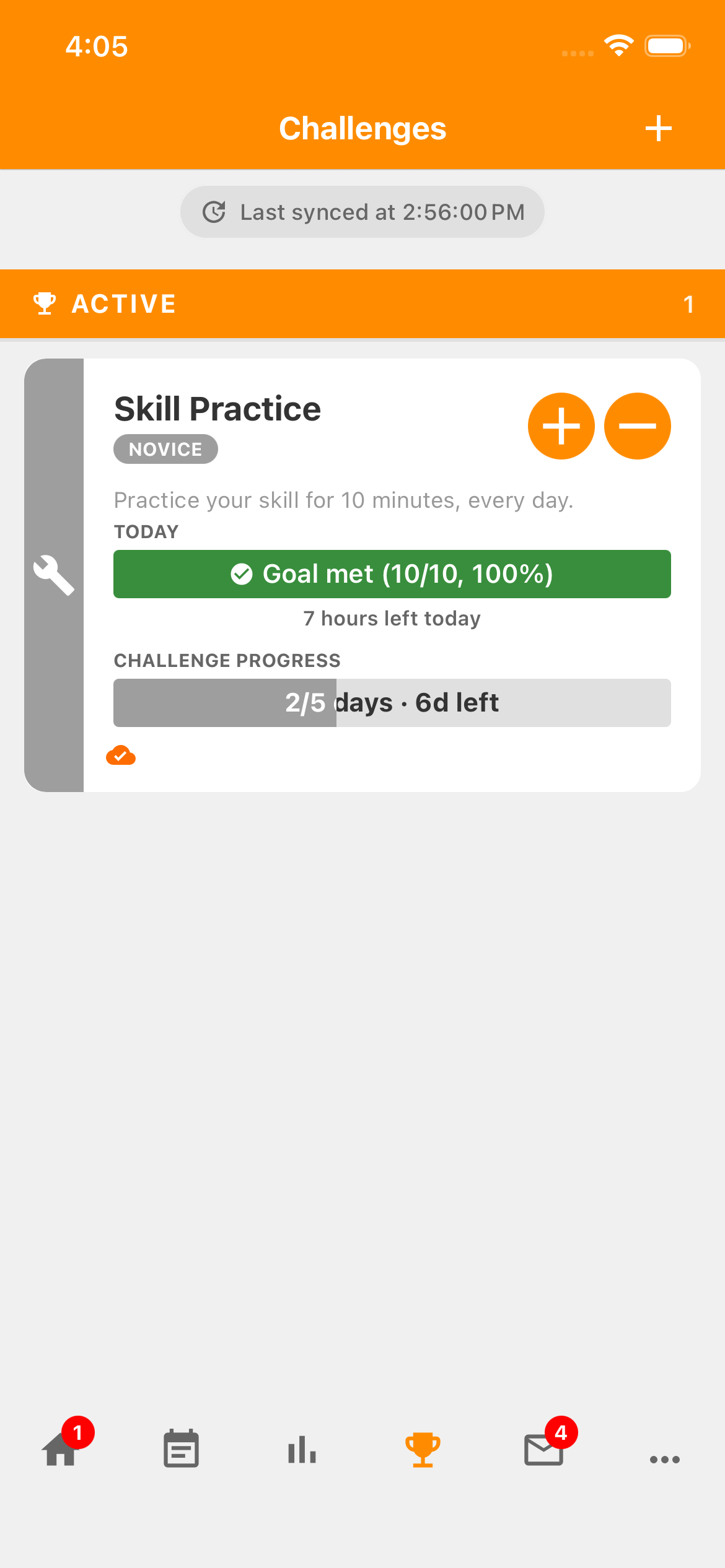
Skill Practice card with Today Goal met ten of ten and Challenge progress two of five days.
Ten recorded minutes meet today's target. The same card now shows two of the five successful days needed: yesterday and today.
Open full-size screenshot: Challenges — today's target met, two successful days (new tab)

Challenges — today's target met, two successful days

Zoom in for a closer look, then scroll the image. The numbered outline marks the control described in the lesson.

Skill Practice card with Today Goal met ten of ten and Challenge progress two of five days.

Step 06

Review the Challenge details.

On the Challenges screen, tap the Skill Practice name or card body and choose Details. The Details screen shows your progress, date range, remaining time, and a day-by-day picture.

Skill Practice Challenge menu with Details between History and Meta.
Choose Details to see the Challenge's overall progress and daily grid.
Open full-size screenshot: Skill Practice — choose Details (new tab)

Skill Practice — choose Details

Zoom in for a closer look, then scroll the image. The numbered outline marks the control described in the lesson.

Skill Practice Challenge menu with Details between History and Meta.

In our example, two of the five needed days are complete. Read the written totals above the colored squares; the grid follows the days in the displayed date range. A square for today can show success as soon as you meet today's target; future days aren't missed days.
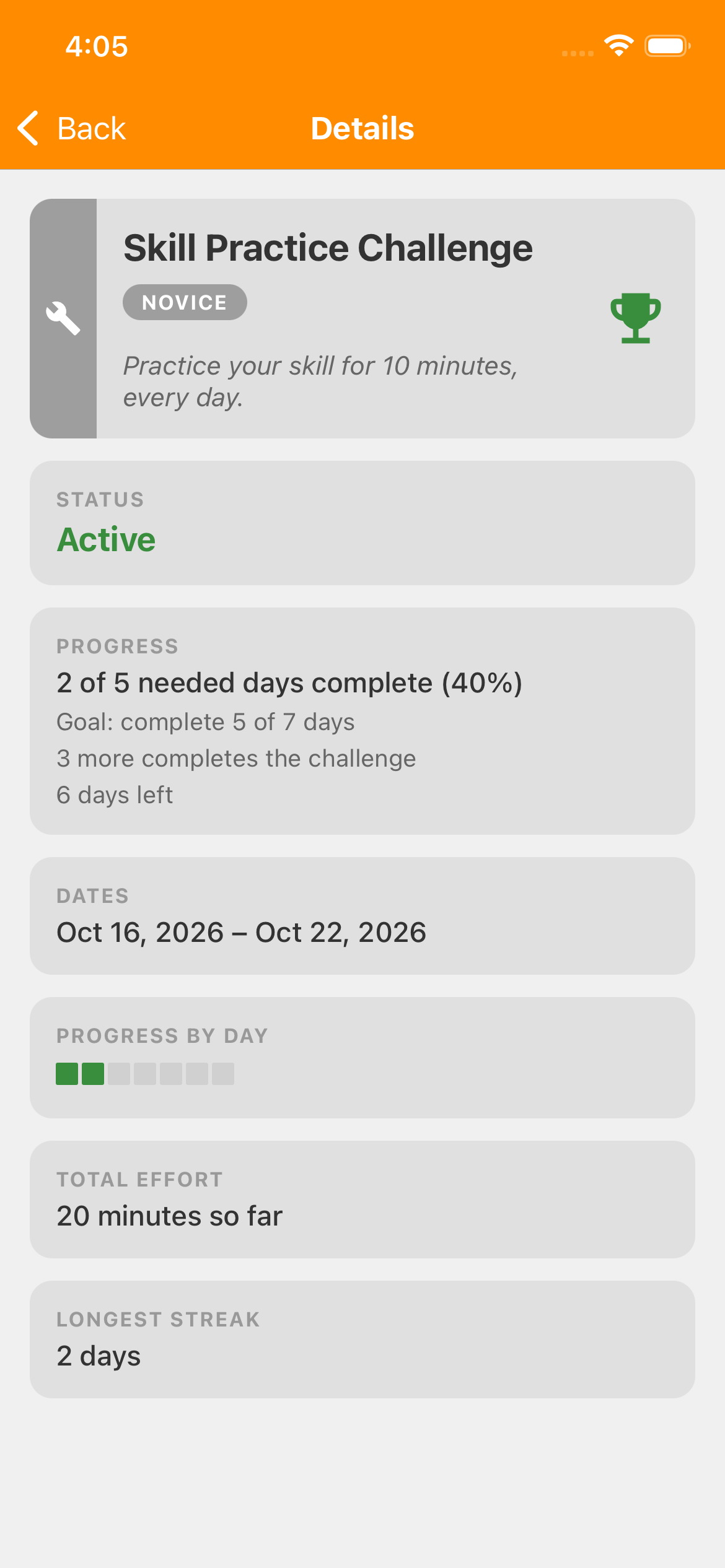
Skill Practice Details showing two of five needed days complete, the date range, remaining days and a daily progress grid.
Details brings the overall goal and day-by-day progress together. Your dates and remaining time will differ.
Open full-size screenshot: Details — your progress across days (new tab)

Details — your progress across days

Zoom in for a closer look, then scroll the image.

Skill Practice Details showing two of five needed days complete, the date range, remaining days and a daily progress grid.

Reaching five successful days meets the goal. The Challenge keeps its scheduled end date; the app records the final result when the Challenge ends and is evaluated. You can review past Challenges afterward. An unfinished goal is shown as Ended.

Keep practicing if you're enjoying it. After this Challenge ends, you can start the same Challenge again or choose another difficulty. Use an Event instead when you want your own ongoing practice settings without a Challenge finish date.

Guitar practice Challenge

Nice work!

You've finished this topic. Choose another whenever you're ready.

Back to all topics

Terms used in the app

Accumoo terms, explained.

Select an underlined term with a question mark for a quick explanation. All the definitions are also listed below.

Event
An activity you want to track, such as reading, walking, or staying hydrated.
Template
A ready-made starting point for an activity. Review its settings and make it your own before saving.
Goal
Your target for an activity, such as one reading session each day.
Reset Period
How often the current count starts over, such as daily or weekly. Earlier activity stays in History, subject to your account's history access.
History
Your record of count changes and past days, weeks, or other time intervals. Open an activity's menu to find it.
Counter
An activity that keeps a count without a target. It can reset on a schedule or keep a running total.
Lifetime
Choose Never under Reset Period to keep one running total without an automatic reset.
Sync
Exchange saved changes with your account when online so other signed-in devices can receive them. A change can be saved on one device before it has synced.