
Use an iPhone running iOS 17 or later. Open Accumoo and sign in on this iPhone first. You'll use an existing activity; the first lesson explains how to create one. These pictures show iOS 26; your Home Screen and menus may look different.
Section 01
Define a stretching session.
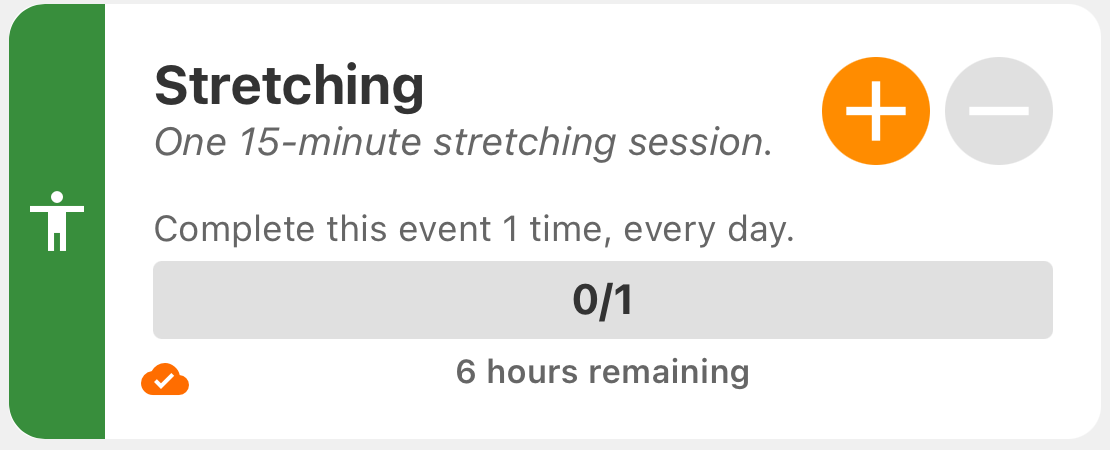
Create an activity named Stretching with these settings, or use an activity you've already set up. Open its menu and choose Edit if you need to check them.
- Name
- Stretching
- Description (Optional)
- One 15-minute stretching session.
- Event Type
- Goal
- Goal
- 1 session
- Reset Period
- Every Day
One count means one completed 15-minute session. The widget doesn't run a timer or measure your exercise. After saving, check Stretching on the Events screen before leaving the app.
Section 02
Add a small Home Screen widget.
- Return to your iPhone's Home Screen.
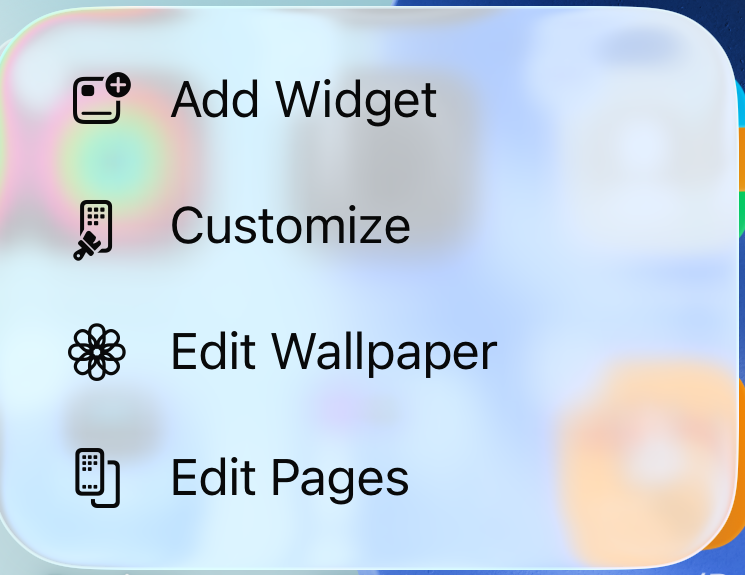
- Touch and hold an empty area until the icons jiggle.
- Tap Edit.
- Choose Add Widget.
- Search for Accumoo and tap it.
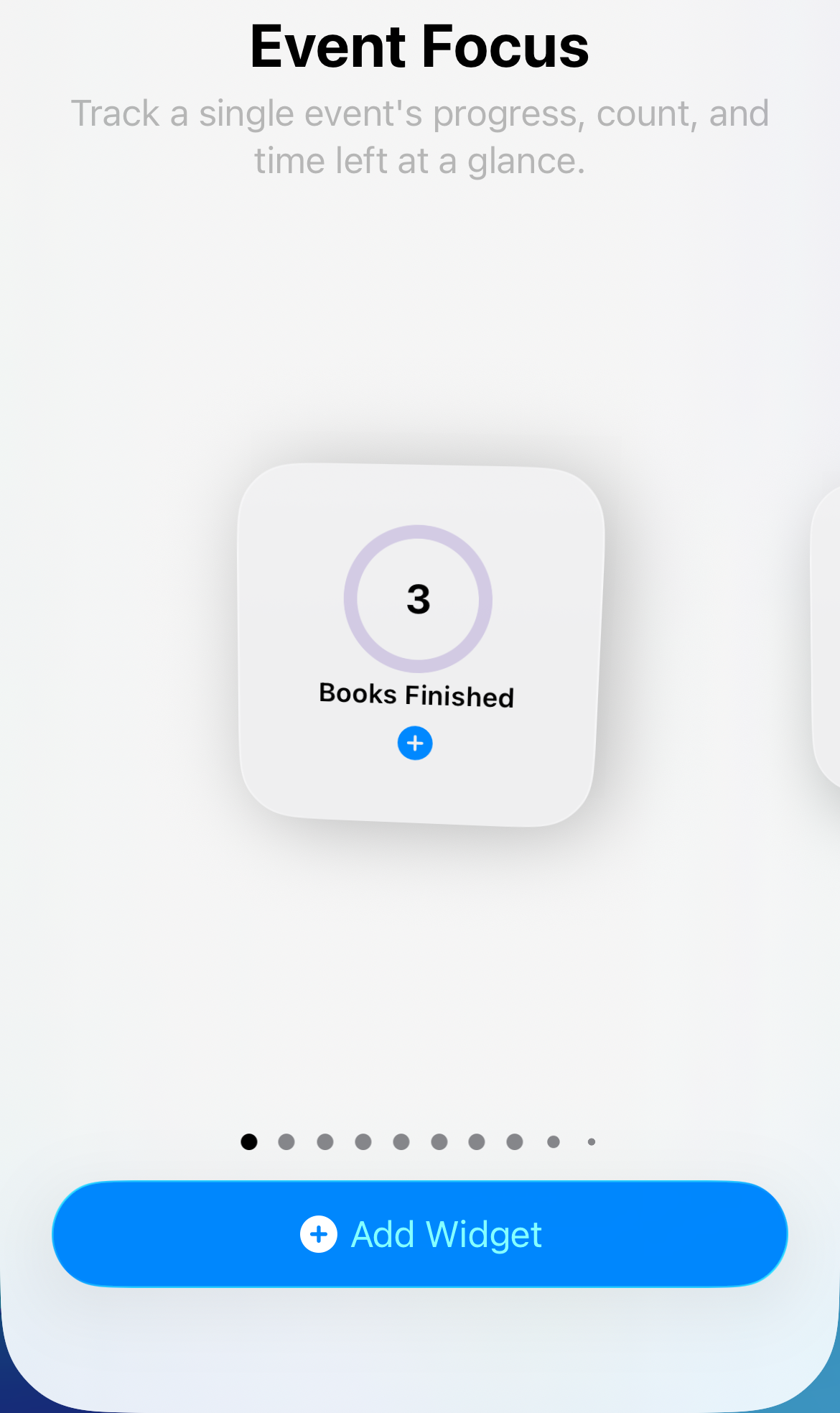
- Find Event Focus, the small square widget.
- Tap Add Widget.
The gallery preview may show a different activity; you'll choose yours next.
Need help with a different iOS layout or iPad? See Apple's iPhone widget instructions or Apple's iPad widget instructions.
Section 03
Tell the widget which activity to show.
- While the icons are still jiggling, tap the new widget.
- Tap the blue value beside Event, then choose Stretching.
- Tap outside the settings panel and tap Done to finish editing the Home Screen.
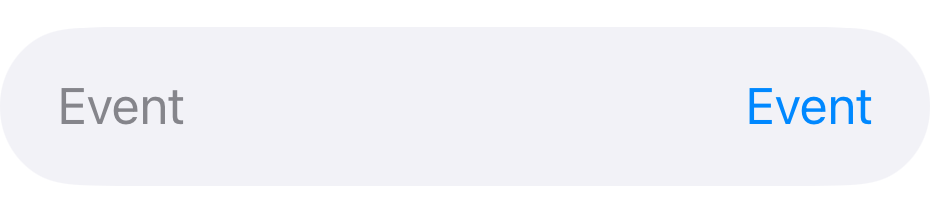
To change it later, touch and hold the widget and choose Edit Widget. Check the activity name on the finished widget before using it.
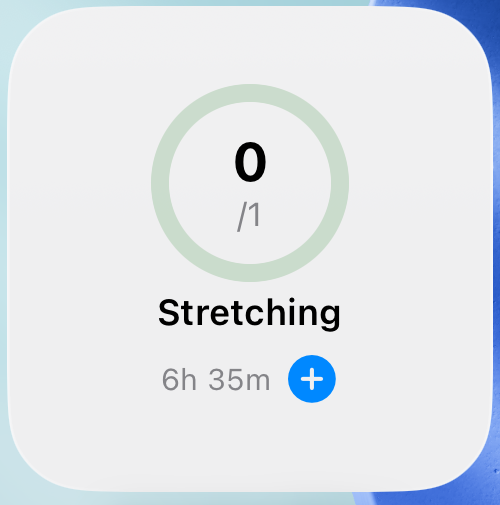
0/1 means zero sessions recorded toward today's goal of one. The ring fills as you record sessions. A time such as 6h 35m is time until the daily reset, not the length of your stretching session.
Section 04
Finish a session, then tap + once.
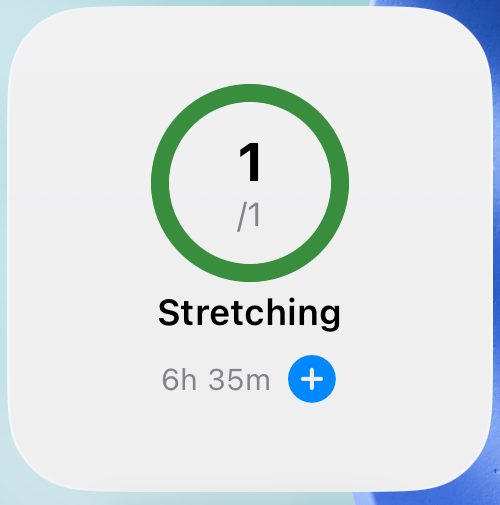
Open Accumoo to finish recording the widget action. On Events, check that Stretching shows Goal met (1/1, 100%). The widget may update before the app has processed the tap, so don't tap again just because another screen hasn't caught up yet.
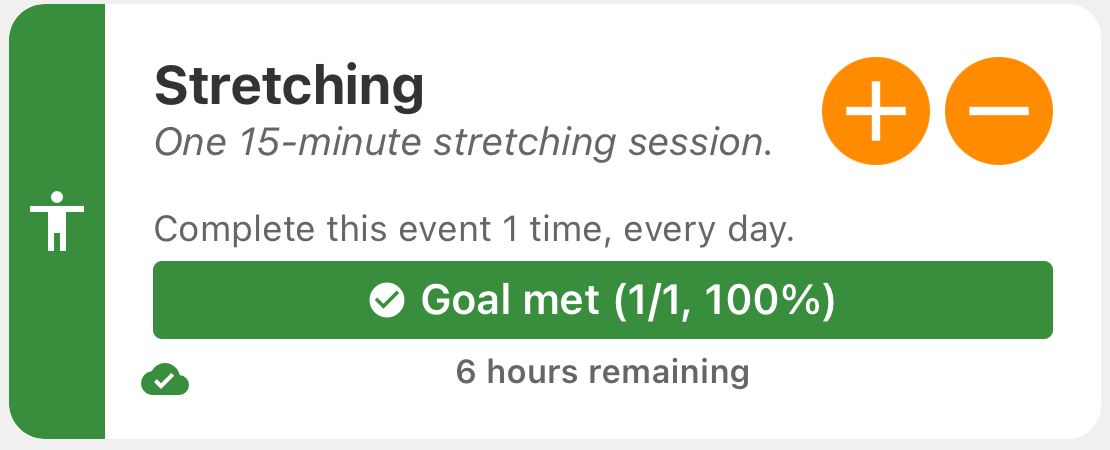
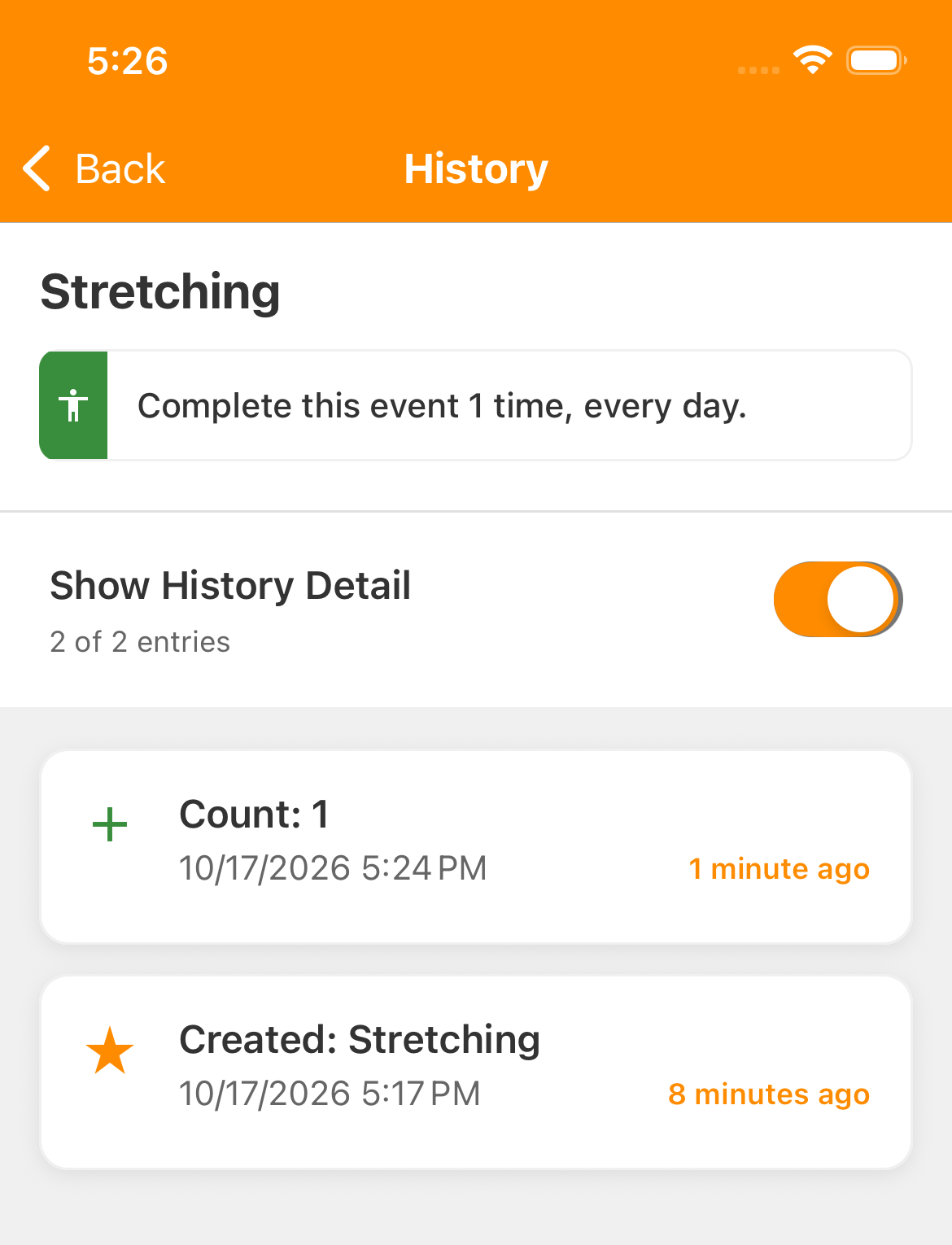
For a record of the change, open the activity's menu, choose History, and turn on Show History Detail. Our example has one Count: 1 entry. If you counted twice by mistake, the Events and corrections guide shows how to subtract the extra count.
Section 05
See the same goal on your Lock Screen.
The Goal Progress widget shows an activity's name, progress bar and percentage. It displays progress; it has no + button. Use an activity with a goal, such as Stretching, rather than a target-free Counter.
- Touch and hold your unlocked Lock Screen.
- Tap Customize, then choose Lock Screen if asked.
- Tap Add Widgets in the widget area; its position depends on your Lock Screen layout.

- Find Accumoo.
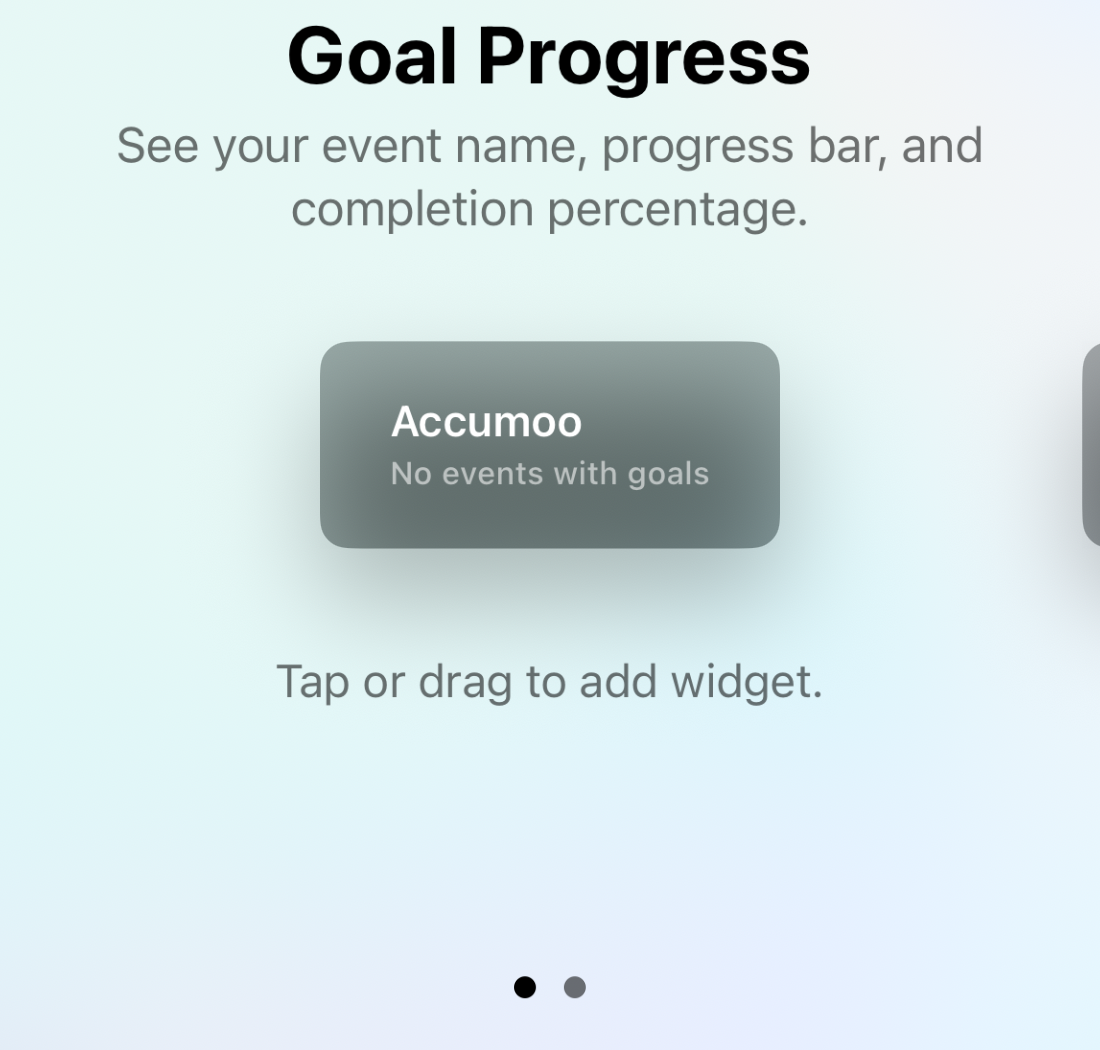
- Tap the rectangular Goal Progress preview to add it. If the area is full, remove a widget to make space.
Choose your activity next, even if the preview says No events with goals.
- Close the widget gallery, then tap the added widget.
- Tap the blue value beside Event and choose Stretching.
Activity selection follows the same Free/Premium limits described above.

- Close the settings panel and tap Done to save your Lock Screen.
- If the wallpaper chooser appears, tap your Lock Screen preview to finish.
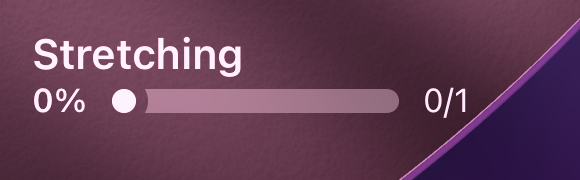
In this picture, 0/1 and 0% mean no session has been counted today. After one session, a full bar, 1/1 and 100% mean today's goal is met.
Section 06
Keep the widget useful.
Try another view when you need it.
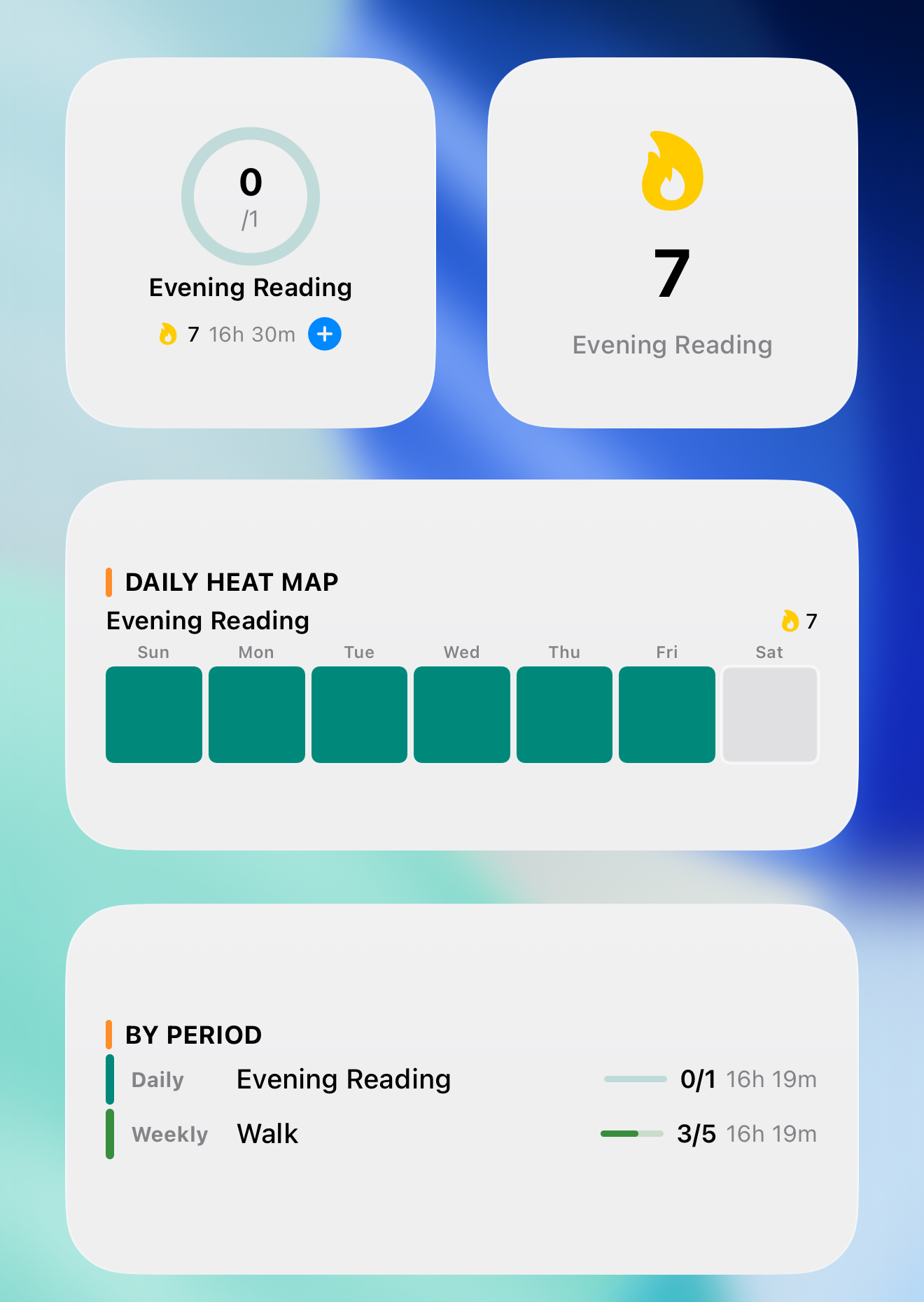
Event Focus is a good starting point. Accumoo also offers countdown, streak and heat map widgets, plus summaries of several activities. Browse their previews in the widget gallery; some require Premium. You don't need to add them all.
No activities, or the wrong one?
Open Accumoo, check that you're signed in and that the activity exists, then edit the widget's Event selection. A paused activity can show its status but cannot be counted until you resume it in the app.
Widget showing old progress?
Open Accumoo and check the activity's count and History before trying another tap. iOS controls when widgets refresh; a widget is not proof that another device has synced. If it stays stale, check its selection again, then remove and re-add the widget.
Move or remove it.
Touch and hold the widget to move it, or choose Remove Widget and confirm. Removing a widget doesn't delete the activity or its History in Accumoo.
Home and Lock Screen widgets
Nice work!
You've finished this topic. Choose another whenever you're ready.
Back to all topics