

Use an activity you've already created. Start with the daily reading lesson if you need one. The pictures use example counts; you can read along without changing yours.
Section 01
Open the Events screen.
Tap Events in the bottom bar: the calendar-shaped icon, second from the left. Check that the title at the top says Events. The trophy icon opens the similar-looking Challenges screen, which is a separate area.
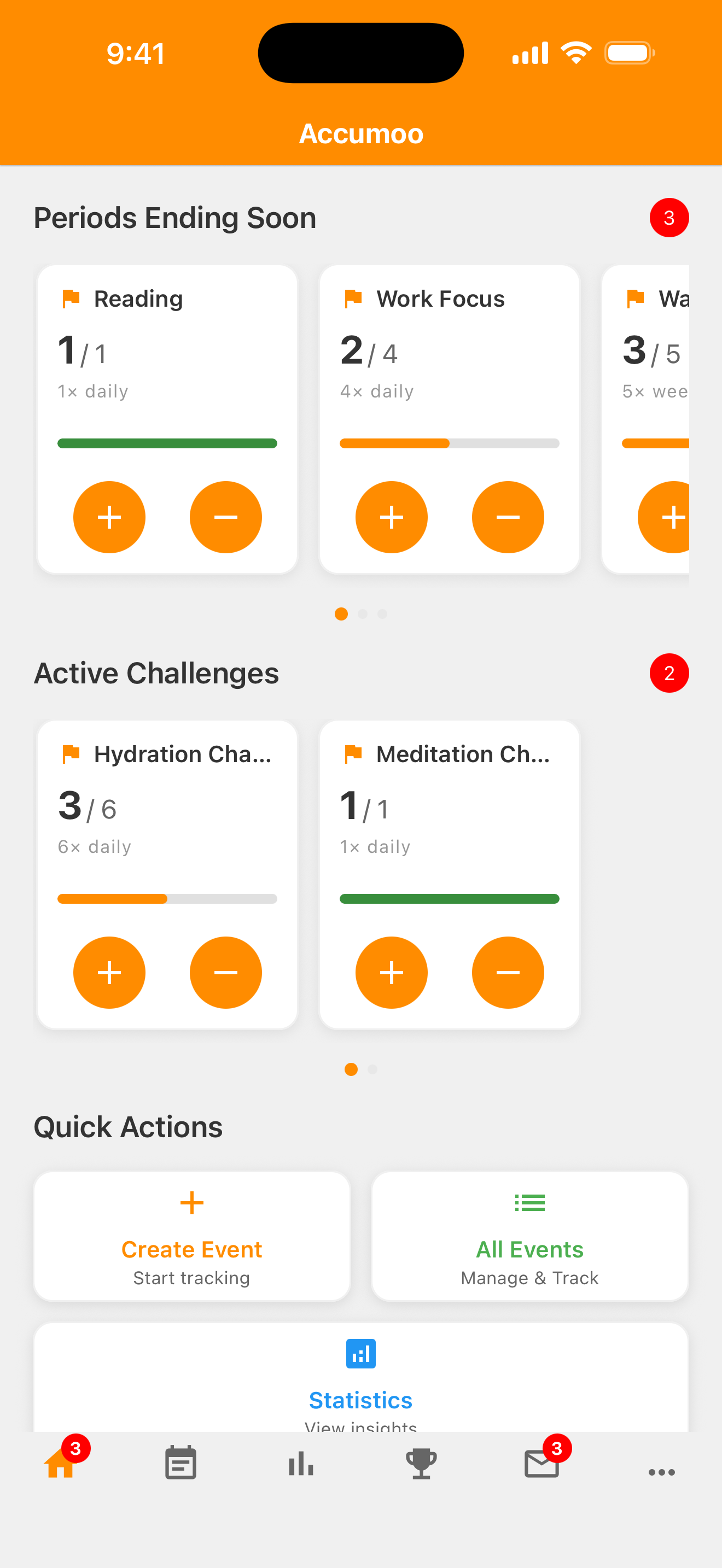
Your activities are grouped by Reset Period: Hourly, Daily, Weekly, Monthly, Yearly or Lifetime. Only groups with activities appear. The number at the right of a group heading counts its activity cards, not how many times you've done them. Within each group, names are alphabetical.
The + at the top right of the screen creates a new activity. The + on an activity card adds one count to that activity. They do different jobs, so check which one you're tapping.
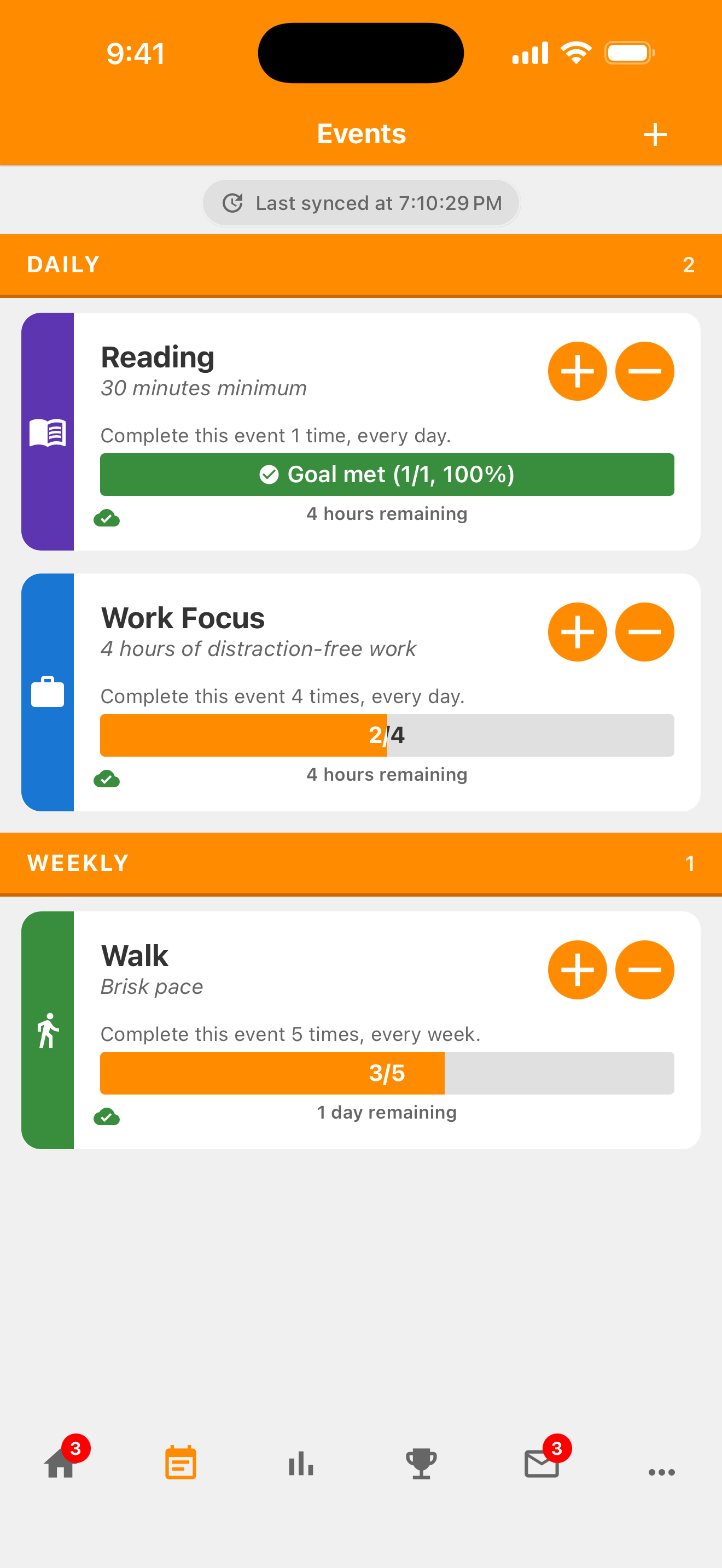
Last synced is a sync status, not your last activity time. Check History Your record of count changes and past days, weeks, or other time intervals. Open an activity's menu to find it. for recorded count changes. A screenshot's time or cloud icon doesn't tell you whether your own latest change has reached another device.
Section 02
Read an activity card.
Look for your activity's name and optional description. On a Goal activity, a count such as 3/5 means three recorded toward a target of five. Goal met means the target has been reached; it doesn't stop you counting more. A Counter has no target: our Books Finished example shows 3 events to date, meaning three whole books read.
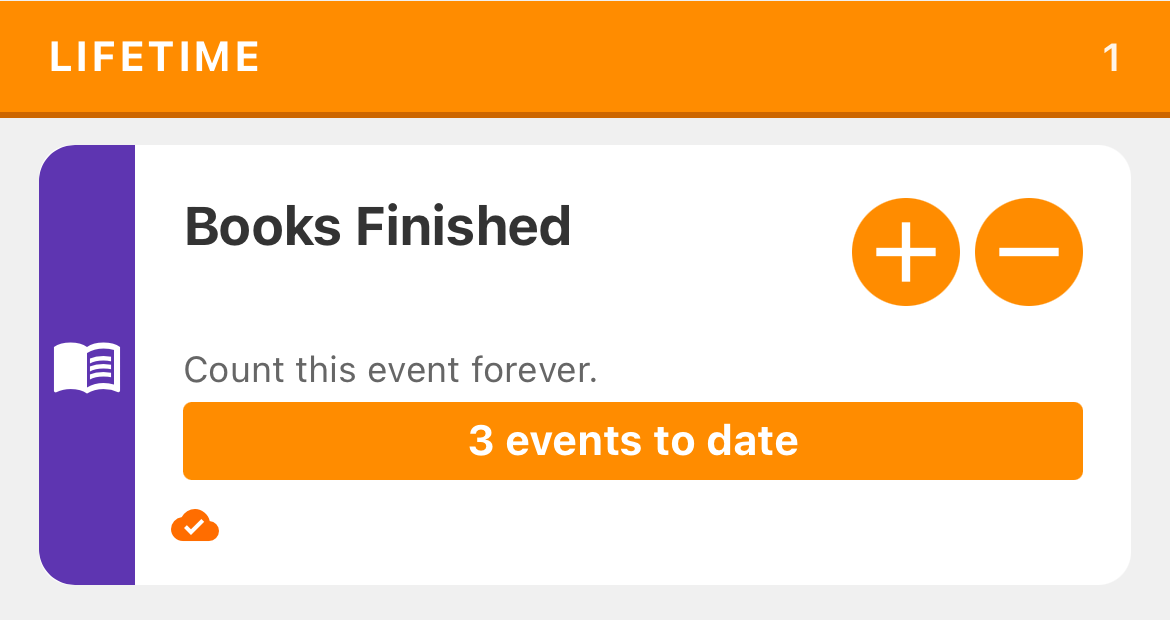
Tap the card's + to add one, or its − to subtract one. These taps take effect straight away; there is no separate Save step. At zero, the minus button is unavailable. Paused activities cannot be counted until resumed. Colors, icons and compact display can change how a card looks, so use its name and count as your landmarks.
To open its menu, tap the card body, away from the + and − buttons. Choose +/- Count for an adjustment with a preview. You can also find Edit, History and Statistics here. Menu choices depend on the activity: for example, a Lifetime activity has no pause option, and a paused activity doesn't offer +/- Count.
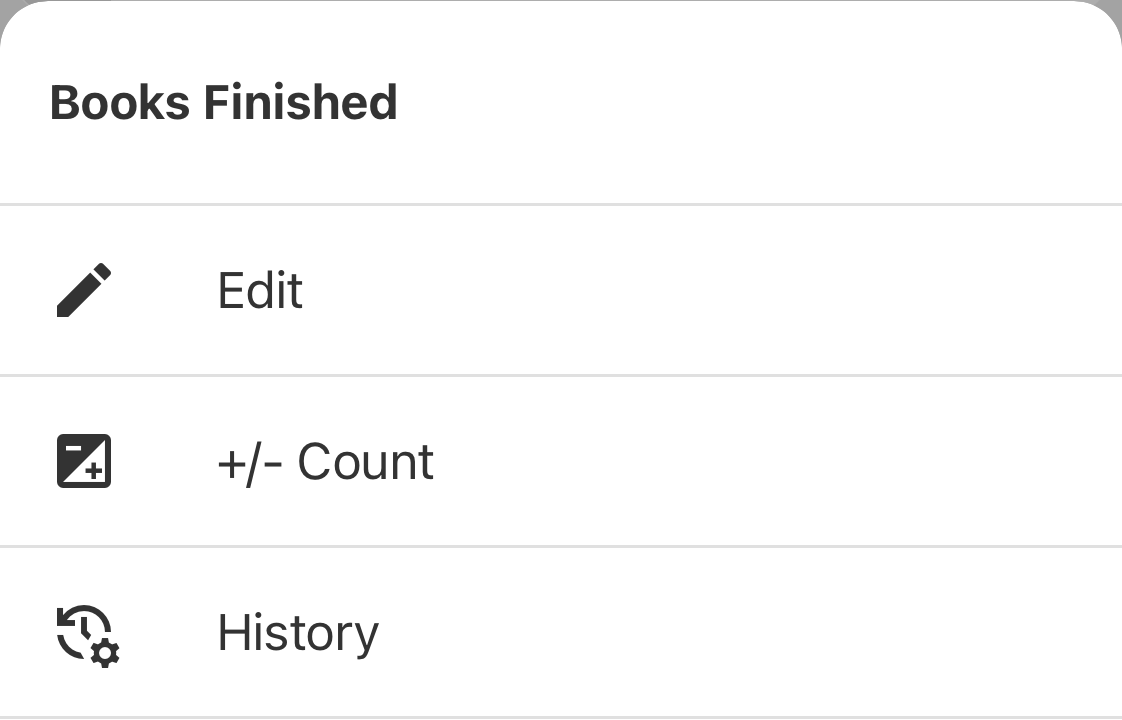
Shortcut: touch and hold the card's + to open +/- Count with Increment selected, or hold − for Decrement when the minus button is available. The menu route works without a long press.
Section 03
Record missed activity.
- In the activity menu, tap +/- Count.
- Check the activity name on that screen, then choose Increment, which means add.
- Enter the amount to add beside the plus sign, using a whole number greater than zero.
For example, suppose Books Finished shows Current count of 3, and you have two more finished books to record. Enter 2, not 5. Count after save should show 5: three already counted, plus two more.
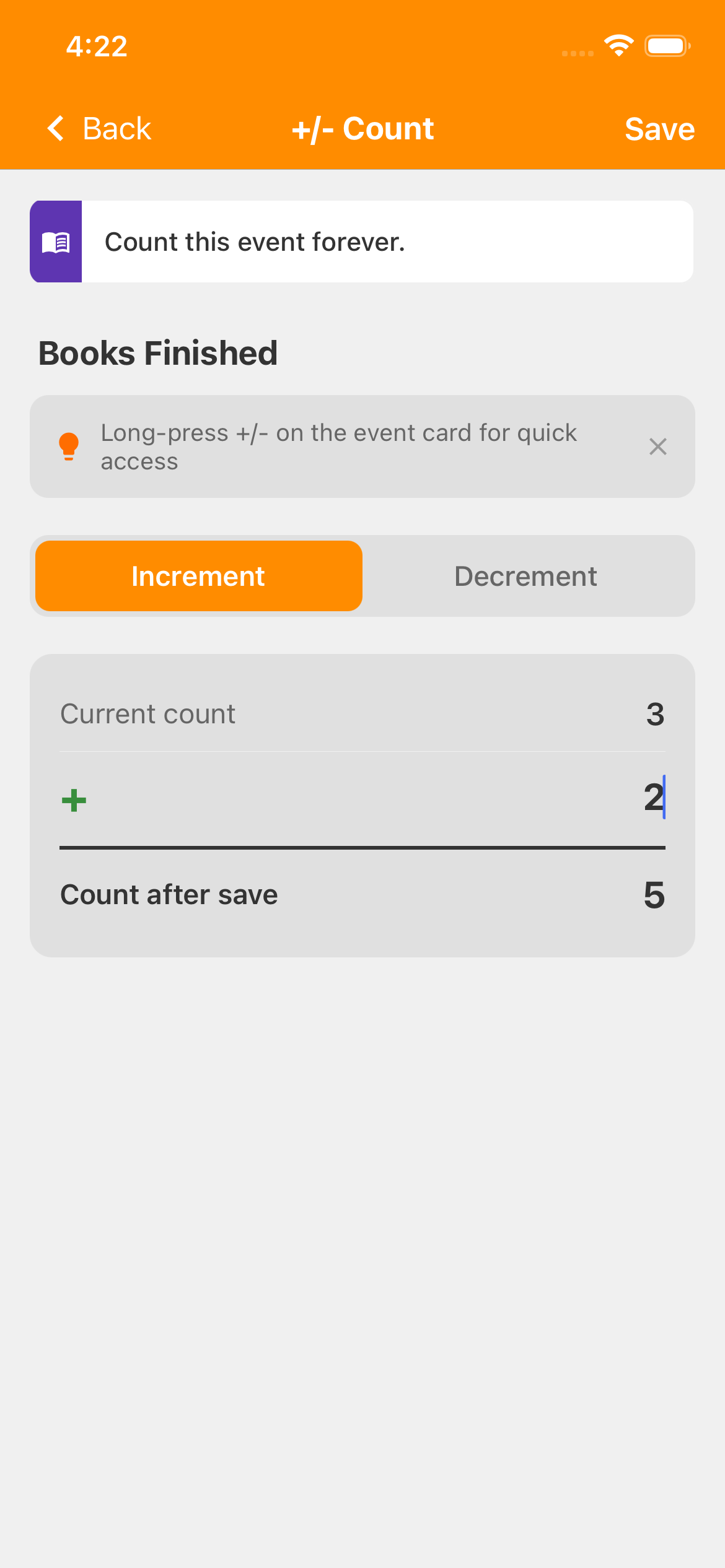
This is a preview; nothing changes until you tap Save. To leave without applying it, tap Back at the top left. You don't need to add counts just to match our picture.
Section 04
Correct an extra tap.
- Open +/- Count for the activity.
- Choose Decrement, which means subtract.
- Enter the amount to remove as a positive whole number; you don't need to type a minus sign.
Here is a separate example, starting at 3 again. If one count was accidental, enter 1. Check that Count after save shows 2. This picture is not the next step after saving the add-two example.
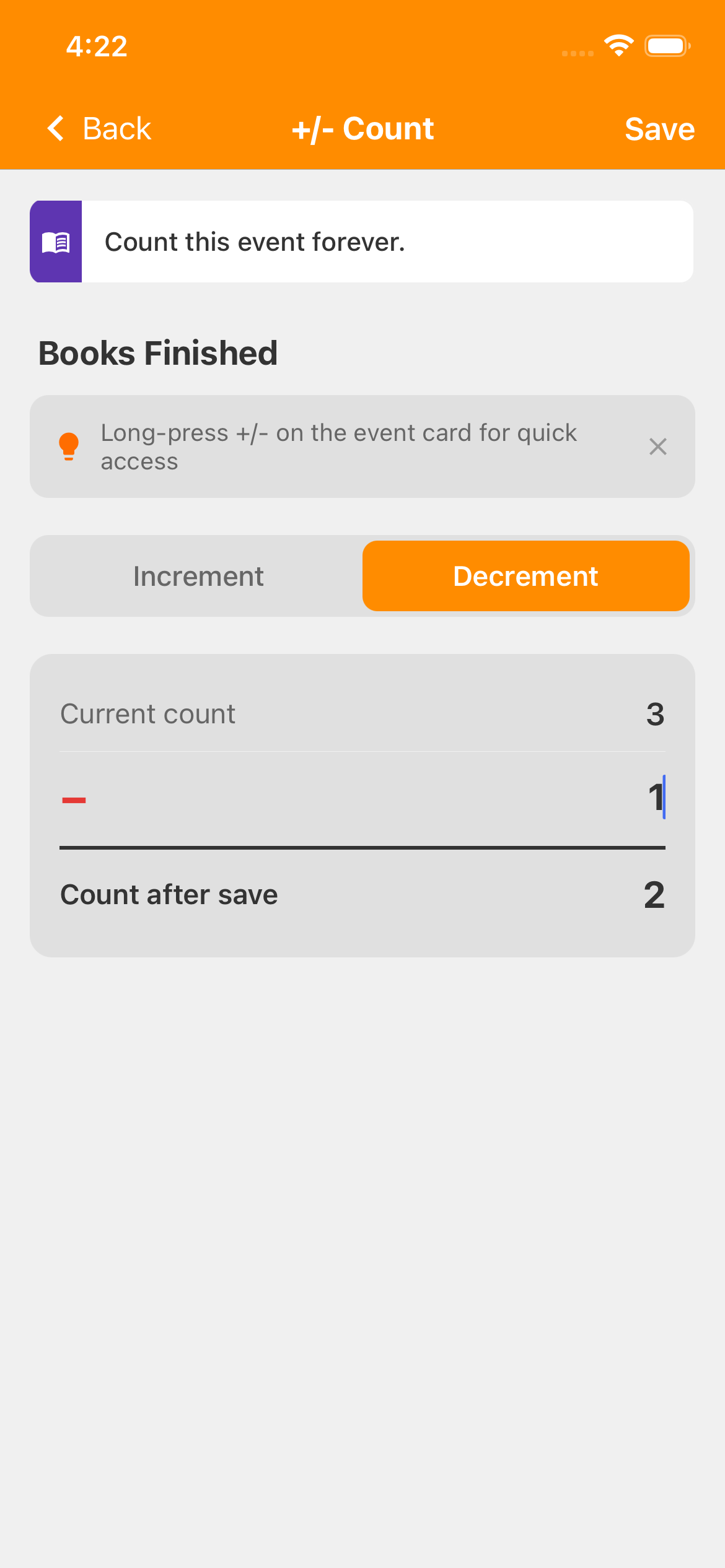
Counts cannot go below zero. If your subtraction would reach zero or go below it, the preview shows 0. When you tap Save, Accumoo asks you to confirm: choose Cancel to return to the preview, or Continue only if a count of zero is what you want.
Subtracting is a new count change. It does not erase the earlier tap from History Your record of count changes and past days, weeks, or other time intervals. Open an activity's menu to find it. . You can still see the record of how your count changed.
Section 05
Check the result. Then save.
Before you tap Save
- Is this the right activity?
- Did you choose Increment to add, or Decrement to subtract?
- Did you enter the amount to change, rather than the final total?
- Does Count after save show the total you expect?
If everything looks right, tap Save at the top right of the +/- Count screen. A blank or zero amount leaves Save unavailable. While the app is saving, the button shows Saving.... After a successful save, you're returned to Events; check the activity's count there.
If the app reports that it couldn't update the count, check the activity's current count before trying again. Don't assume the change went through or tap repeatedly.
For a record of the change, tap the card body again and choose History. A saved adjustment records one increment or decrement entry with the resulting count, not a separate entry for every count you added. For the detail switch and an example, see the Books Finished lesson's History section.
Events and corrections
Nice work!
You've finished this topic. Choose another whenever you're ready.
Back to all topics