

In Accumoo, open More → Account. Check the displayed email to make sure this is the account you want to manage.
Solid boxes in the screenshots hide personal details.
Section 01
Check or edit your profile.
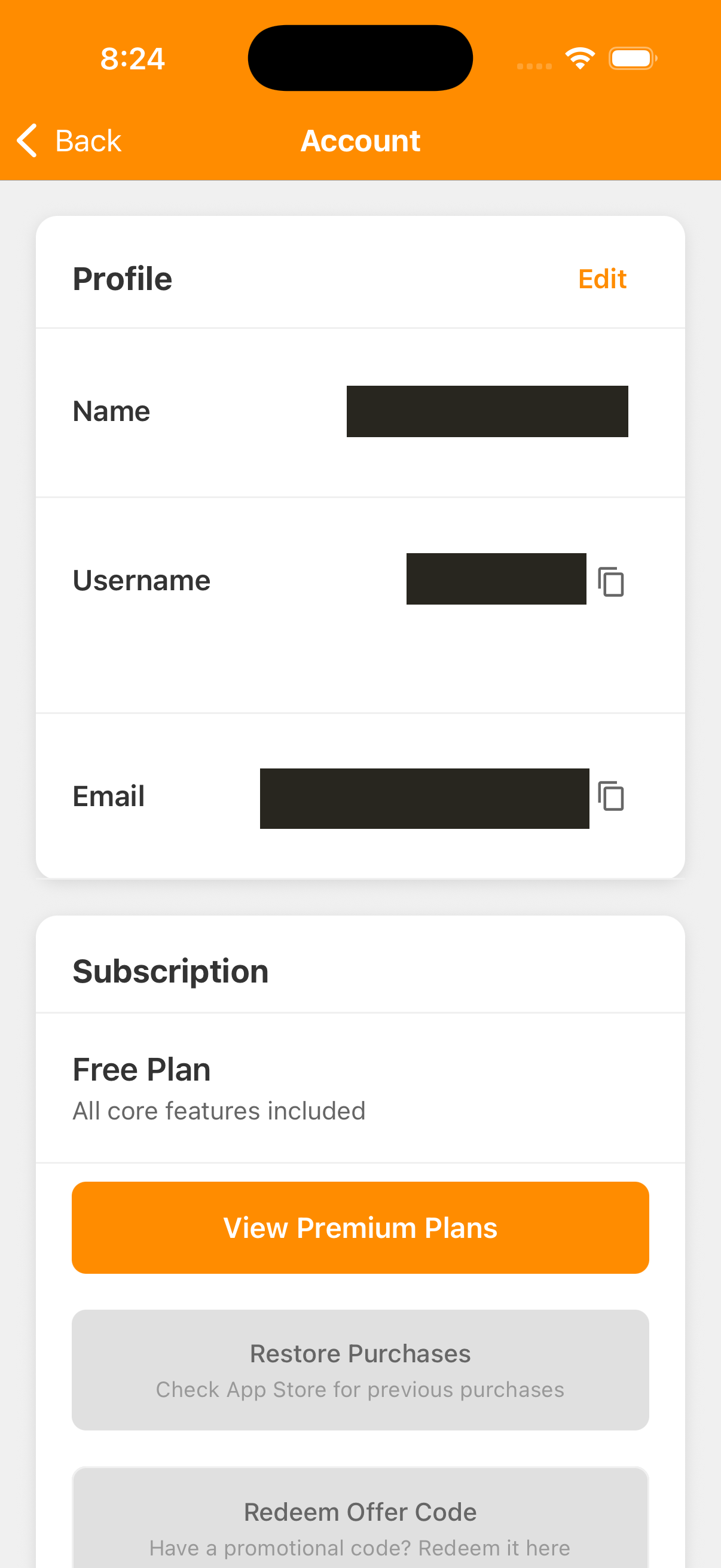
Under Profile, check Name, Username and Email. The copy buttons beside your username and email copy the displayed value; they do not change it. Accounts using Apple also show Signed in with Apple.
- To change your profile, tap Edit beside Profile.
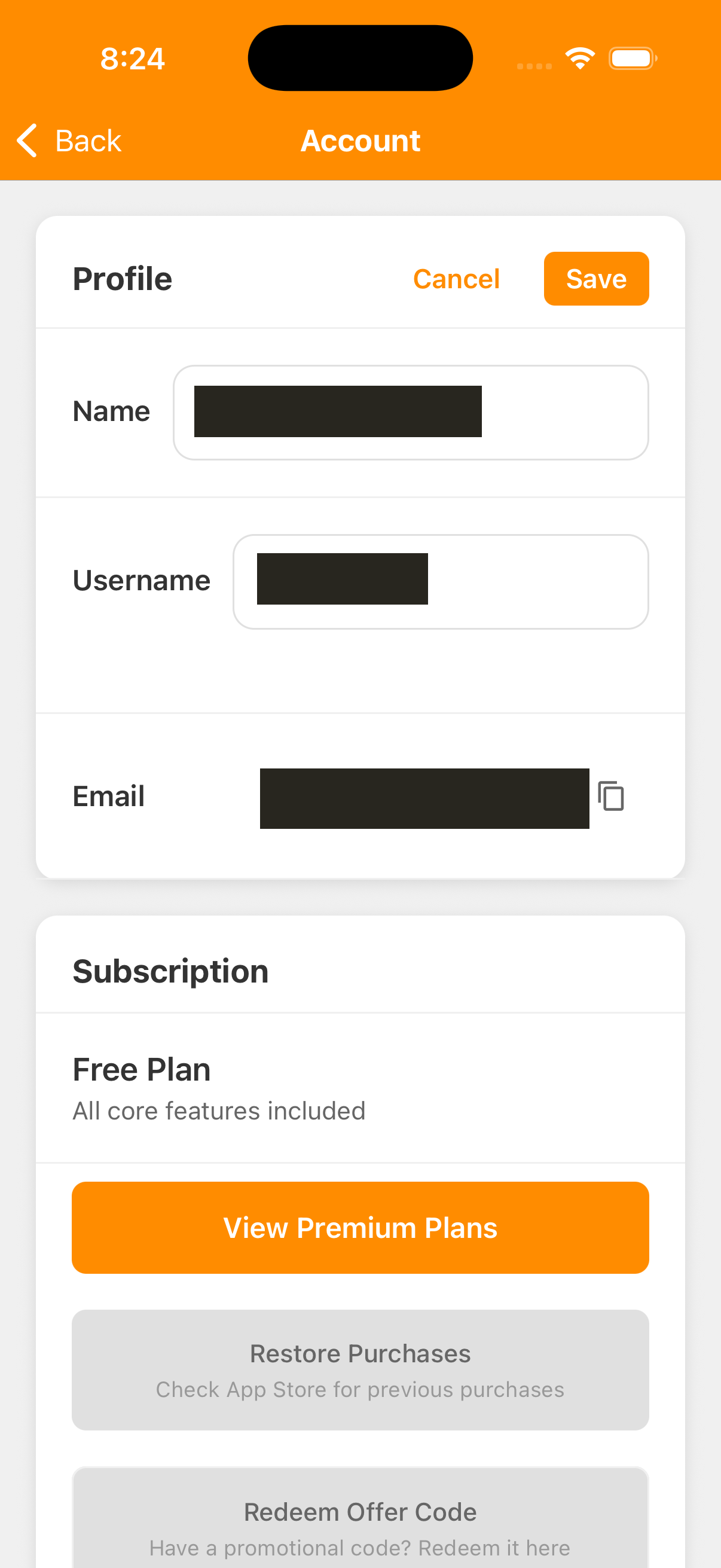
- Update Name or Username.
- Tap Save to apply the changes, or Cancel before saving to discard the edits still on the form.
Unlike Preferences, profile edits need this Save step.
Email is displayed here; it is not an editable field on this screen. If you used Apple's Hide My Email, the displayed address may be an Apple relay address. Use the email shown for this Accumoo account when the app asks you to confirm it.
Username rules and saving errors
A username must be 3–20 characters, using letters A–Z, numbers or hyphens, and must start and end with a letter or number. It must be available; some names are reserved. Wait for the availability check and read any message under the field. Changing a username needs an internet connection; the username field is unavailable while offline. If the app supplied a temporary username, the edit field may start empty so you can choose your own.
If saving reports a problem, check the messages and your current values. Your name may already have saved even if the username change failed. Correct the remaining error before trying Save again; Cancel does not undo a change that already saved. A local save does not confirm every device has received it.
Section 02
Understand your account plan.
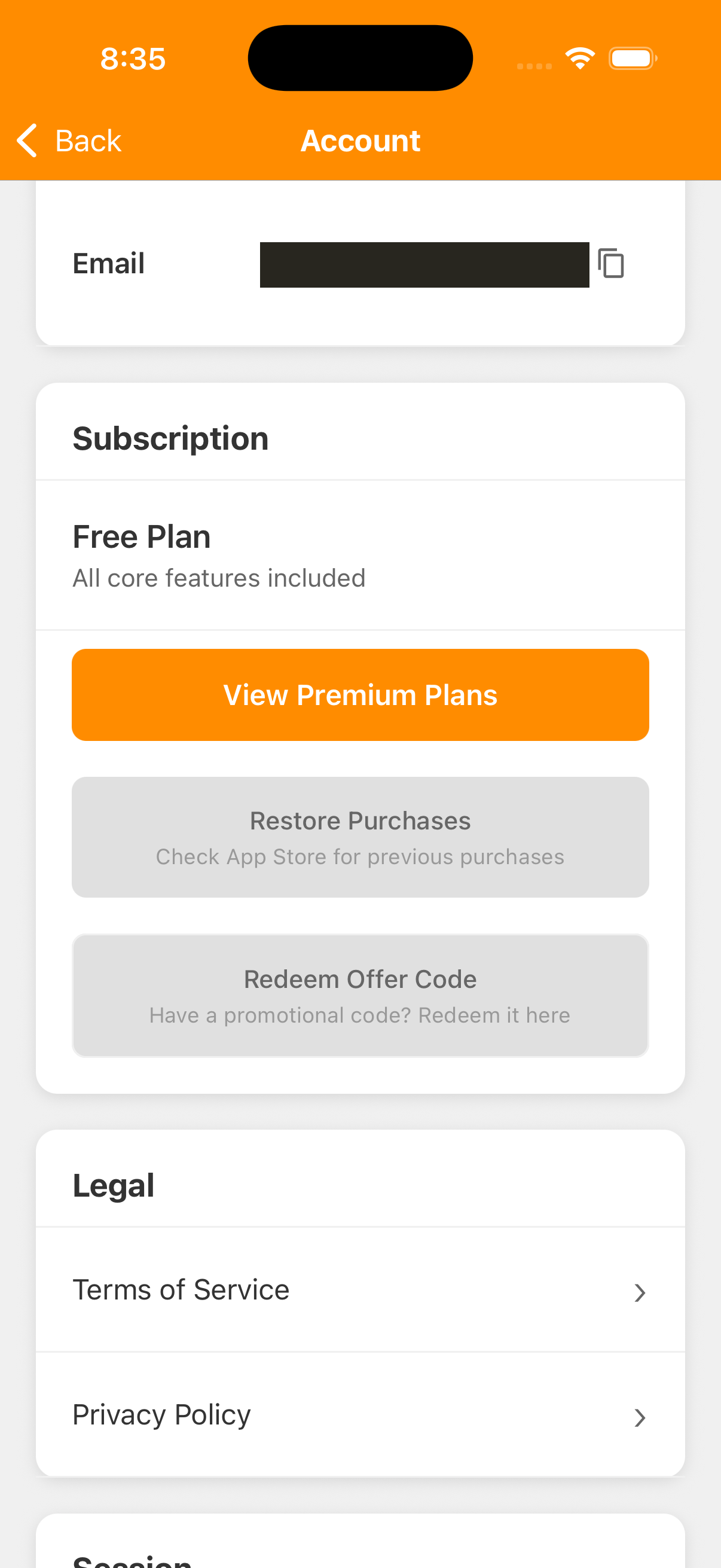
Under Subscription, read the plan name and available features. These account choices are separate from Novice, Veteran, Elite and Legend, which are Challenge difficulty levels. You can use the introductory lessons with a Free account; an upgrade is optional.
- Free
- Core tracking with limits on activities, history access and active Challenges. The introductory lessons explain the allowances relevant to each example.
- Ad-Free
- Removes ads while keeping the core Free feature limits. An ad-removal purchase does not unlock all Premium features.
- Premium
- Adds features such as unlimited activities and history, advanced statistics and customization, without ads. Check the app's current plan details before choosing.
On a non-Premium account, View Premium Plans or Upgrade to Premium opens the plan choices. Read the current price, billing period and terms in the app and the store confirmation before agreeing to a purchase. Opening the plan screen alone is not a completed purchase. Prices and offers can vary; this guide does not quote a price.
For a recurring Premium subscription, Manage Subscription opens the store's subscription management. On iPhone or iPad, you can also open your device's Settings, tap your name, then Subscriptions and select Accumoo. Use the store's current status and confirmation to check renewal or cancellation; the app's date alone is not proof that renewal is enabled.
A Premium Lifetime purchase is a one-time purchase, so the app does not show Manage Subscription for it. This purchase label is separate from an Event's Lifetime counting group. Signing out of Accumoo or deleting its data does not serve as a subscription cancellation request.
For current iPhone and iPad steps, see Apple's subscription cancellation guide.
Section 03
Restore purchases or redeem an offer.
- Make sure you are signed in to the intended Accumoo account.
- Use the Apple Account that made the purchase. Your Accumoo login and your App Store purchase account are two separate accounts.
- In Account, under Subscription, tap Restore Purchases to check the store for eligible previous purchases.
Restoration checks existing purchases; it is not a way to transfer your activity history or create a new purchase.
Wait while restoration is running. The app may show Purchases Restored, No Purchases Found or Restore Failed. Check the plan displayed afterward. If it is still wrong, check the purchasing Apple Account and connection rather than immediately buying again. Eligible purchases must be verified; opening Restore Purchases does not guarantee that a plan will be restored.
For store-account and restoration troubleshooting, see Apple's guide to restoring in-app purchases.
On iPhone and iPad, Redeem Offer Code opens Apple's code-redemption screen. Use it only if you have a code and want to review its offer. Read the offer's eligibility, billing and renewal terms before accepting. Opening the sheet is not confirmation that a code was accepted. After closing it, return to Account and check the displayed plan. Some purchase controls are temporarily unavailable while subscription status is being checked.
Section 04
Find terms and privacy.
- In Account, scroll to Legal.
- Tap Terms of Service or Privacy Policy to read the corresponding document.
If the document does not load, check your connection and try again. These entries open the documents; reading them is not an account deletion or plan change.
For appearance, reminders, quiet hours and encouragements, use the Preferences guide; those controls live under Preferences.
Section 05
Sign out of Accumoo.
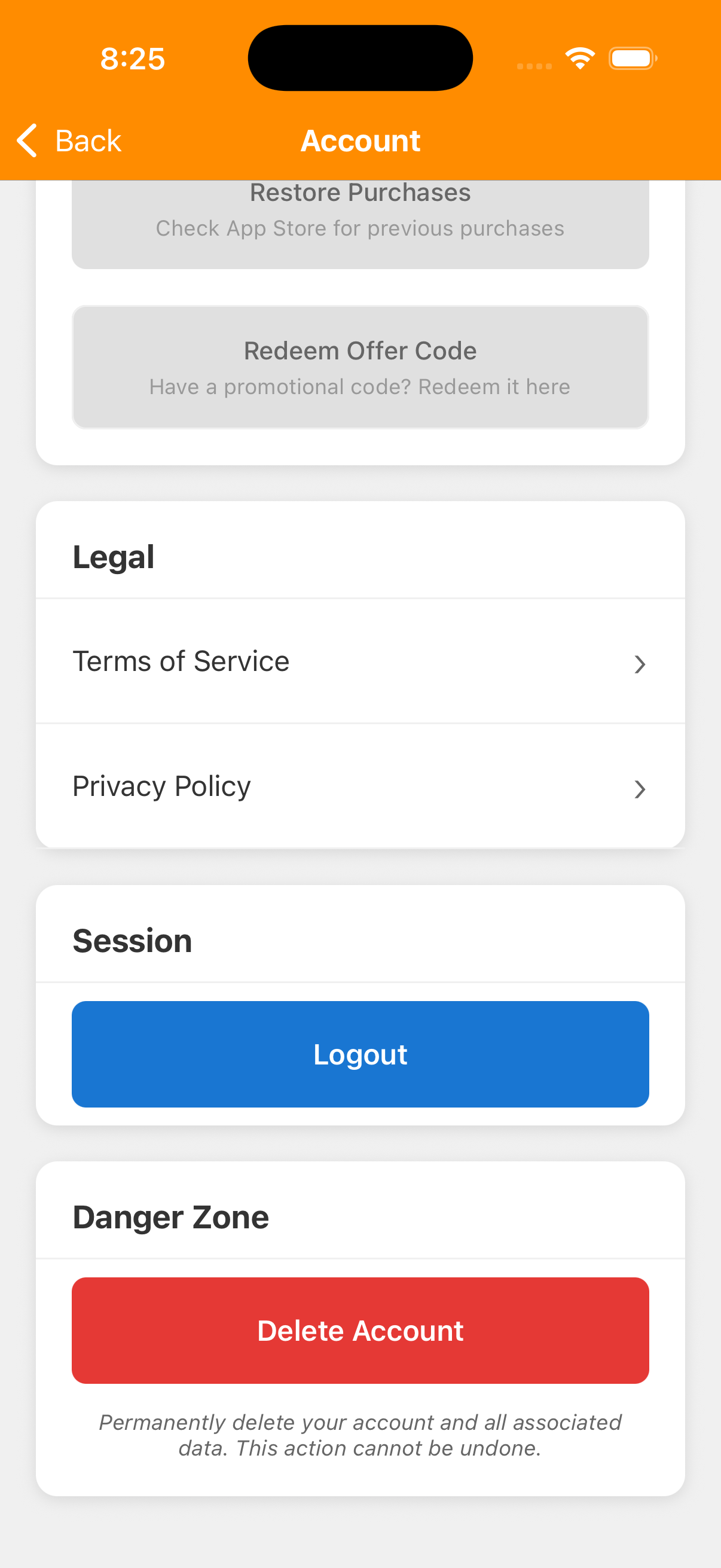
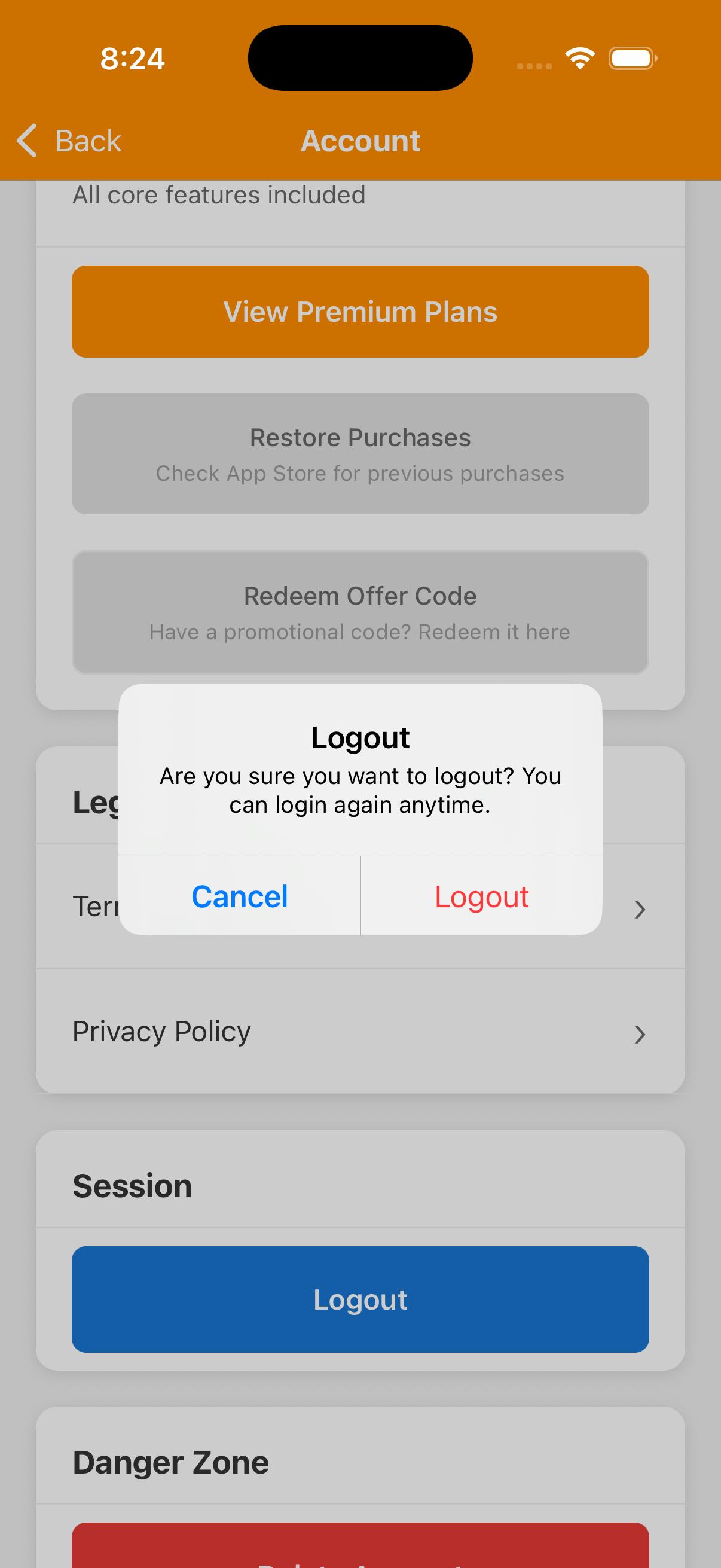
- Under Session, tap Logout.
- Read the confirmation and choose Cancel to stay signed in, or Logout to sign out of the mobile app.
You will need to sign in again to use the account.
Mobile Logout does not delete your account or its saved activities. It retains local account data for signing back in, so it is not a way to erase this device's stored progress. It does not cancel a store subscription or sign out every other device. Watch sign-out has different local-data behavior; do not assume these mobile instructions apply to it.
If Sign-out issue appears, read it and use Try Again if needed. A sign-out error can mean the signed-out state was not fully saved; closing the app is not a substitute for resolving it.
Section 06
Before deleting your account.
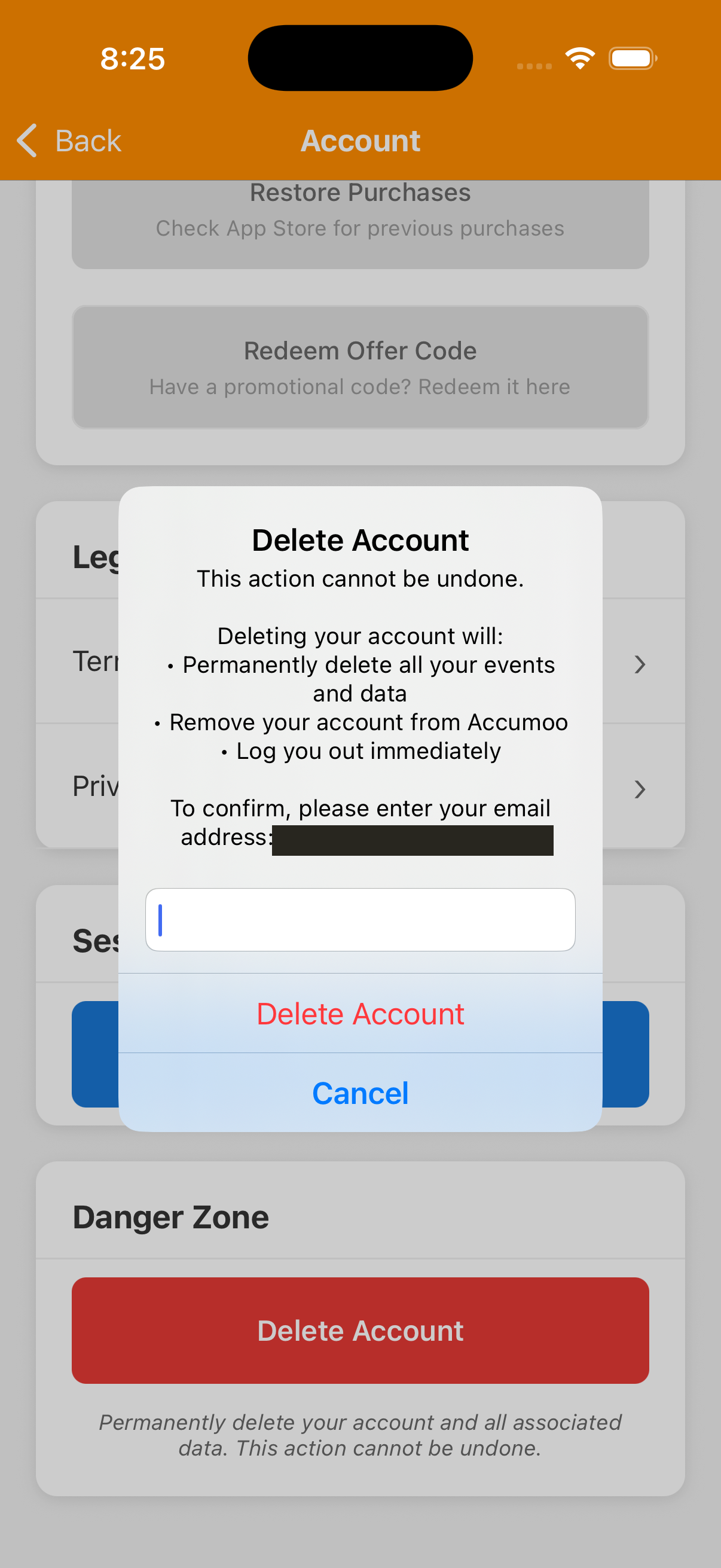
Delete Account is under Danger Zone. It removes your Accumoo account access and associated Accumoo data; the app treats it as permanent, with no Undo. If Accumoo is your only linked Mohojo Werks app, the shared account is also removed. Use Logout if your intention is simply to end this session.
Deletion needs a connection to the server. The confirmation asks you to enter the email shown for your Accumoo account. Choose Cancel to leave it unchanged. Only confirm Delete Account if you intend the permanent removal described in the prompt. This guide does not ask you to try it.
If you have a recurring subscription, review its status with Apple separately before removing your account. Use the subscription guidance above to manage renewal; do not assume deletion cancels billing.
Account and subscriptions
Nice work!
You've finished this topic. Choose another whenever you're ready.
Back to all topics