

In Accumoo, open More → Preferences. Choices save as you select them; there is no separate Save button. To undo a choice, select its previous value.
These screenshots show example settings. Your saved choices may differ.
Default values are listed below. Keep or change them to suit you.
Section 01
Choose a theme and card spacing.
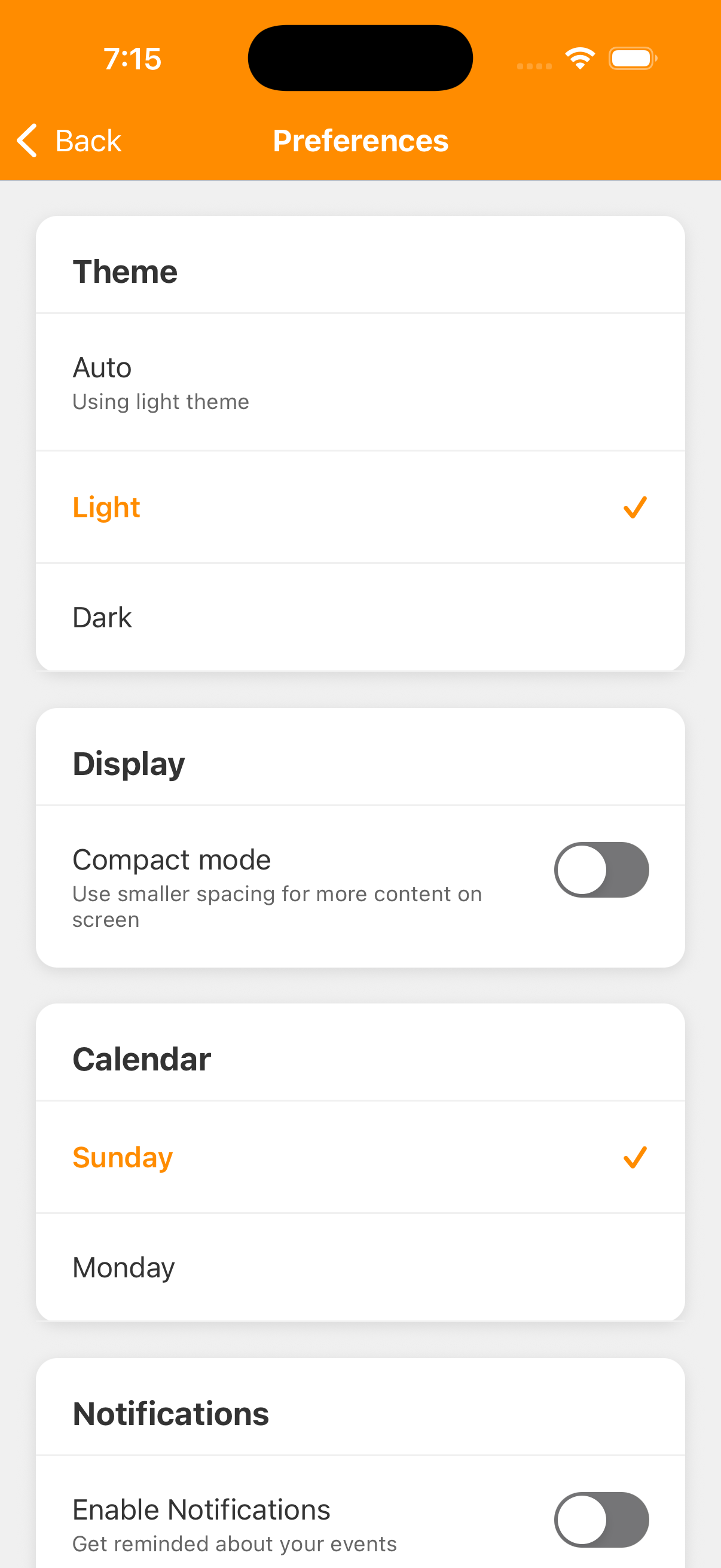
At the top of Preferences, choose an appearance and the spacing that feels comfortable. Neither setting changes your recorded activity.
- Theme
- Choose Auto to follow your device's light or dark appearance, Light to keep a light background, or Dark to keep a dark one. The starting default is Light. Tap a different option whenever you want to switch.
- Compact mode
- Under Display, turn this on for smaller spacing and more content on screen. It starts off. Turn it off again if you prefer more breathing room.
Section 02
When does your week begin?
- Under Calendar, choose Sunday or Monday to match how you plan your week.
- Check your weekly activities after changing the start day.
The starting default is Sunday. This choice helps determine weekly period boundaries, including when weekly activities start fresh. It is more than a visual calendar preference; do not use it to correct an individual History entry.
If you plan from Monday through Sunday, choose Monday. A weekly goal still counts activity across its week; this does not turn it into a requirement to do the activity on every day. See the alternative Event setups for different ways to set a goal.
Section 03
Enable notifications.
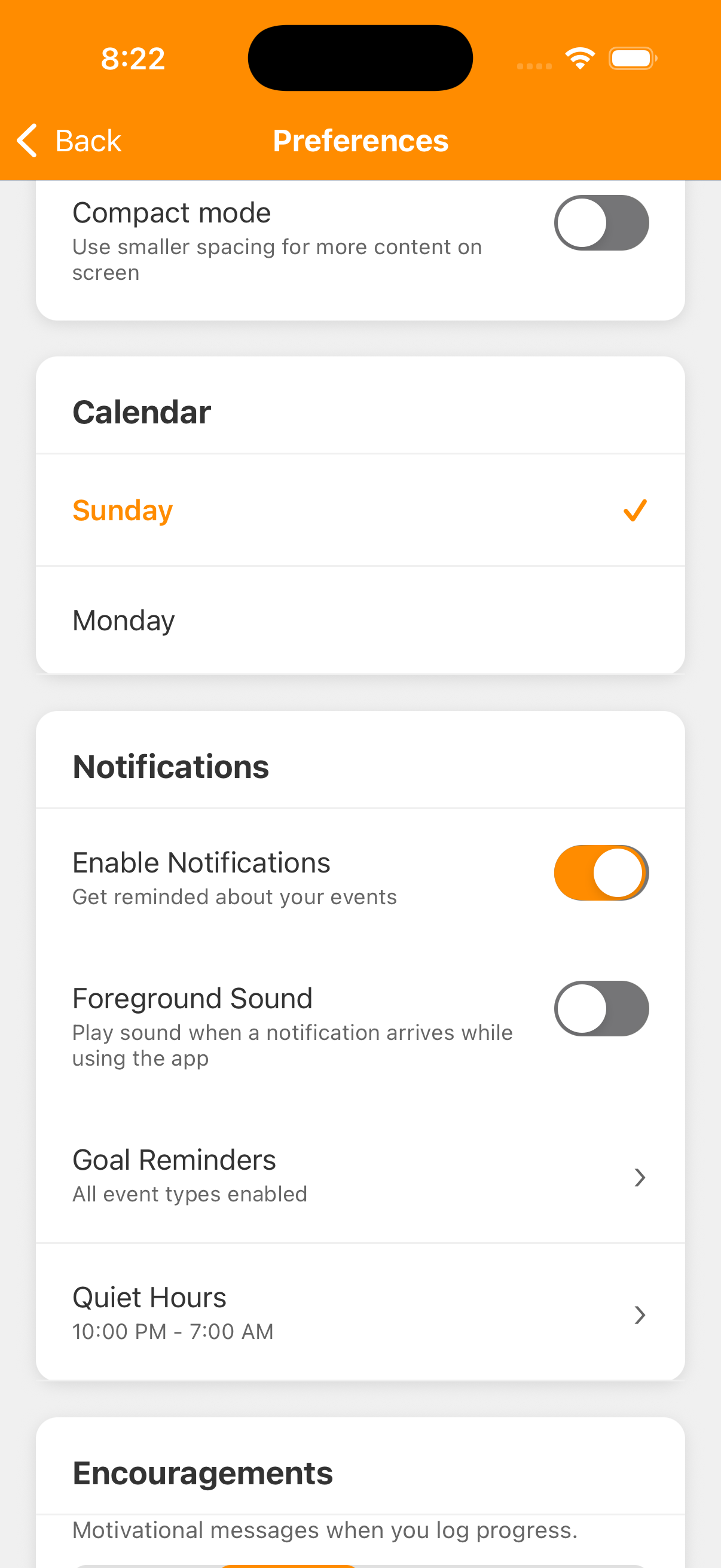
- Under Notifications, turn on Enable Notifications if you want reminders.
- If your device asks whether Accumoo may send notifications, choose Allow if that is what you want.
Both the Accumoo switch and your device's permission must be enabled.
- Enable Notifications
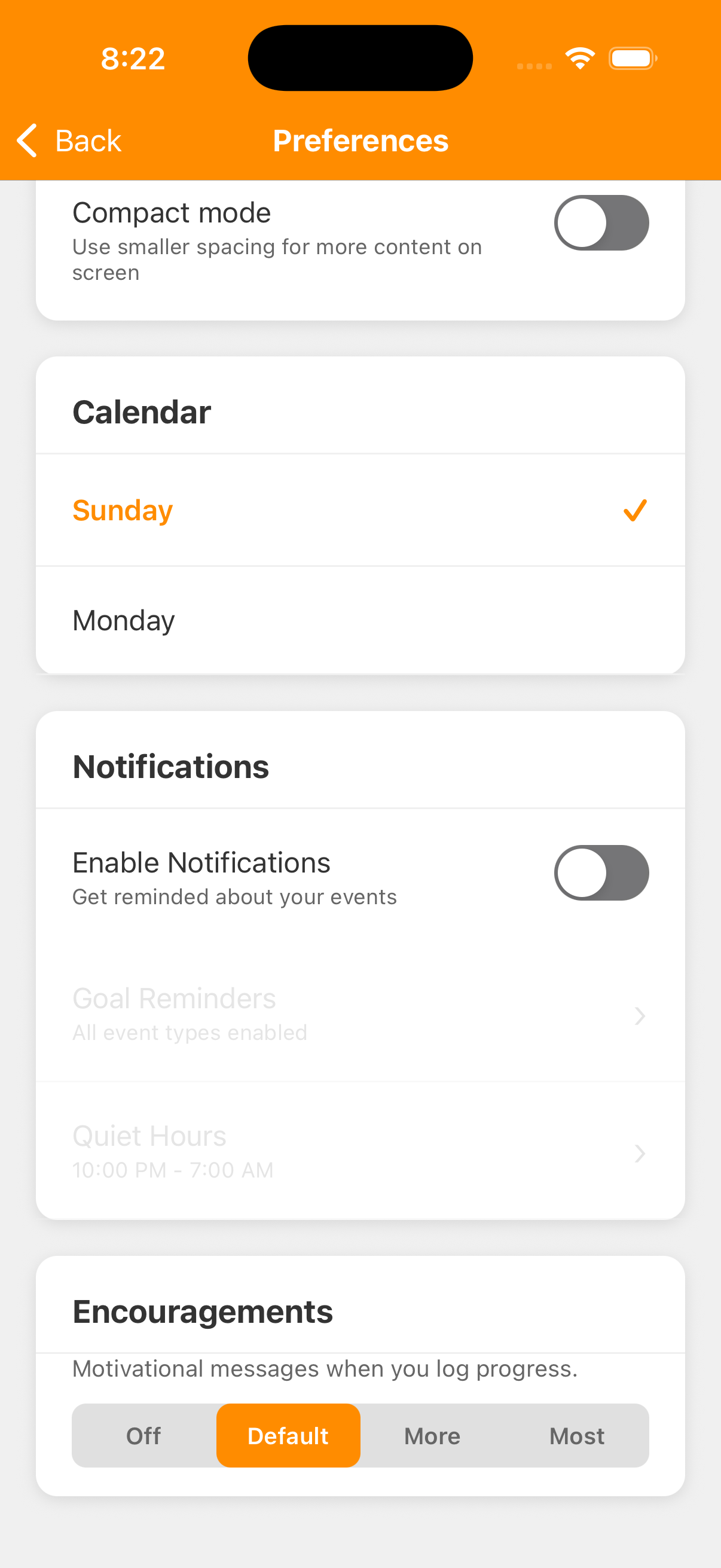
- Starts off. Turning it off stops Accumoo's scheduled reminders without changing your goals or stopping you from recording activity. Turn it on again to use reminders. The separate device permission is managed in your device's Settings.
- Foreground Sound
- Appears when notifications are enabled and permission is granted. Turn it on to allow sound when a notification arrives while you are using Accumoo. It starts off. Turn it off again for a quieter experience while the app is open; your device's sound controls still apply.
Goal Reminders and Quiet Hours stay visible but are unavailable until notifications are enabled and permission is granted. If permission was denied, use Accumoo's system-settings prompt to open Settings and review notification permission there. Focus modes and device notification settings can also affect what you receive.
Section 04
Set reminders for your goals.
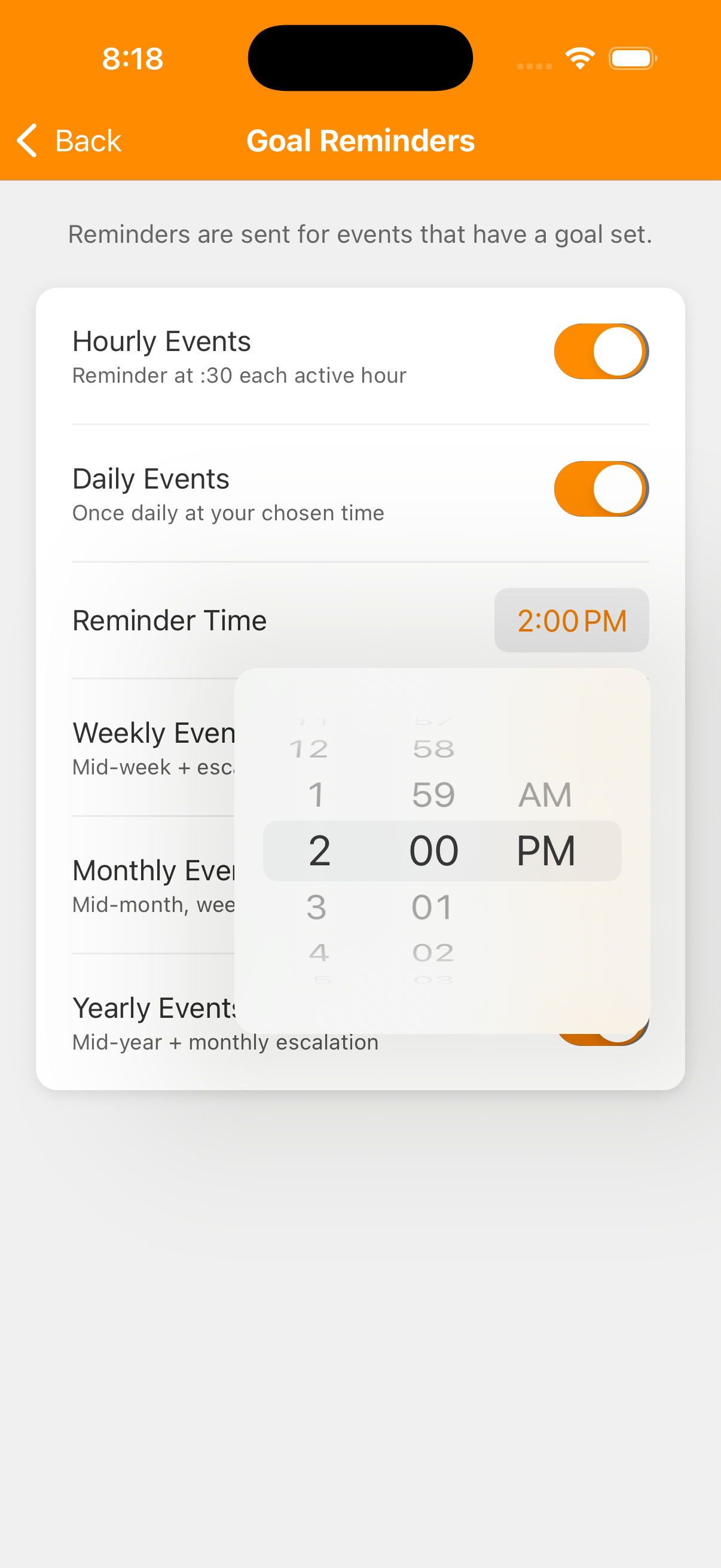
- In Preferences, tap Goal Reminders.
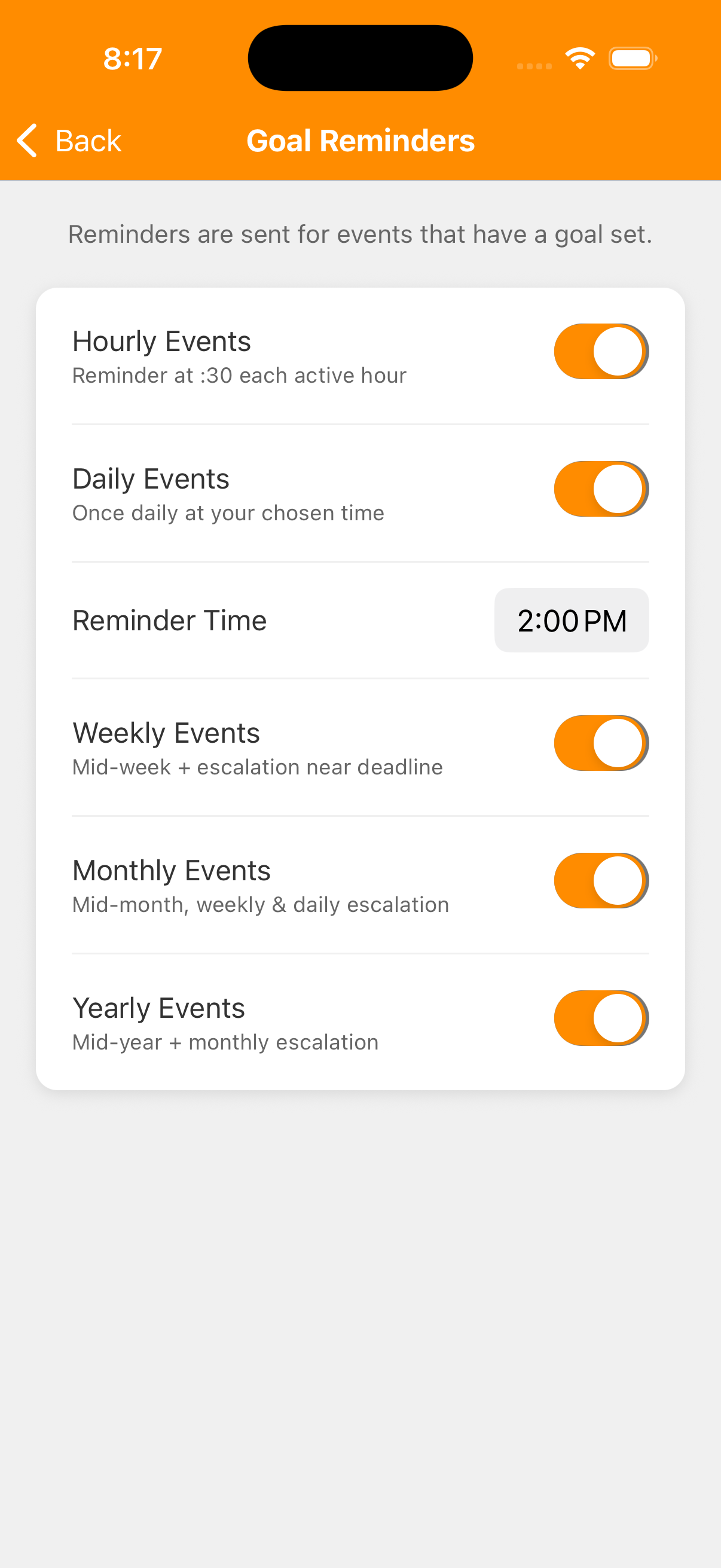
- Turn a period switch off to stop those reminders, or on to allow them again.
Each switch controls reminders for a type of reset period. All five period switches start on, but they do not send anything while Enable Notifications is off.
- Hourly Events
- Reminders at :30 during active hours for eligible hourly goals.
- Daily Events
- One daily reminder at your chosen time for eligible daily goals. Turning this off also hides the Reminder Time control.
- Reminder Time
- Shown while Daily Events is on. Tap the time to change it using the device's time picker. It starts at 2:00 PM; this controls the daily reminder, not every reminder type.
- Weekly Events
- A reminder around the middle of the week, with further reminders as the deadline approaches if the goal is still unmet.
- Monthly Events
- A reminder around the middle of the month, with weekly and then daily reminders closer to the deadline if needed.
- Yearly Events
- A reminder around the middle of the year, with monthly reminders later if the goal is still unmet.
Which activities receive goal reminders?
These reminders are for activities with a goal and a reset schedule. A Counter without a target, or an activity with Never for Reset Period, is not a goal-reminder example. Paused, archived or deleted activities, and goals already met for the relevant period, are not eligible. Active days, quiet hours and device scheduling limits also matter. You do not need to receive a notification to keep recording your activity.
For a weekday stretching goal, you might keep Daily Events on and choose a time that fits your routine. Choosing 6:00 PM here changes that daily reminder time; it does not change the goal, its active days or when its count resets.
Section 05
Set quiet hours.
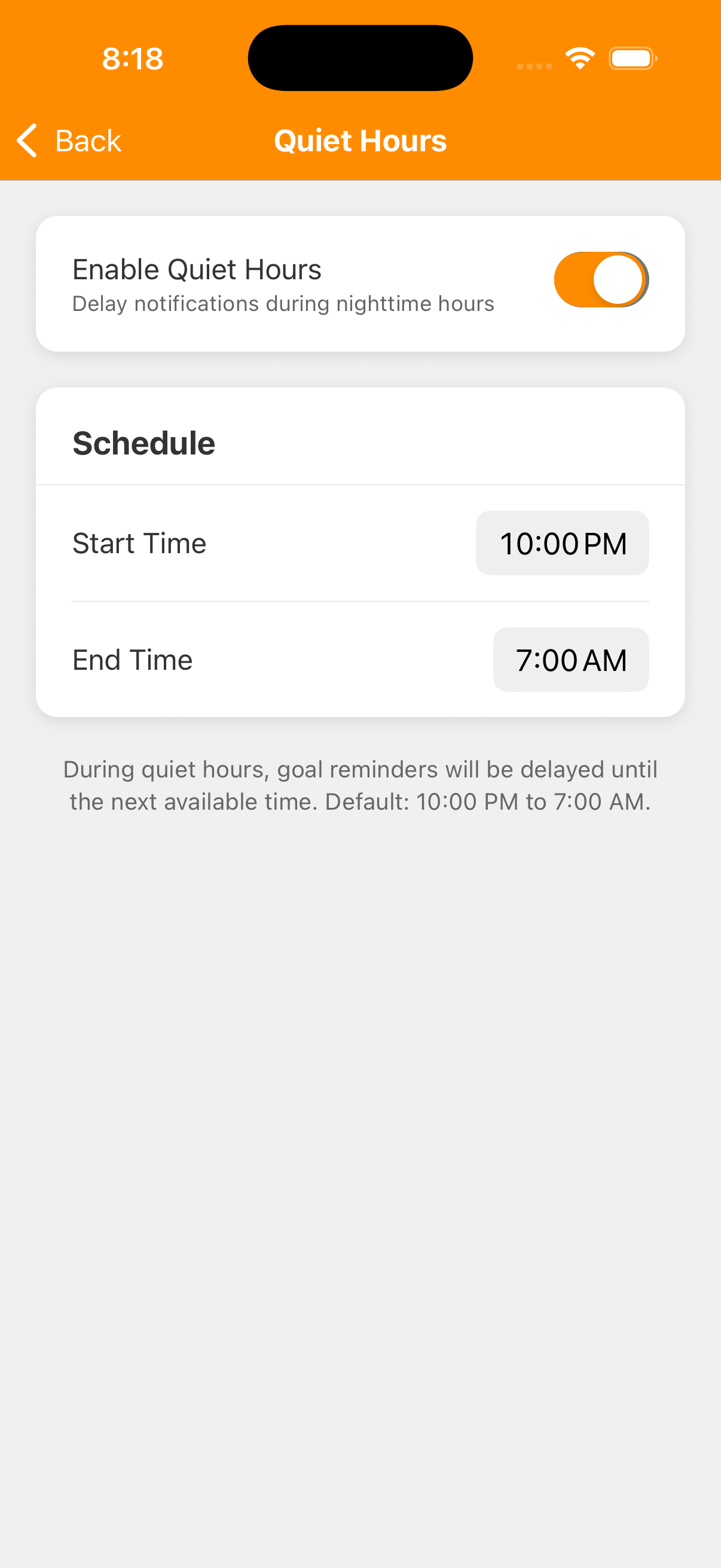
- Return to Preferences and tap Quiet Hours.
- Use the controls below to turn quiet hours on and choose the start and end times.
This delays scheduled reminders that fall within your quiet window. The window can cross midnight, so an evening start and morning end are fine.
- Enable Quiet Hours
- Starts on. Turn it off to stop applying the quiet window. Turn it on again to use the saved schedule; the time controls appear while it is on.
- Start Time
- Tap to choose when the quiet window begins. The starting default is 10:00 PM.
- End Time
- Tap to choose when the quiet window ends. The starting default is 7:00 AM. Choose an end time different from the start time; equal times are rejected.
With 10:00 PM to 7:00 AM, a reminder scheduled during that window is moved until quiet hours end. A reminder may no longer be relevant by then, so this does not promise that every delayed reminder will arrive at 7:00 AM. Quiet hours do not pause your activities or stop you from recording counts.
Section 06
Choose encouragement messages.
- Back in Preferences, scroll to Encouragements.
- Choose Off for none, Default for the usual level, or More or Most for more frequent opportunities to see one.
These are motivational messages inside Accumoo when you log progress. The starting default is Default. Choose another level at any time to change it back.
Messages have a cooldown and a limit per session, so even Most does not mean a message after every tap. This setting is separate from notification permission and goal reminders. Turning it off does not turn off every achievement celebration.
Section 07
Find other settings.
Accumoo syncs several saved preferences with your account, but do not assume every device changes immediately. Foreground Sound and Encouragements are local app choices; notification permission belongs to each device. The Watch has its own settings and does not show a copy of all the phone's Preferences controls.
An activity's Name, Description, Goal, Active Days and Reset Period belong to its setup; see Best Practices. Show History Detail and Include Ignored Periods belong to their History and Statistics views; see History and ignored periods.
Profile details, subscriptions, purchases, signing out and deleting an account live under Account, separate from Preferences. This guide does not ask you to make a purchase or change your account. The website's Animation settings control affects this website, not Accumoo's reminders or encouragements.
If you see a loading or saving error, return to Preferences and check the selected value before trying again. A choice being saved on this device does not confirm sync to another device or guarantee notification delivery.
Preferences
Nice work!
You've finished this topic. Choose another whenever you're ready.
Back to all topics