
How-to guide

Read your history.
Understand your results.

Review recorded activity and past days, weeks or other periods. Use Ignore or Undo Ignore to choose which periods Statistics includes.

  • History reference
  • Pictures from Accumoo 1.9
Before you begin

Use an activity you already track. The screenshots show example data; your names, dates and counts will differ. Only use Ignore if you want to exclude an eligible past period from Statistics.

Section 01

Open an activity's History.

  1. On Events, tap the activity's name or card body, away from its counting buttons.
  2. Choose History in the menu.
  3. Check the History screen title and activity name before making a change. The Challenges screen looks similar; this guide starts from Events.

This menu belongs to Books Finished, our Lifetime Counter. It shows where to find History. Later pictures use a different, daily activity because an activity set to Never for Reset Period has no ended daily or weekly periods to ignore.
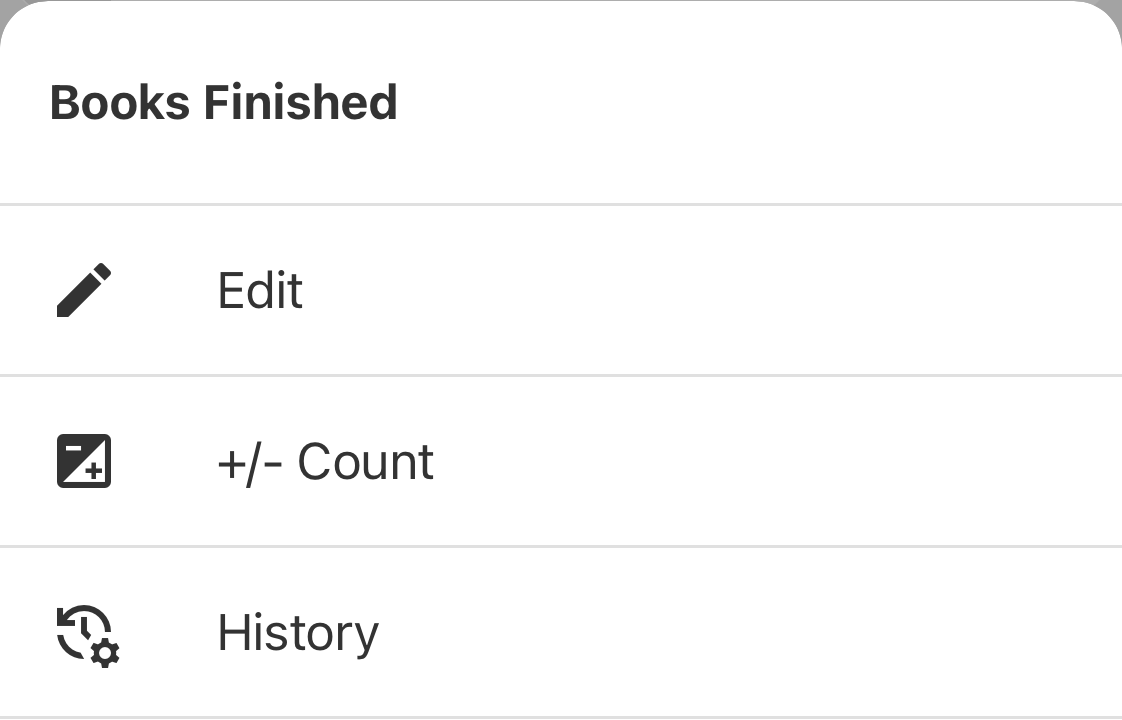
Books Finished activity menu with History below Edit and +/- Count.
Tap History in the activity's menu. This Lifetime Counter is a navigation example; the Ignore example below uses an activity that resets daily.
Open full-size screenshot: Activity menu — find History (new tab)

Activity menu — find History

Zoom in for a closer look, then scroll the image.

Books Finished activity menu with History below Edit and +/- Count.

Section 02

Read changes and ended periods.

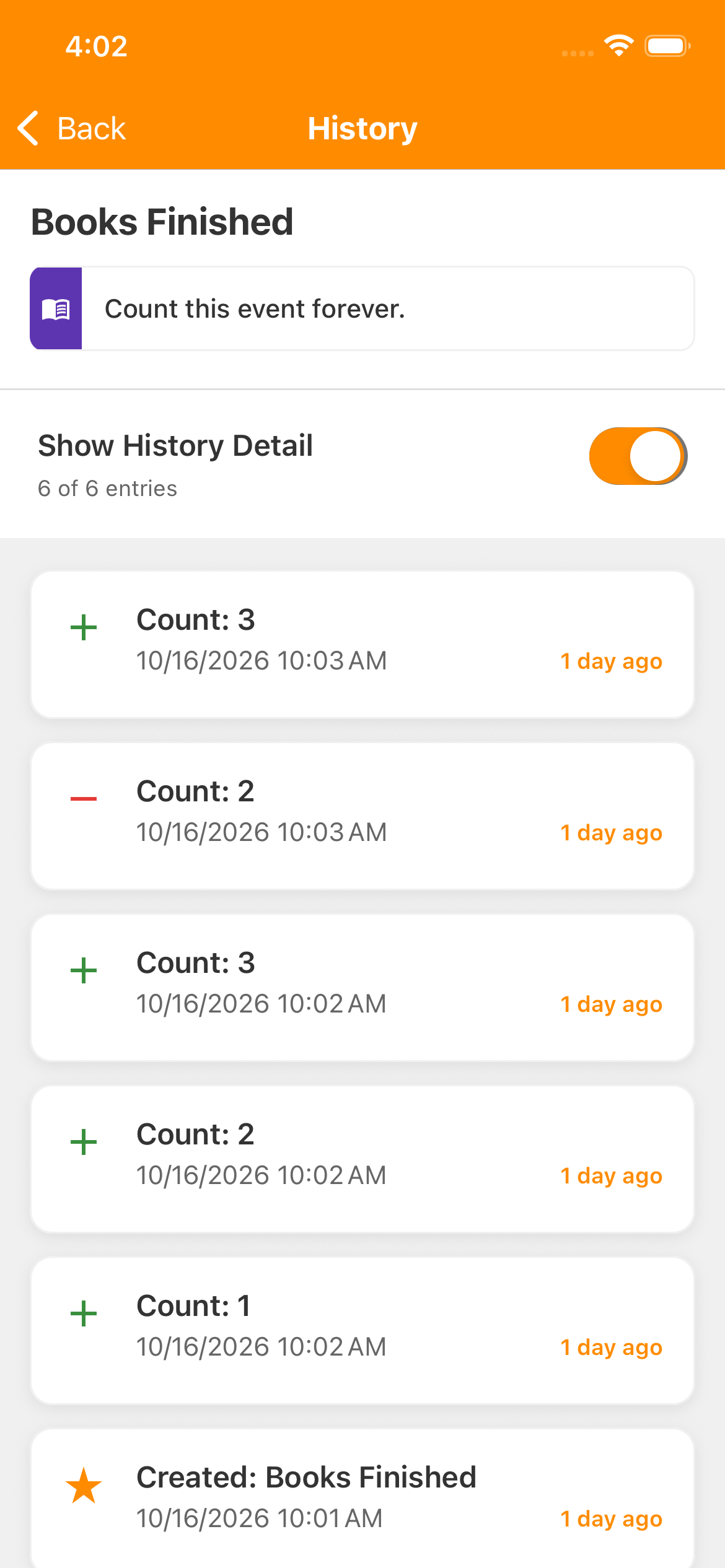
History lists newer entries first. With Show History Detail off, you see key entries such as creation and relevant ended periods. Turn it on to see available count changes, edits and ignored periods too. This changes what you see; it does not change your counts or erase entries.
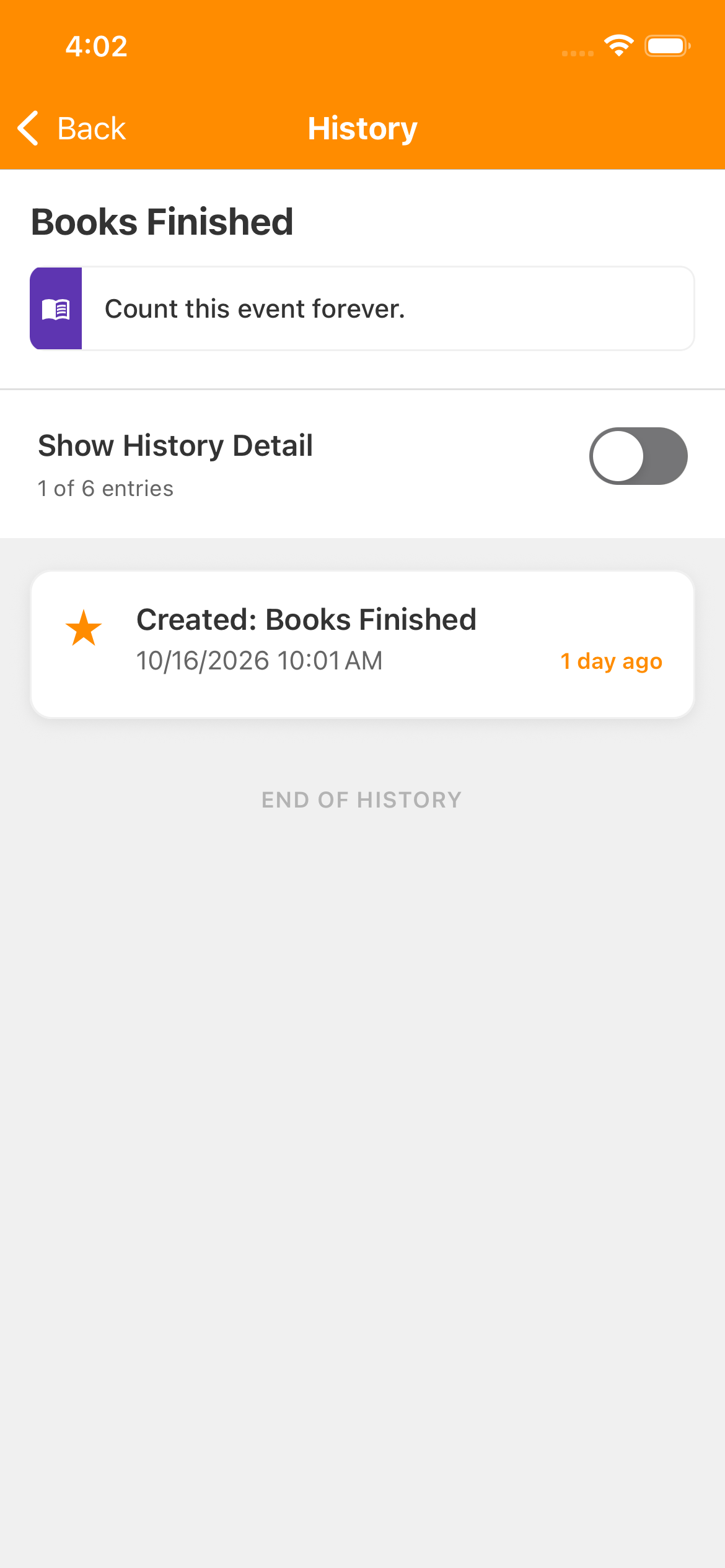
History screen for Books Finished with Show History Detail off and only its Created entry visible.
Detail off: this Lifetime activity shows its creation entry. Hidden detail has not been deleted.
Open full-size screenshot: History — detail off (new tab)

History — detail off

Zoom in for a closer look, then scroll the image.

History screen for Books Finished with Show History Detail off and only its Created entry visible.
History screen for Books Finished with Show History Detail on, showing creation and count changes leading to a total of 3.
Detail on: the recorded count changes become visible. Your activity's entries may differ.
Open full-size screenshot: History — detail on (new tab)

History — detail on

Zoom in for a closer look, then scroll the image.

History screen for Books Finished with Show History Detail on, showing creation and count changes leading to a total of 3.

In this Lifetime example, the filtered view shows Created. With detail on, it also shows the recorded changes that brought Books Finished to 3. An Initial Count is a starting balance, not a separate dated entry for every book already read.

For an activity that resets, an entry such as Day ended (0/3) describes a past period: zero recorded toward a goal of three. Read the status badge. INCOMPLETE means the recorded count did not reach the goal; COMPLETED means it did. The check-shaped period icon alone does not mean success. Read the period's date, rather than assuming it is today.
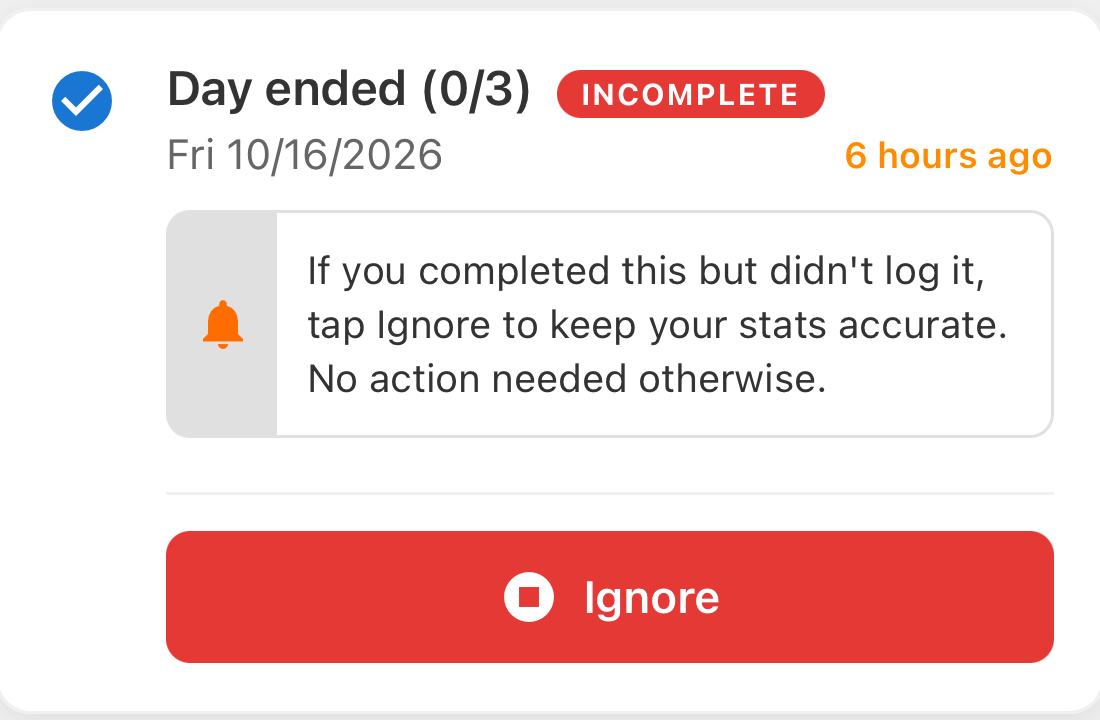
Cropped History card dated Friday October 16, 2026, saying Day ended (0/3), INCOMPLETE, with a missed-period explanation and an Ignore button.
A different demonstration activity: this genuine ended daily period has zero recorded toward three. Read INCOMPLETE and the date; the check-shaped icon does not mean the goal was met.
Open full-size screenshot: Ended daily period — incomplete at zero (new tab)

Ended daily period — incomplete at zero

Zoom in for a closer look, then scroll the image.

Cropped History card dated Friday October 16, 2026, saying Day ended (0/3), INCOMPLETE, with a missed-period explanation and an Ignore button.

Section 03

Ignore an eligible empty period.

Perhaps you did the activity but forgot to record it, and you don't want that empty period treated as a missed goal in your statistics. Ignore leaves that period out of the default calculations. It does not add the missing activity, mark the goal completed, or change your current count. If the record correctly shows a missed goal, there is nothing you need to fix.

  1. Find the ended period and check its date and count. An eligible ended period with a count of 0 offers Ignore.
  2. Tap Ignore to open Ignore this period?.
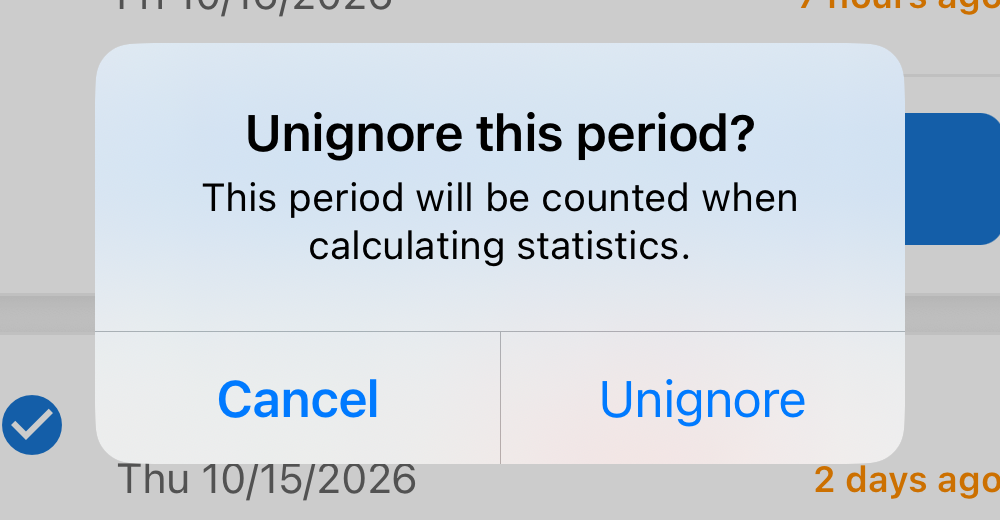
  3. Read the confirmation. Choose Ignore to apply it or Cancel to leave the record alone.
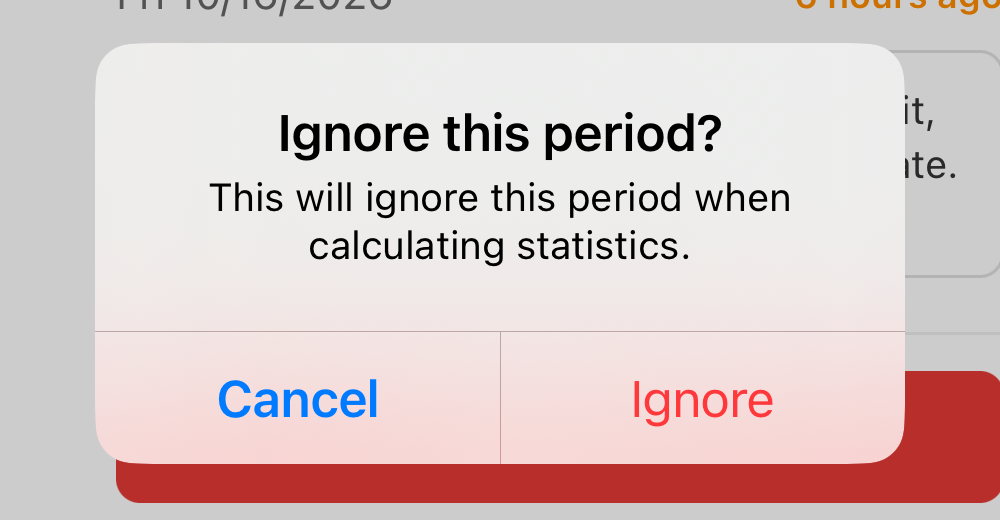
Ignore this period confirmation explaining that the period will be ignored when calculating statistics, with Cancel and Ignore buttons.
Read the confirmation before applying Ignore. Cancel leaves the period unchanged. This is a crop of the native confirmation.
Open full-size screenshot: Ignore this period — confirmation (new tab)

Ignore this period — confirmation

Zoom in for a closer look, then scroll the image.

Ignore this period confirmation explaining that the period will be ignored when calculating statistics, with Cancel and Ignore buttons.

You won't see this button on every entry. A nonzero ended period offers Edit instead; individual count changes are not ended-period cards. Paused periods are handled separately, and ended Challenges cannot be edited here. Ignore is not a general delete button.

The period becomes IGNORED and remains in History. It may disappear from the filtered view; turn on Show History Detail to find it again. For an adjustment to the current count, use the Events and corrections guide instead.

Section 04

Undo Ignore.

  1. Turn on Show History Detail and find the period you manually ignored.
  2. Tap Undo Ignore.
  3. In Unignore this period?, choose Unignore to include it again, or Cancel to keep it ignored.
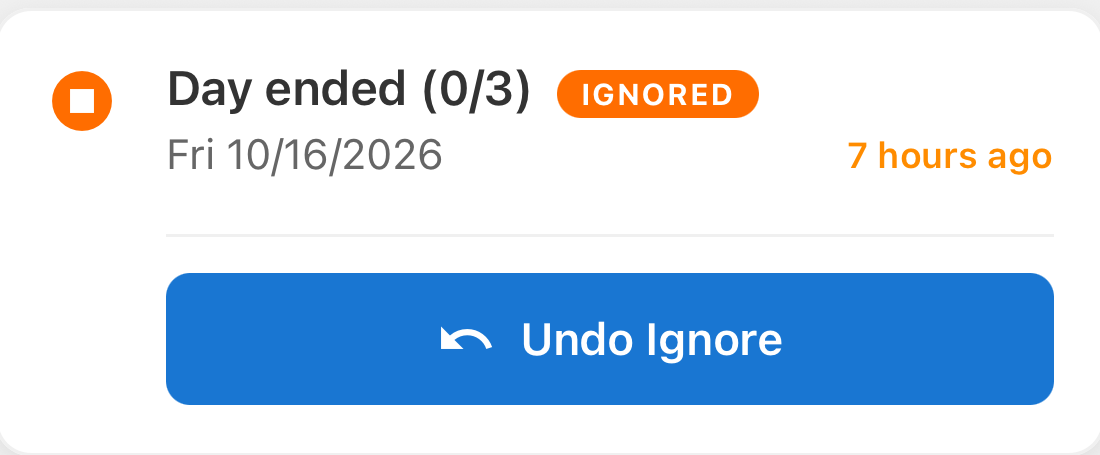
The same October 16 daily History card at 0/3, now marked IGNORED, with a blue Undo Ignore button.
With Show History Detail on, the same period is visible as IGNORED and offers Undo Ignore. Its count is still 0/3.
Open full-size screenshot: Ignored period — find Undo Ignore (new tab)

Ignored period — find Undo Ignore

Zoom in for a closer look, then scroll the image.

The same October 16 daily History card at 0/3, now marked IGNORED, with a blue Undo Ignore button.
Unignore this period confirmation explaining the period will be counted when calculating statistics, with Cancel and Unignore buttons.
Undo Ignore opens this confirmation. Choose Unignore to restore the period to the calculations. This is a crop of the native confirmation.
Open full-size screenshot: Unignore this period — confirmation (new tab)

Unignore this period — confirmation

Zoom in for a closer look, then scroll the image.

Unignore this period confirmation explaining the period will be counted when calculating statistics, with Cancel and Unignore buttons.

The period's recorded count and goal are used again. Our 0/3 period returns to INCOMPLETE—Undo Ignore does not turn it into a success. Pause-generated ignored periods do not offer Undo Ignore, and ended Challenges remain read-only.

Section 05

Choose which periods Statistics includes.

  1. Go back to the activity's menu and choose Statistics.
  2. Check the selected activity and time range.

With Include Ignored Periods off, ignored periods are excluded from the period completion calculation. Turn it on to count them as incomplete instead; that may lower the completion rate. It changes the statistics view, not the saved ignored status.
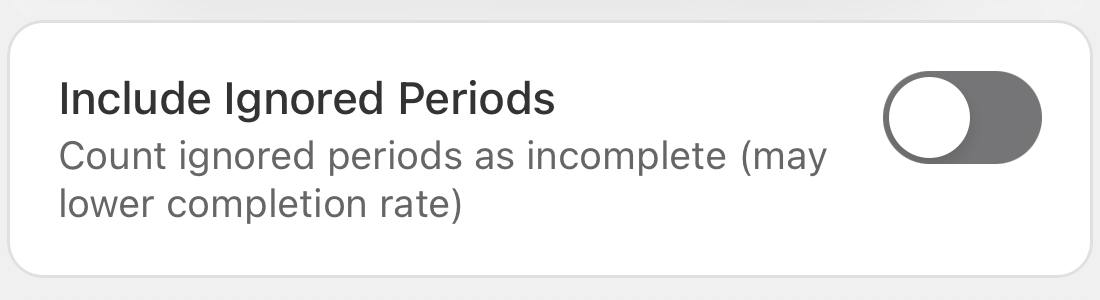
Statistics setting Include Ignored Periods switched off, with help text: Count ignored periods as incomplete, may lower completion rate.
Crop from Statistics: Include Ignored Periods is off here. Turning it on includes ignored periods as incomplete; it does not undo Ignore in History.
Open full-size screenshot: Statistics — Include Ignored Periods (new tab)

Statistics — Include Ignored Periods

Zoom in for a closer look, then scroll the image.

Statistics setting Include Ignored Periods switched off, with help text: Count ignored periods as incomplete, may lower completion rate.

Available history depends on your account: Free accounts have a 30-day history limit; Premium offers unlimited history and advanced statistics. Some charts and time-range controls may be locked on a Free account. This guide does not require an upgrade or a particular percentage in a chart.

If a change reports an error, return to History and check the period before trying again. Turn on Show History Detail if needed. A missing row in the filtered view does not mean it was deleted.

History and ignored periods

Nice work!

You've finished this topic. Choose another whenever you're ready.

Back to all topics

Terms used in the app

Accumoo terms, explained.

Select an underlined term with a question mark for a quick explanation. All the definitions are also listed below.

Event
An activity you want to track, such as reading, walking, or staying hydrated.
Template
A ready-made starting point for an activity. Review its settings and make it your own before saving.
Goal
Your target for an activity, such as one reading session each day.
Reset Period
How often the current count starts over, such as daily or weekly. Earlier activity stays in History, subject to your account's history access.
History
Your record of count changes and past days, weeks, or other time intervals. Open an activity's menu to find it.
Counter
An activity that keeps a count without a target. It can reset on a schedule or keep a running total.
Lifetime
Choose Never under Reset Period to keep one running total without an automatic reset.
Sync
Exchange saved changes with your account when online so other signed-in devices can receive them. A change can be saved on one device before it has synced.