
Set up Walk in Accumoo on your iPhone first, or use an activity you already track. The weekly walking lesson shows how. Sign in to the same Accumoo account on your phone and Watch so both can load your activities.
Section 01
Open Accumoo on your Watch.
Install Accumoo
- If Accumoo isn't on your Watch, open the Watch app on your paired iPhone.
- Under My Watch, find Available Apps (inside Apps on newer layouts).
- Tap Install beside Accumoo.
Apple's app installation help has the current installation steps.
Sign in on your Watch
- Open Accumoo on your Watch. It has its own sign-in screen.
- Use the same sign-in method you used on your phone: Sign in with Apple, or your Accumoo Email and Password.
- For email sign-in, scroll down and tap Sign In after entering both fields.
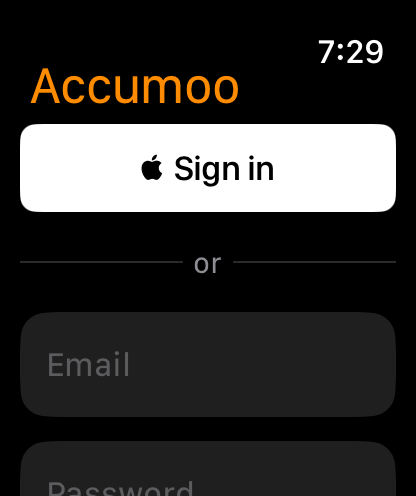
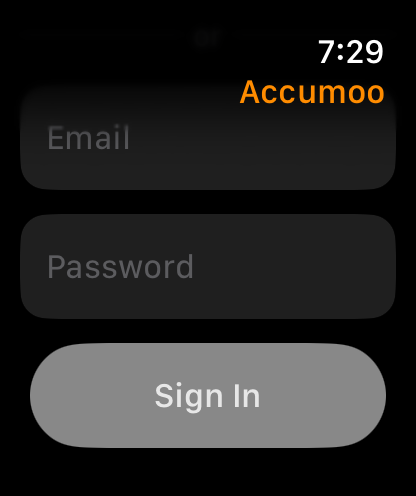
Don't create another account to connect the Watch. If you're already signed in, you'll see your activity list instead of this screen.
Section 02
Scroll to Walk.
Turn the Digital Crown or swipe up through the list to find Walk. The Watch shows activities from your account; their order may differ from the phone's grouped Events screen.
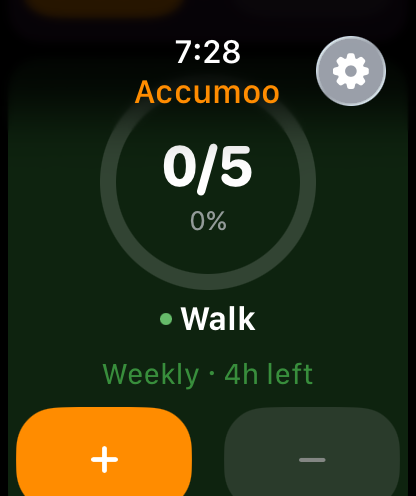
0/5 means no walks counted toward this week's goal of five. The ring and percentage show the same progress. Weekly · 4h left means time until the weekly count resets, not the length of a walk.
Keep the counting rule you chose on your phone: one count means one completed walk. Accumoo doesn't start a workout or measure steps when you tap.
Section 03
Tap + once after a walk.
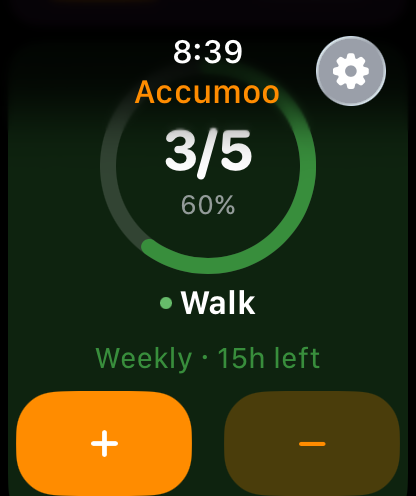
Recorded an extra walk? Tap − once to subtract it. Check the total before tapping again. It won't go below zero.
A paused activity can't be counted. Resume it in the phone app first; the Watch doesn't have pause or resume controls.
Section 04
A met goal moves to Completed.
When Walk reaches 5/5, find it farther down under Completed. It uses a compact row with a checkmark and count instead of the large ring. The picture below shows Reading at 1/1, another met goal.
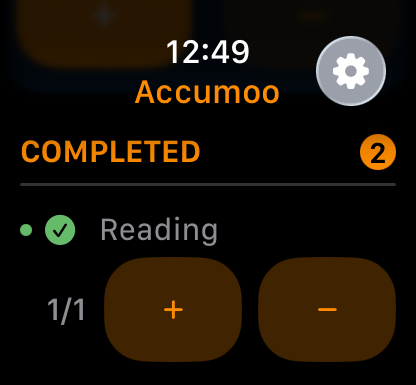
The compact row still has + and − buttons. Five walks is a goal, not a limit. If a correction takes Walk below five, it returns to the main activity list.
Section 05
Check when the Watch last synced.
- Scroll to the top and tap Last synced, or scroll to the bottom and tap Refresh.
- Wait for syncing to finish.
A successful refresh updates Last synced; a failed attempt doesn't mean your progress was uploaded.
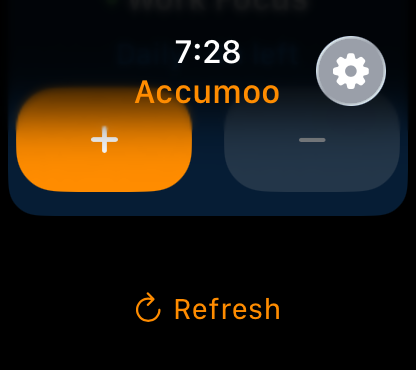
The phone and Watch each sync with your Accumoo account. A change may not appear on both immediately. Open Accumoo on the phone and let it sync too. Don't add the same walk again just because the other device still shows an older count.
Section 06
Check before recording again.
Walk is missing, or the list is empty?
Check that Walk is saved on your phone and both apps use the same account. Give the phone time to sync, then refresh on the Watch. Look under Completed too. Create or edit activities on the phone; the Watch is for viewing activities and recording what you've done.
Couldn't sync?
Check the Watch's internet connection and tap Try Again if offered. Keep any count you already recorded; don't repeat it while waiting for sync.
Watch sign-in expired?
Follow the message's Open Settings link. Before signing out, check for unsynced progress: signing out can remove changes stored only on the Watch. If sync is stopped and the app warns about pending changes, record the missing progress on your iPhone first. Then sign out and sign back in to the same account.
Need History, Statistics or activity settings?
Open Accumoo on your phone for those screens. The Watch focuses on viewing your activities, recording what you've done, and refreshing progress.
Apple Watch
Nice work!
You've finished this topic. Choose another whenever you're ready.
Back to all topics